Editor handbook
Everything you need as a writer or editor. No Git, no jargon — you write, PullPress takes care of the commits, reviews and history behind the scenes.
This handbook is for the people who create content. If you set sites up, connect repositories or define content models, see the administrator guides instead. Use the guides below — or the navigation on the left — to jump to a task.
Signing in
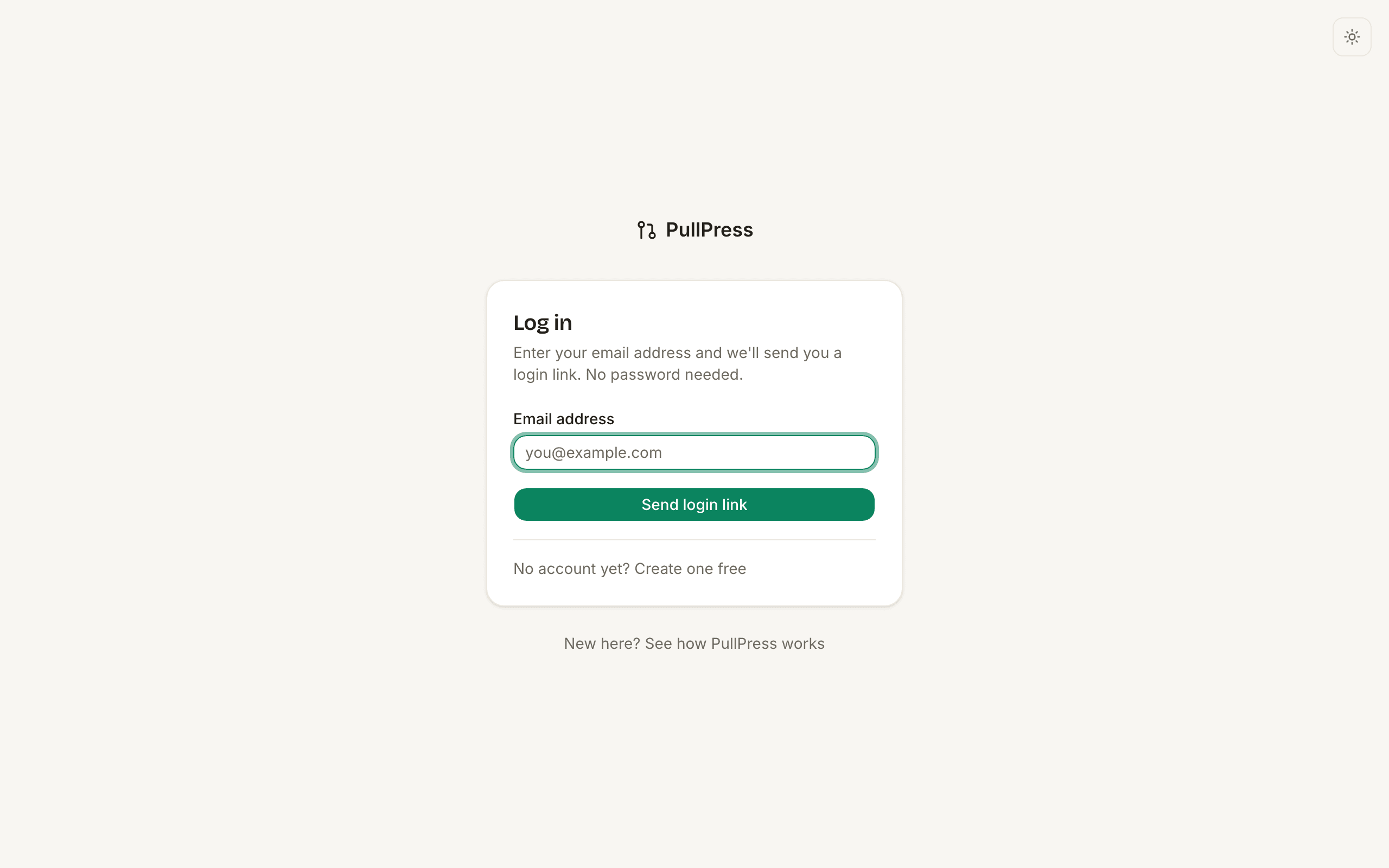
You don't need a GitHub account or a password. On the login page, enter your email address and PullPress emails you a sign-in link that's valid for ten minutes. Click it and you're in — on this device you'll usually stay signed in afterwards.
The first time you open a site you were invited to, a short welcome panel explains the whole job in three lines: write, submit, and someone on the team puts it online. Click “Got it, don't show this again” when you no longer need it.
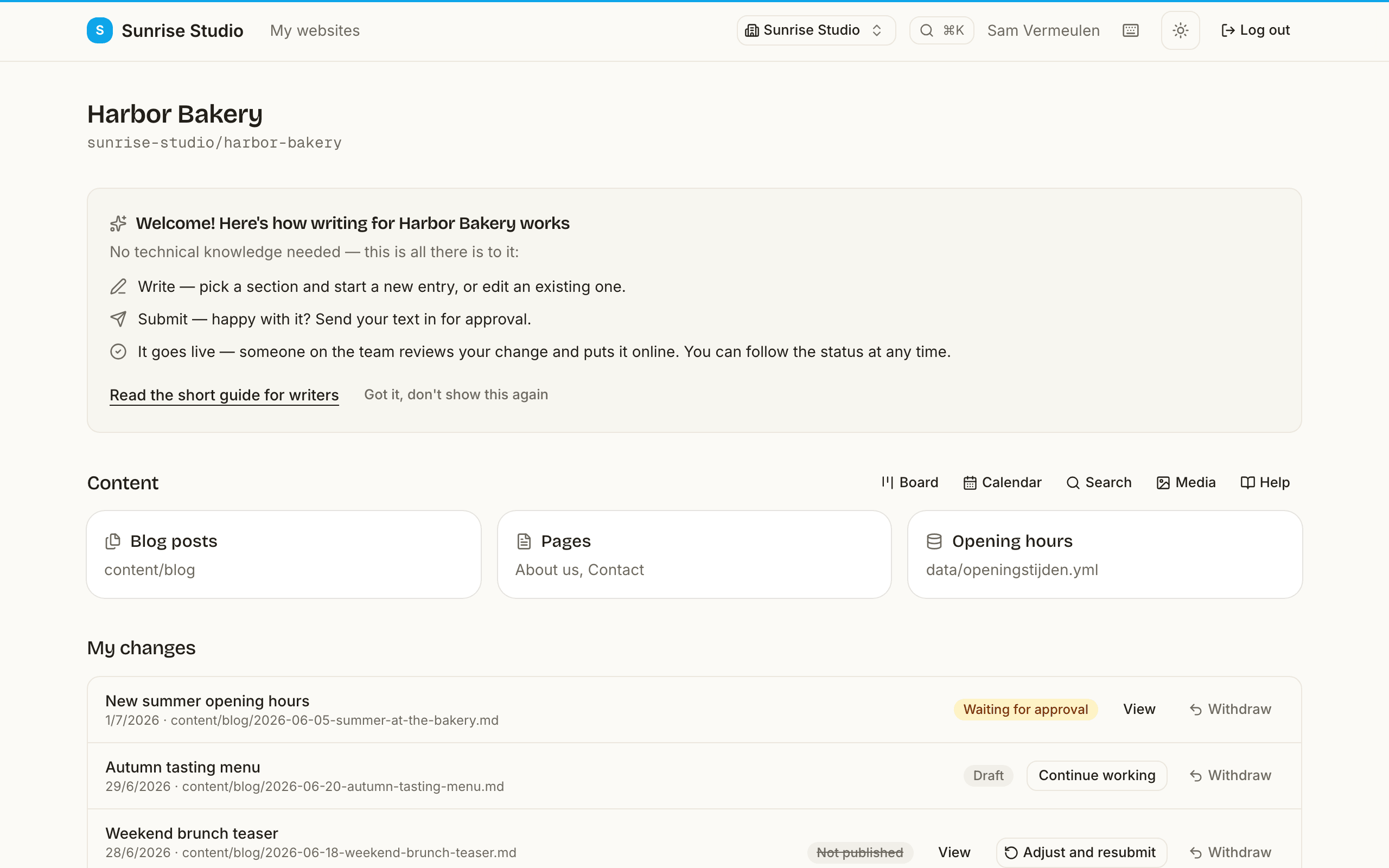
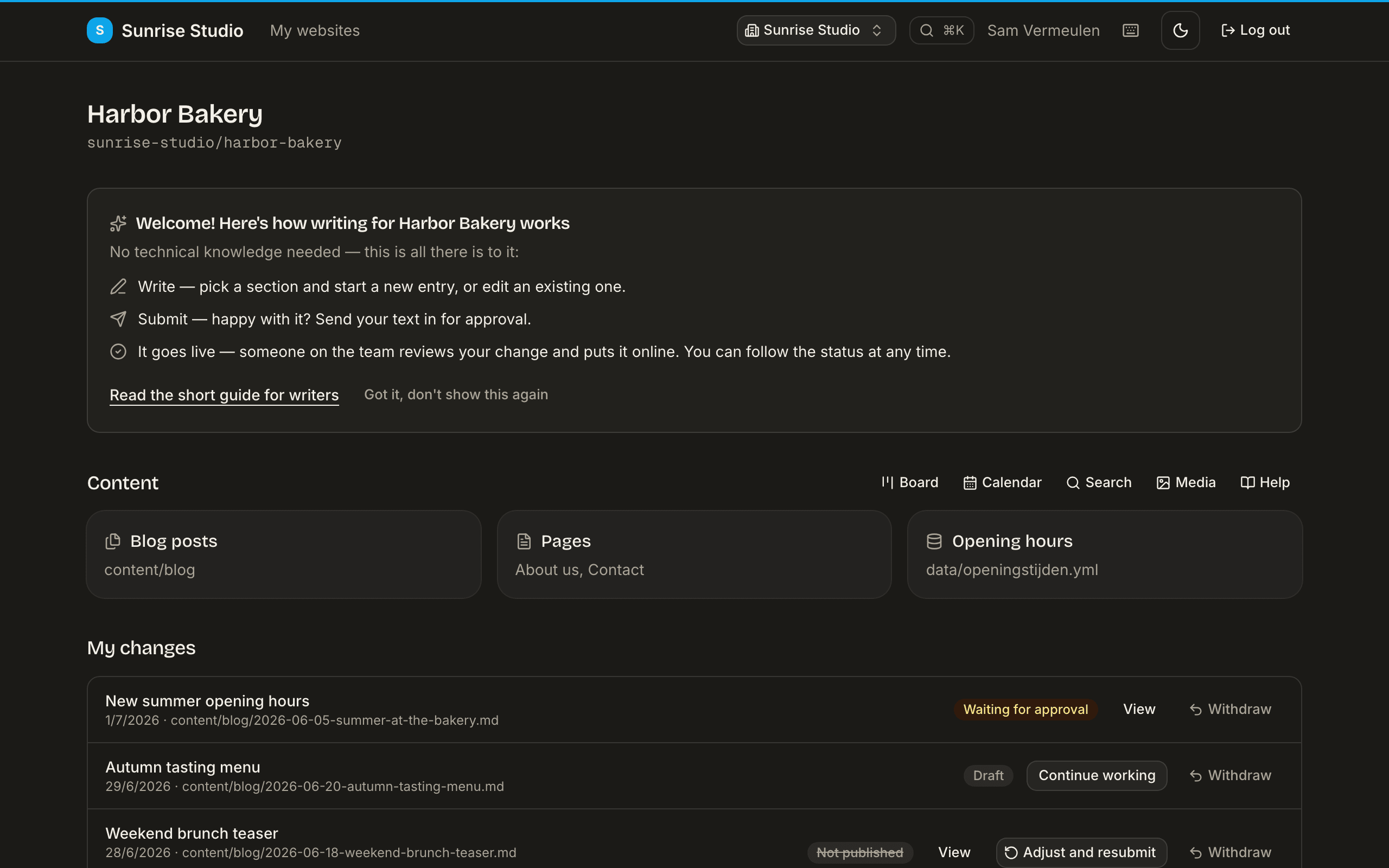
Your dashboard
After signing in you land on your dashboard. The “Needs your attention” panel at the top gathers everything waiting on you, so you rarely have to go looking:
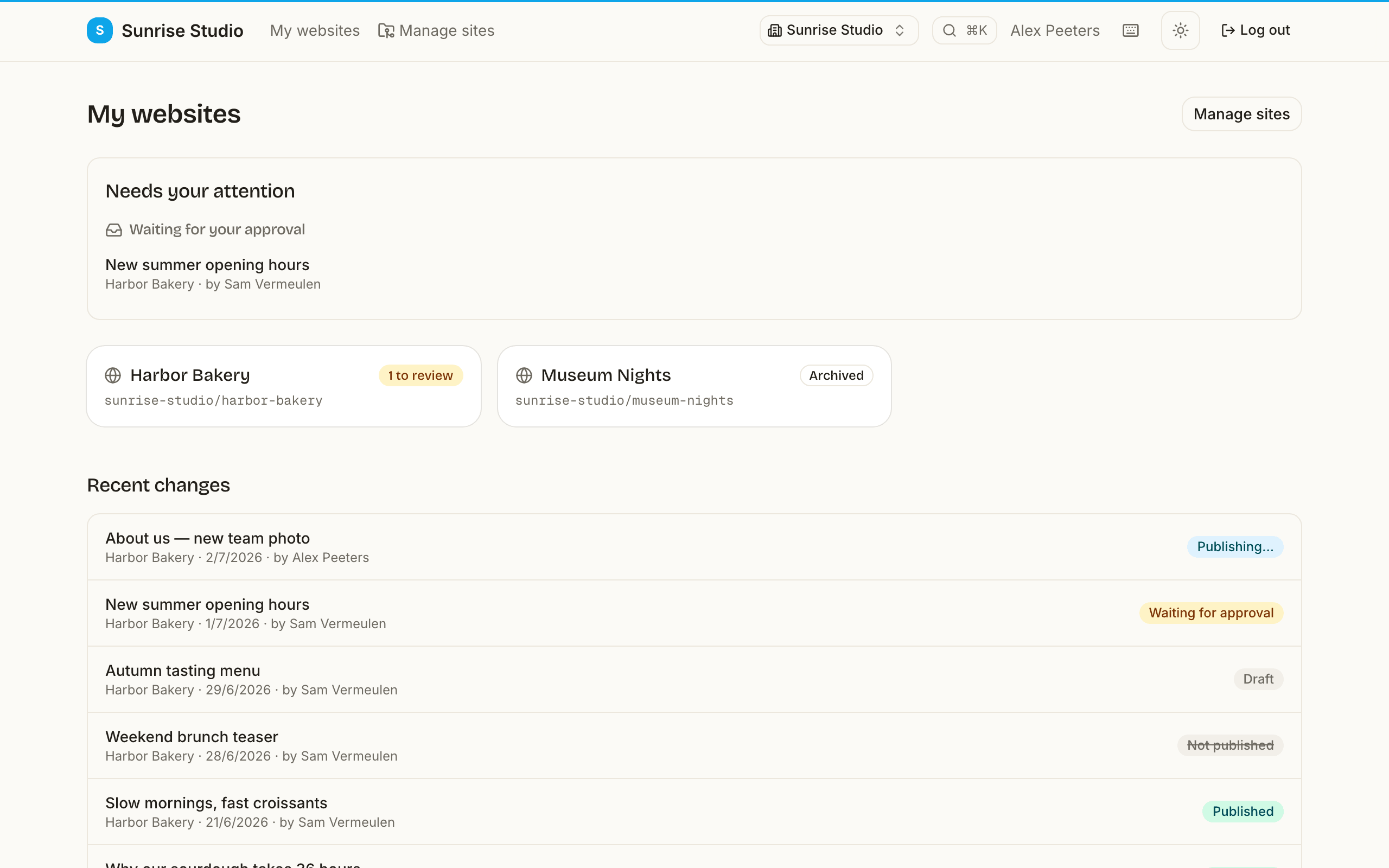
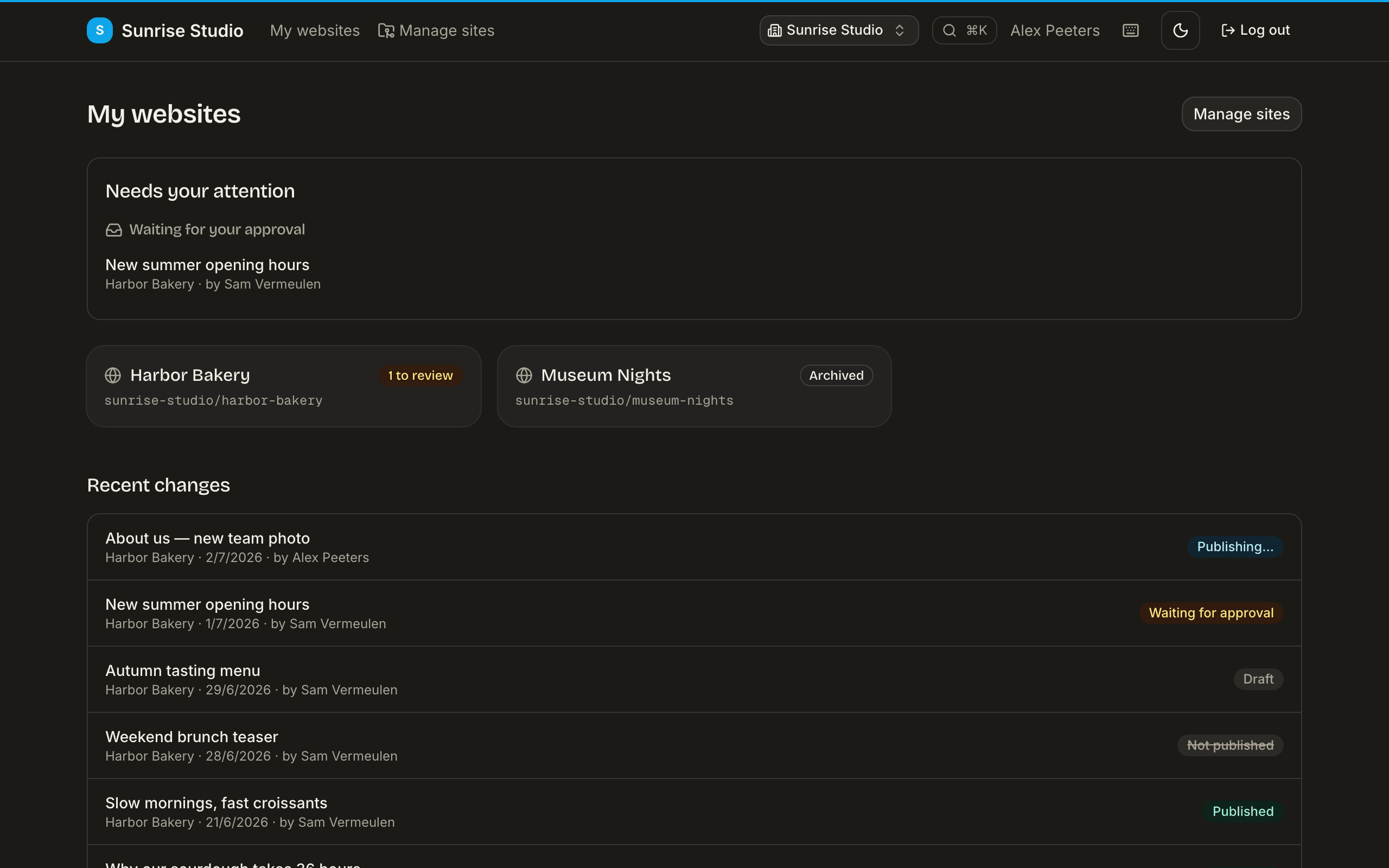
- To rework — changes an approver sent back, with their note and a button to reopen and fix them.
- Continue writing— drafts you started but haven't submitted yet.
- Waiting for your approval — if you can publish, the changes other people submitted to you.
- Scheduled — approved changes set to go live later.
- You were mentioned — comments where a colleague @mentioned you.
From the top bar you can switch workspaces (if you belong to more than one), open a site, jump anywhere with the command palette (⌘/Ctrl + K), switch the theme, and open your profile.
Finding content
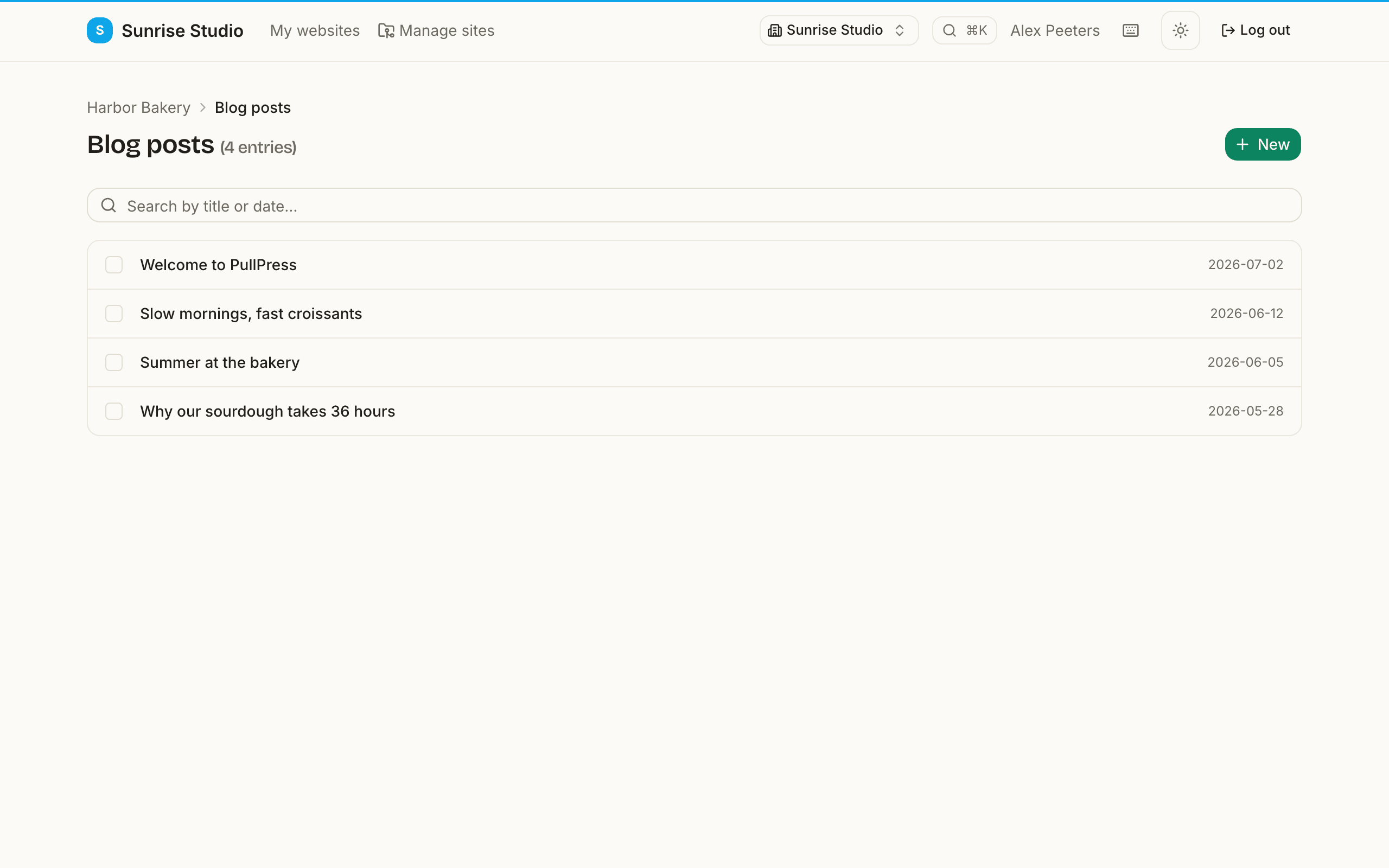
Open a site to see its collections — blog posts, pages, opening hours, team members, and whatever else your administrator set up. Inside a collection you can search and page through entries, and breadcrumbs (Site › Collection › Entry) always show where you are. To search across an entire site, use the search page; with AI enabled it also offers a semantic mode that finds content by meaning. See Shortcuts & FAQ for the details.