AI & connected assistants
Use your own AI keys, and let an assistant like Claude or ChatGPT draft content for you — never with more than your own permissions, and only with the powers you grant it.
Your own AI keys
By default PullPress's AI helpers run on our keys, and each action counts towards your workspace's monthly budget. A workspace owner or admin can instead add your own keys under Workspace settings → AI usage, so you pay your provider directly and no platform budget applies:
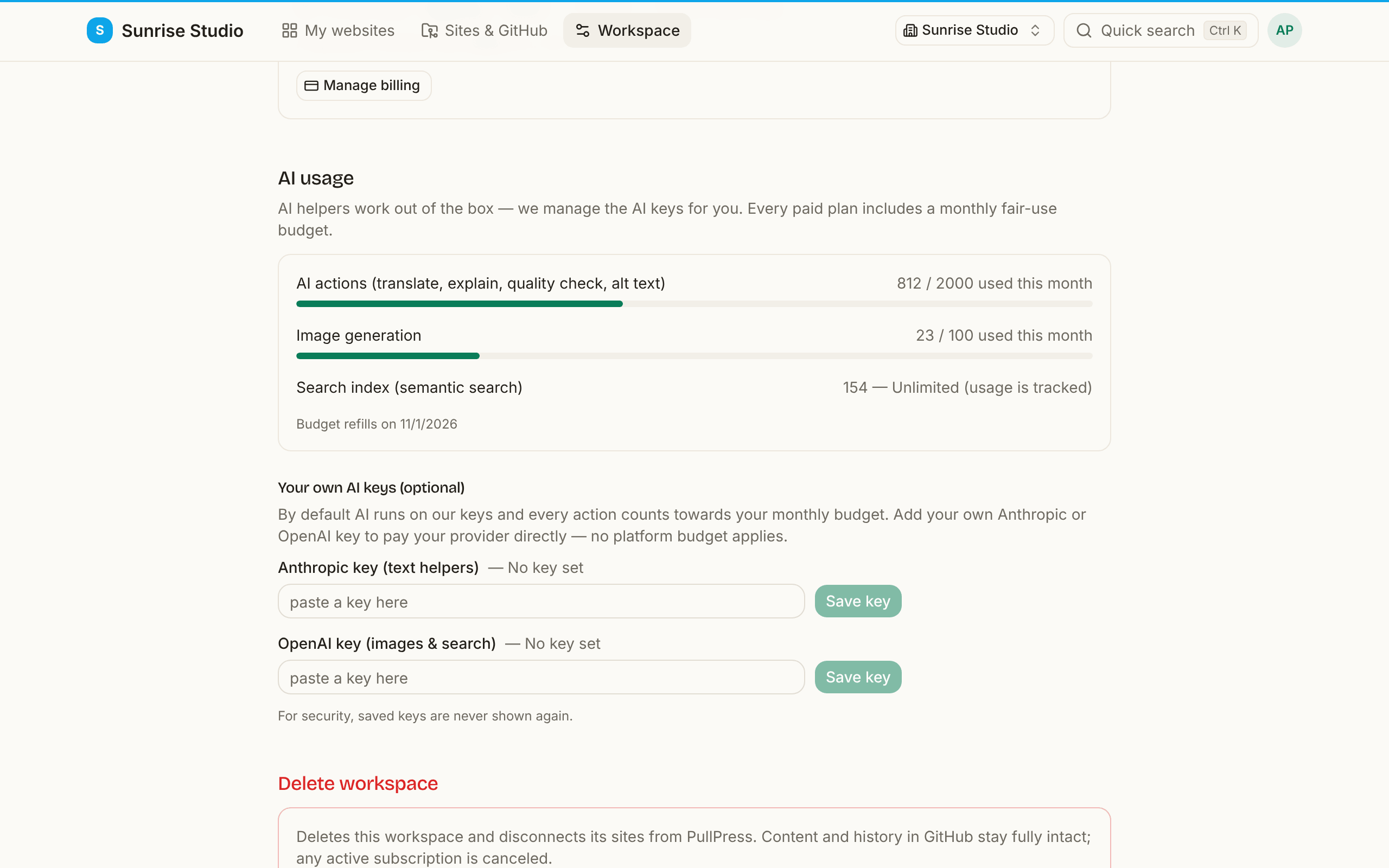
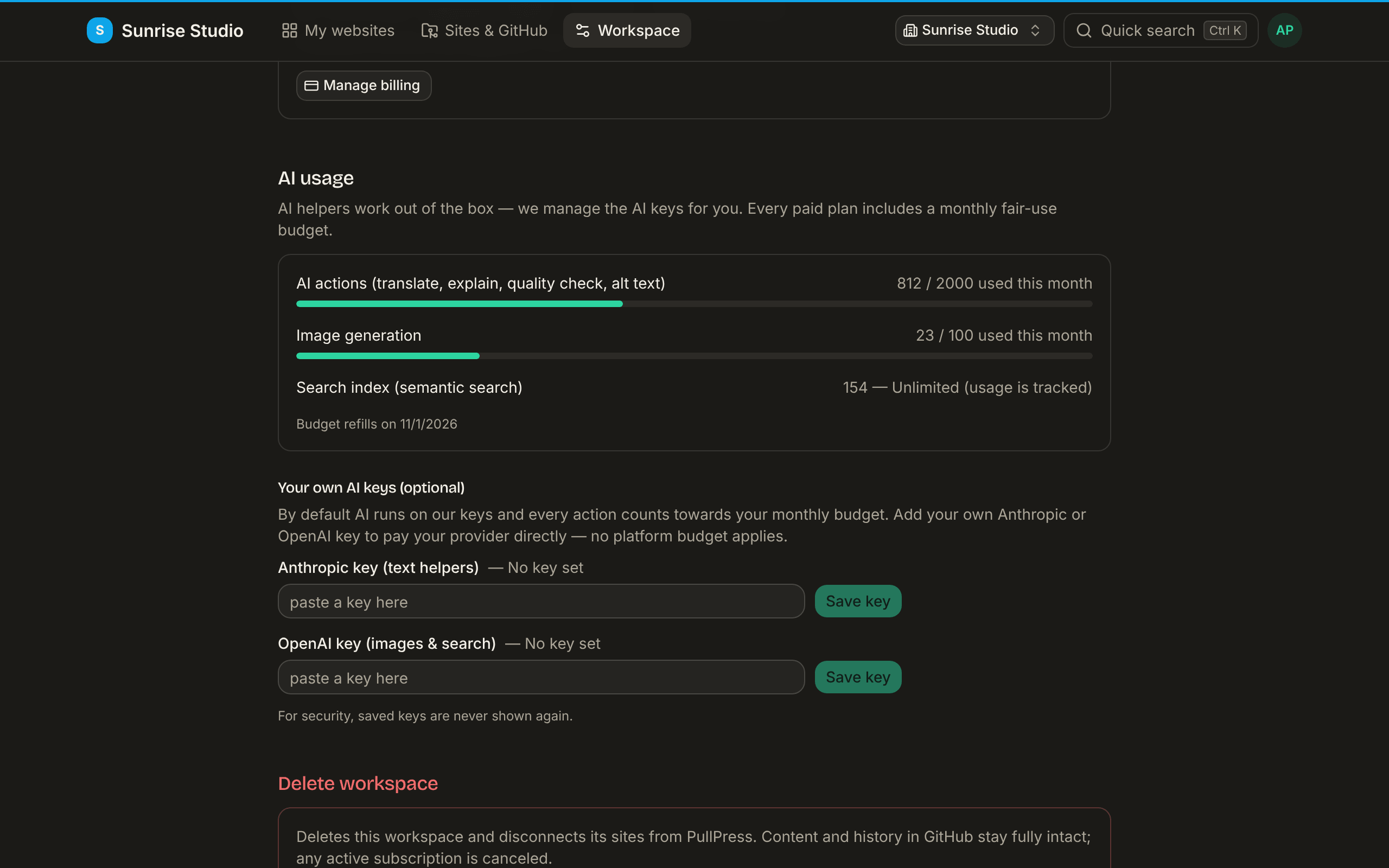
- Anthropic key powers the text helpers (translation, change explanations, quality checks, stale-content refresh).
- OpenAI key powers image generation and semantic search.
Set one or both — each provider's features switch to your key independently. Keys are encrypted at rest and, for security, are never shown again after you save them.
Connect an AI assistant (MCP)
PullPress speaks MCP (the Model Context Protocol), so an assistant such as Claude or ChatGPT can work in your content. The assistant acts as you: it can never do more than your own role on a site allows, and on top of that it only gets the permissions (scopes) the connection was granted:
- Read — list your sites and read entries, media, ideas and changes.
- Write — save drafts, submit them for review, upload media and manage ideas.
- Approve & schedule (the
publishscope) — approve, reject and schedule changes, but only on sites where you are an approver or admin yourself.
Without the approve & schedule permission an assistant can only draft and submit: a person on your team approves before anything goes live. With it, an assistant connected by an approver or admin can approve and schedule changes just like that person can — so it can put content live without anyone else looking.
Two ways to connect
- As a connector (OAuth). Add PullPress as an MCP connector in an app like Claude.ai and sign in. The consent screen shows where you'll be sent back to (the app's web address) and what it may do — read, write, and/or approve and schedule. Apps PullPress doesn't recognise are marked Unverified app: only allow those if you started the connection yourself. It appears under Profile → Connected apps, where you can disconnect it anytime. Every new connection is also emailed to you, with a link to disconnect it if you don't recognise it, and an account can have at most ten connected apps at a time. These connections are short-lived and refresh themselves in the background; if a refresh credential is used again after the app already moved on (a sign it was copied), the connection is cut off and you simply reconnect. A quick retry after a dropped network response is tolerated once, within 30 seconds.
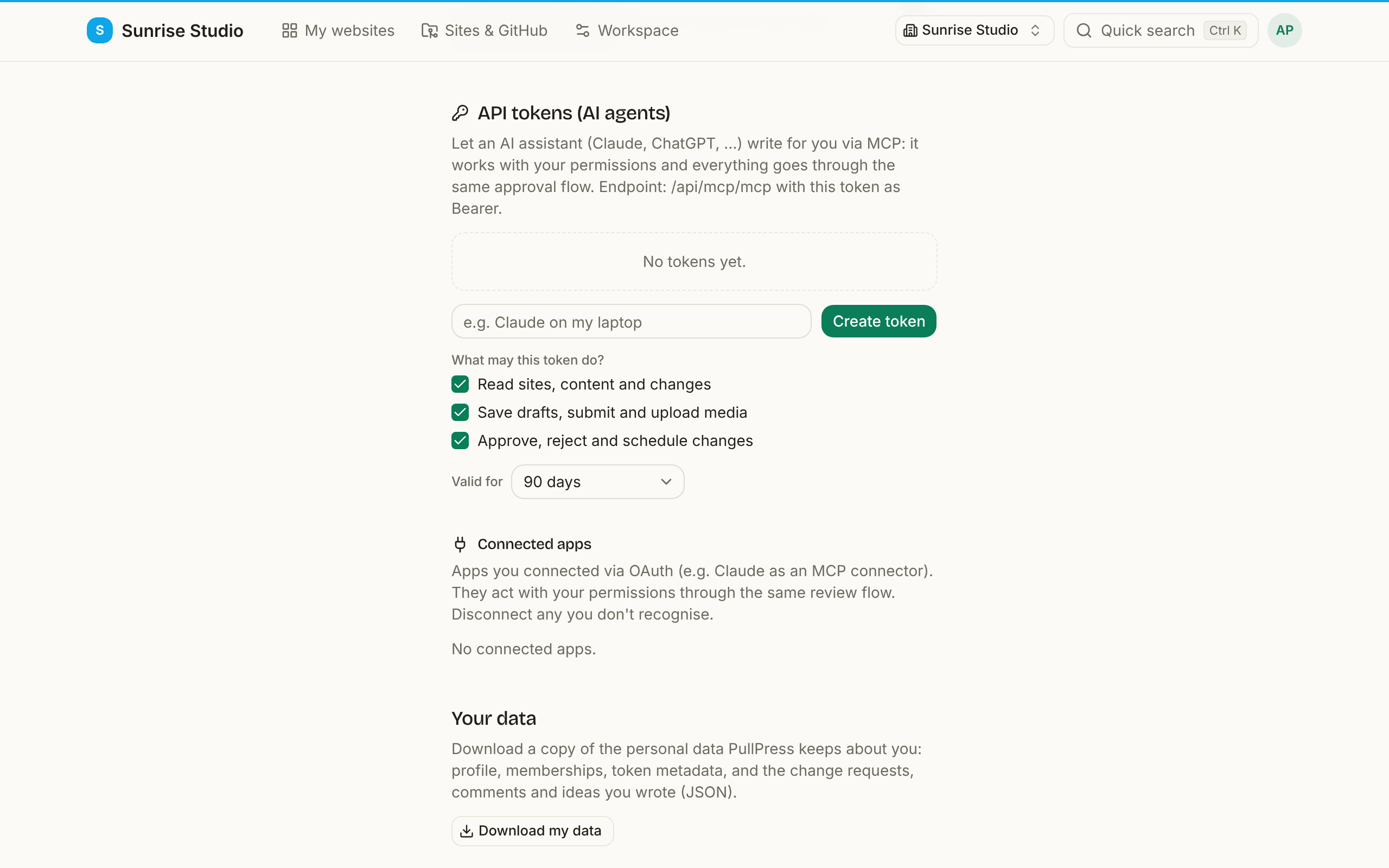
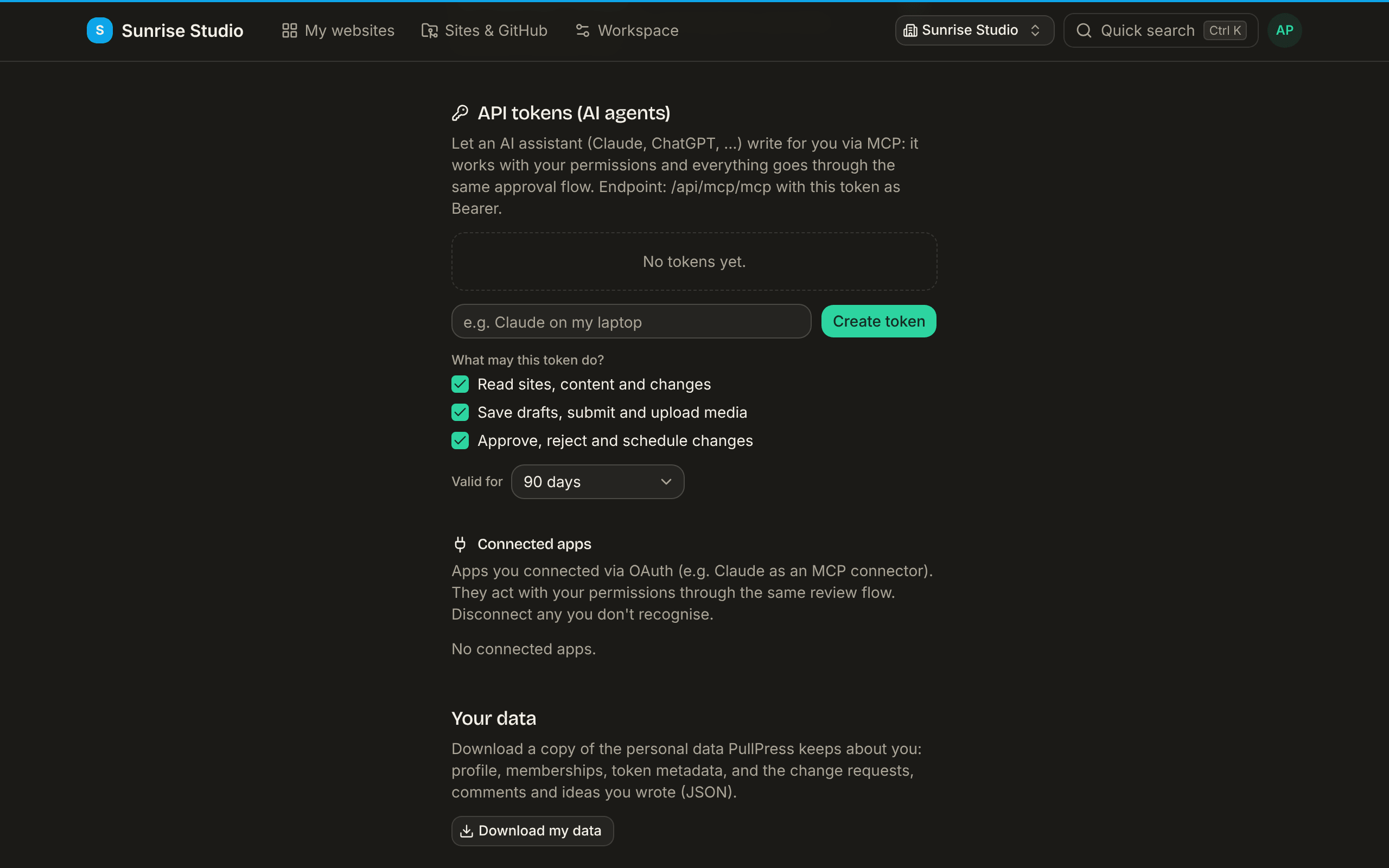
- With a personal token. Under Profile → API tokens, create a token (give it a name like “Claude on my laptop”, tick what it may do — read, write drafts and upload, approve — and pick how long it stays valid), and paste it into your assistant. The endpoint is
/api/mcp/mcpwith the token as a Bearer credential.
What an assistant can do
These are all the tools a connected assistant gets. Each one still checks your role on the site, so an assistant connected by a viewer can read but not write.
Reading (read permission)
list_sites— the sites you can work on, with your role on each.get_style_guide— the site's brand voice guide, so drafts follow it.list_collections— the site's collections and their fields.list_entries/get_entry— list entries and read one in full.search_content— search by title and text, or by meaning when the site has a search index.list_media— the photos in the media library.list_relation_options— what a link-to-another-entry field can point at.list_ideas— the ideas on the site's board.list_changes— drafts, submissions and recently published changes (approvers see the whole site, others their own).list_change_requests/get_change— approvers only: the submissions waiting for review, and a change's exact diff.get_change_diff— the word-level diff of one change, per file (approvers, or the change's own author), with the version it was computed at and the automatic quality checks in plain language (also onget_change).check_change_links— check the links a change adds and list the broken ones (approvers, or the change's own author).list_comments— the conversation on a change, and the people in it (the change's author and the approvers).get_help— the editor help (writing, saving, review and statuses) in your language, the same text as the in-app help page.list_entry_history— the last 20 versions of an entry (what changed, when and by whom), the same history as the editor's History page.get_entryalso lists an entry's languages on multilingual sites and, when page previews are set up, a preview link for your draft.
Drafting (write permission)
save_draft— save a draft change.submit_for_review— save and submit it for review.upload_image— upload a photo for a later draft: it is checked to be a real image, resized and stripped of hidden location data, then attached in the save, so a post with many photos still saves in one go.upload_media— add a photo to the media library, with the same rules as the Media page: it never replaces an existing file, and an editor’s upload goes through review.create_idea/delete_idea— add or remove an idea on the board.delete_entry— propose deleting an entry; like any change it goes to review (on sites that publish directly it is removed at once).withdraw_change/reopen_change— take back one of your own drafts or submissions, or turn a submission (waiting, or sent back with a note) into a draft again. Only ever your own changes.rename_entry— give an entry a new name (usually its web address too); it goes to review like any change, and live at once on sites that publish directly or with the publish permission for users who may publish.duplicate_entry/create_translation— copy an entry, or start a missing language of it, as a new draft of your own.restore_entry_version— bring back an older version from the history as a new draft; it goes through review before it's live.acquire_entry_lock/release_entry_lock— say you're editing an entry so colleagues see it, the same edit lock as the web editor.add_comment/set_comment_resolved— join the conversation on a change (as its author or an approver), @mentioning only people in that conversation, and mark comments resolved or open again.
Publishing (approve & schedule permission, approvers and admins only)
approve_change— approve a submission and publish it. The approval names the version the assistant read; if the change was edited after that, the approval is refused instead of publishing something nobody reviewed.reject_change— send a submission back with a note.schedule_change— approve a submission to go live at a set time instead of now (not on sites that publish through GitHub).fix_and_publish— correct a submission and publish it in one step, like Fix on the review page: open it withget_entryand its change id, then save the corrected fields. Needs write permission too.- On sites that require clean quality checks, approving, scheduling and fix-and-publish all wait until the checks pass.
delete_entrywithpublish— delete an entry straight away instead of asking for review (admins, who may both write and publish).schedule_publish— save a change and schedule it to go live automatically at a set time. Because it also writes, only admins can use it.- With this permission, an approver's or admin's
upload_mediapublishes the photo straight away, as it would in the app.
How AI-written changes show up
When an assistant drafts a change it can attach provenance — the model, the brief it worked from, the sources it used and a confidence level. Reviewers then see a Drafted by AI panel on the review page, and the same details are recorded as trailers on the Git commit, so the origin of a change is never a mystery — in the app or in your repository history.
Related: roles & permissions · brand voice · reviewing changes