Getting started
PullPress guides you through setup itself — four short steps, usually under five minutes. Here's what to expect.
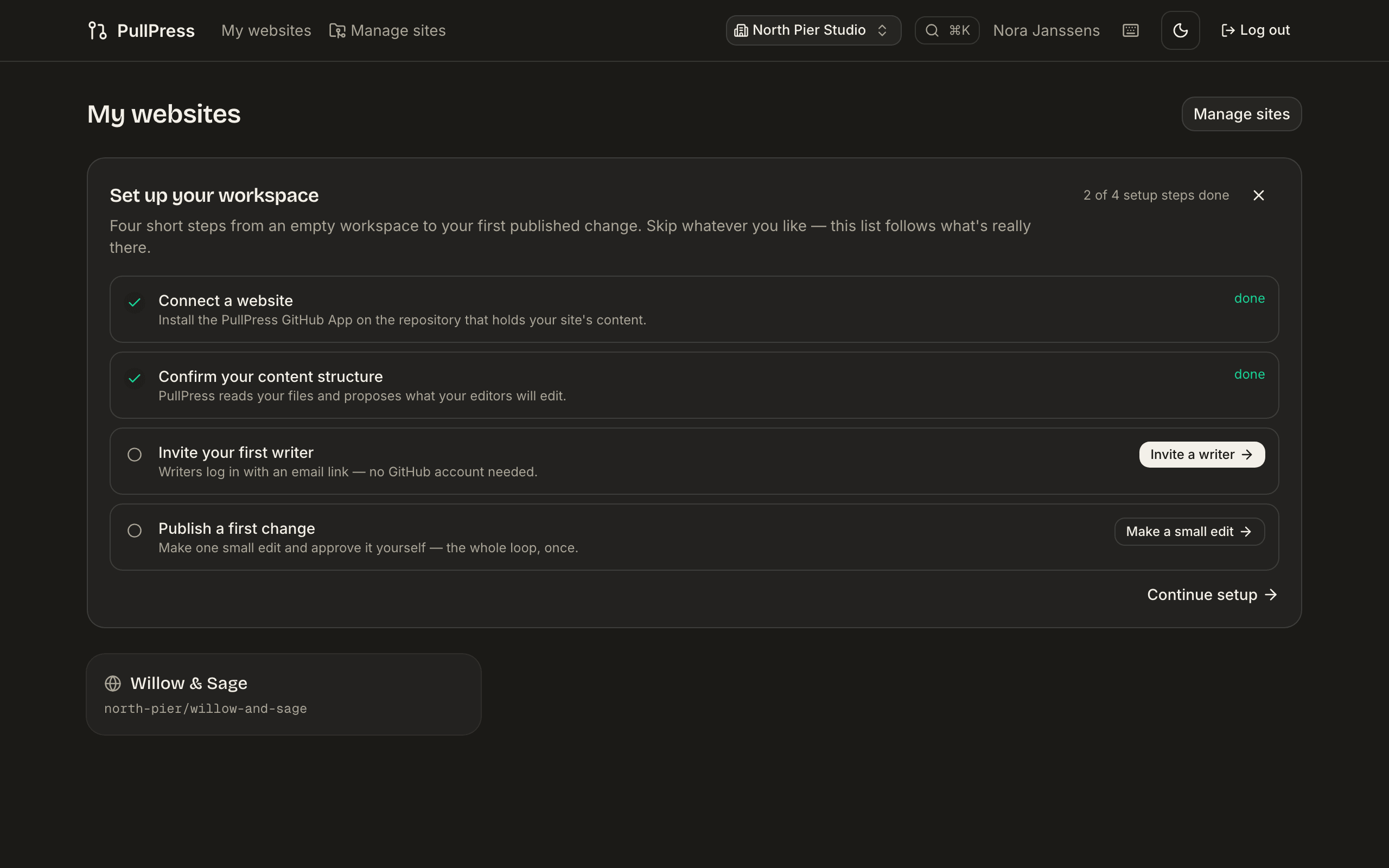
When you sign in to a fresh workspace, the dashboard shows a setup checklist and a guided walkthrough. Every step is skippable, the wizard survives page reloads, and each step checks off automatically as soon as the real thing exists — even if you did it another way. Your editors never see any of this; they only need an email address.
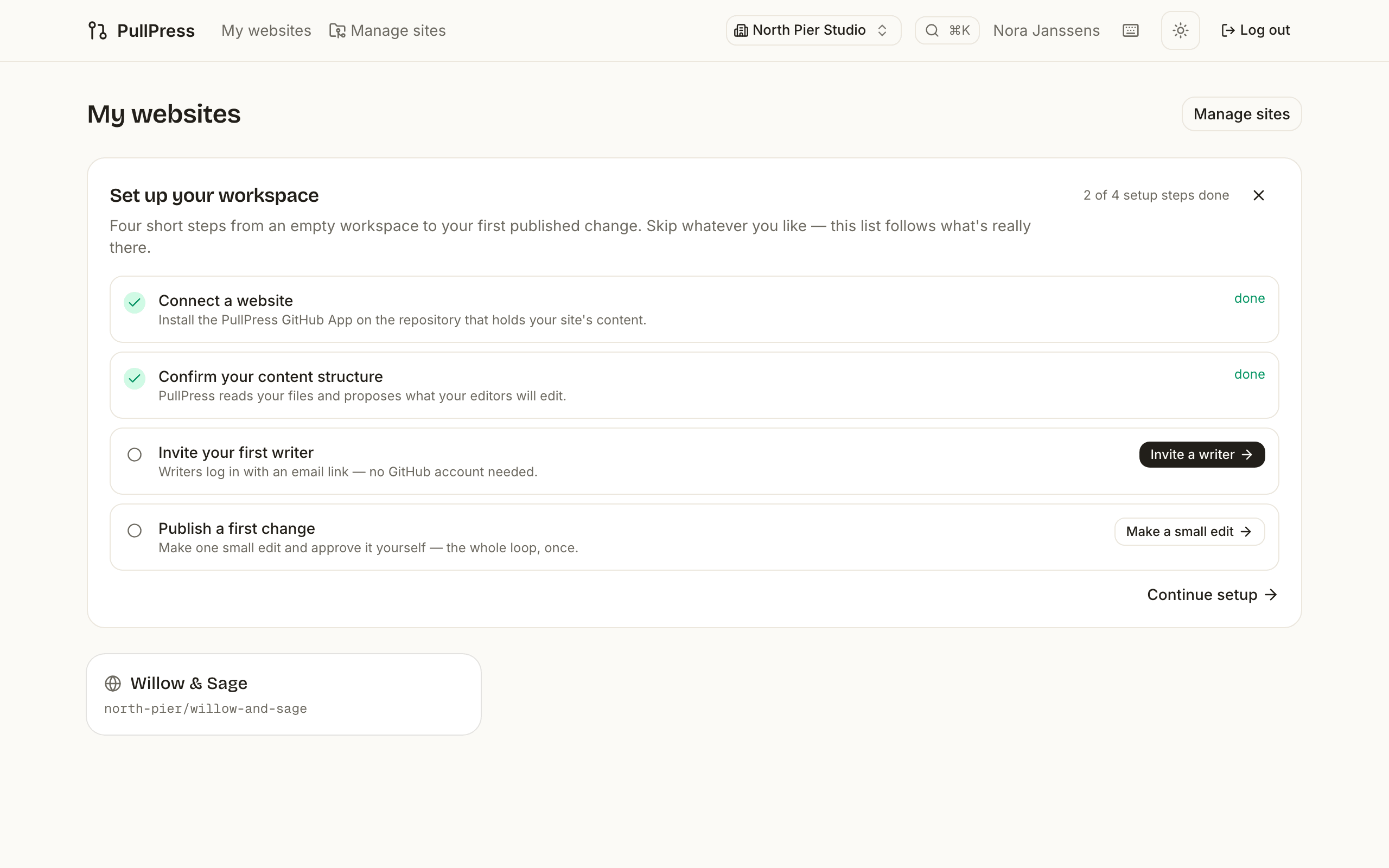
- 1
Create an account and a workspace
Sign up with your email address — PullPress sends you a magic link, no password to remember. Your first workspace groups your sites, your team and your billing.
- 2
Connect a website
The wizard sends you to GitHub to install the PullPress GitHub App on the repository that holds your site's content — you can scope it to a single repo (see GitHub App setup for the exact permissions). Back in PullPress you first see which account the installation covers and how many repositories it can reach — with a one-click link to change the installation on GitHub if the App landed on the wrong account — and then pick the repository as your first site. Cancelled the GitHub flow halfway? You land back on a gentle retry note, not an error.
No repository yet?The wizard links to a small public demo-site template. GitHub's “Use this template” button copies it into a repository on your own account in two clicks — PullPress can't (and shouldn't) create repositories for you — and you install the app on the new repo. That way you can try the whole flow with an empty GitHub account.
- 3
Confirm your content structure
PullPress reads the files that are already in the repository and proposes the collections and fields your editors will see — in your own language. Detection recognizes Astro content collections (including sites served under a
basesubpath), Hugo (leaf and branch bundles, a customcontentDir, anddata/files as editable data collections), Jekyll (_postsplus every custom collection listed in_config.yml), Eleventy, Next.js content folders (including contentlayer'scontentDirPath) and date-nested bundles likecontent/2026/06/post/index.md— along with each collection's frontmatter fields and format. In a monorepo with several sites you pick which project to configure, and when nothing is found the setup card says exactly where it looked and how to configure things by hand. Coming from Decap CMS (Netlify CMS)? Your existingconfig.ymlis detected and converted — see Migrate from Decap CMS. Migrating from WordPress? Pick Import from WordPress on the same setup card: PullPress creates a blog configuration and takes you straight to uploading your export file (Tools → Export in WordPress) — every post arrives as a single change you review before it goes live.Confirming commits a single
pullpress.config.ymlto your repository (nothing is published to your website; a.yamlextension works too). Sites whose content uses TOML or JSON frontmatter keep their format — PullPress detects it and writes every entry back the way it found it. You can also write or tweak the configuration by hand — a minimal blog config looks like this:version: 1 media: { folder: public/uploads, public_path: /uploads } collections: - name: blog label: Blog posts type: folder folder: content/blog fields: - { name: title, label: Title, type: string, required: true } - { name: date, label: Date, type: date, default: now } - { name: body, label: Body, type: markdown }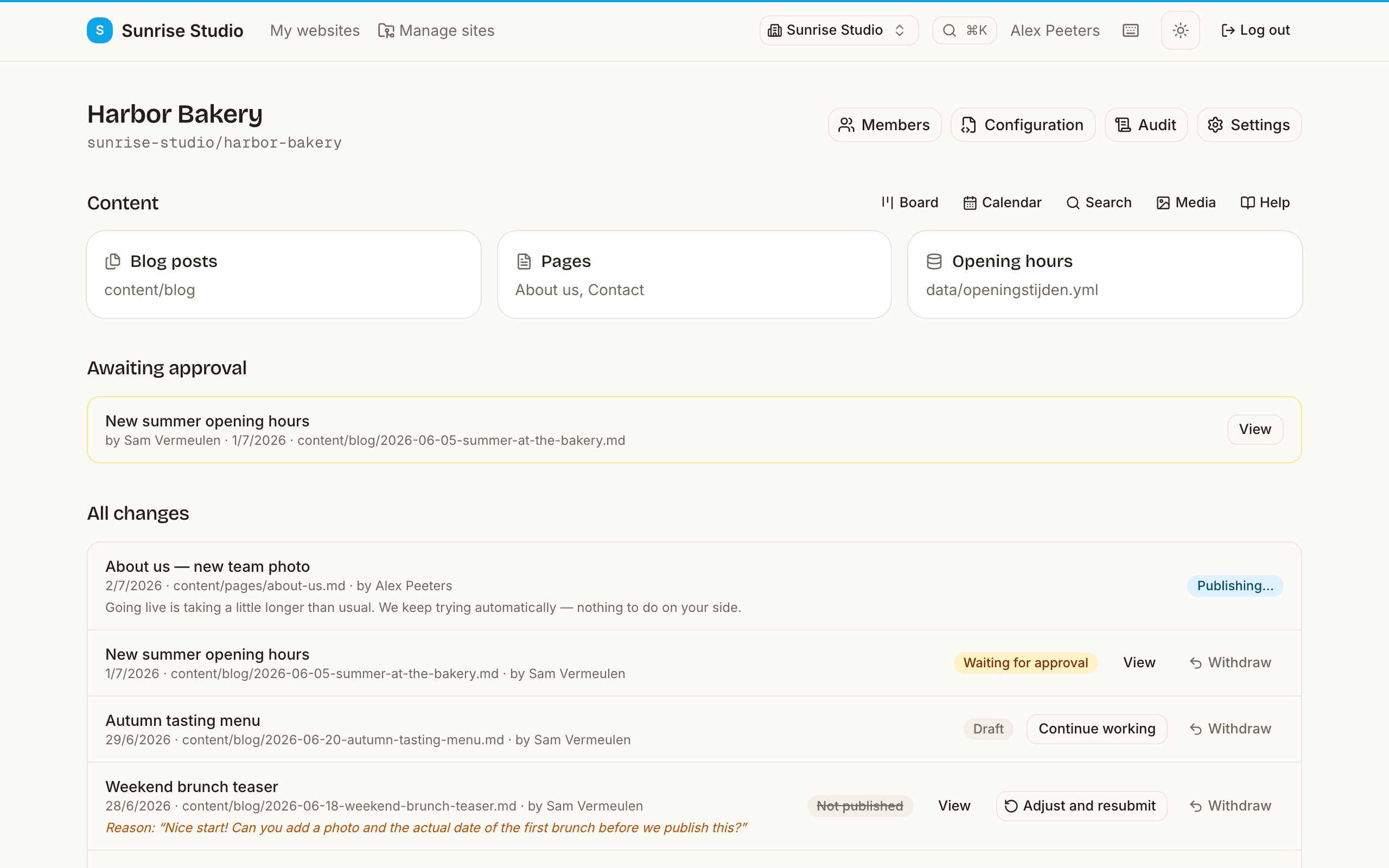
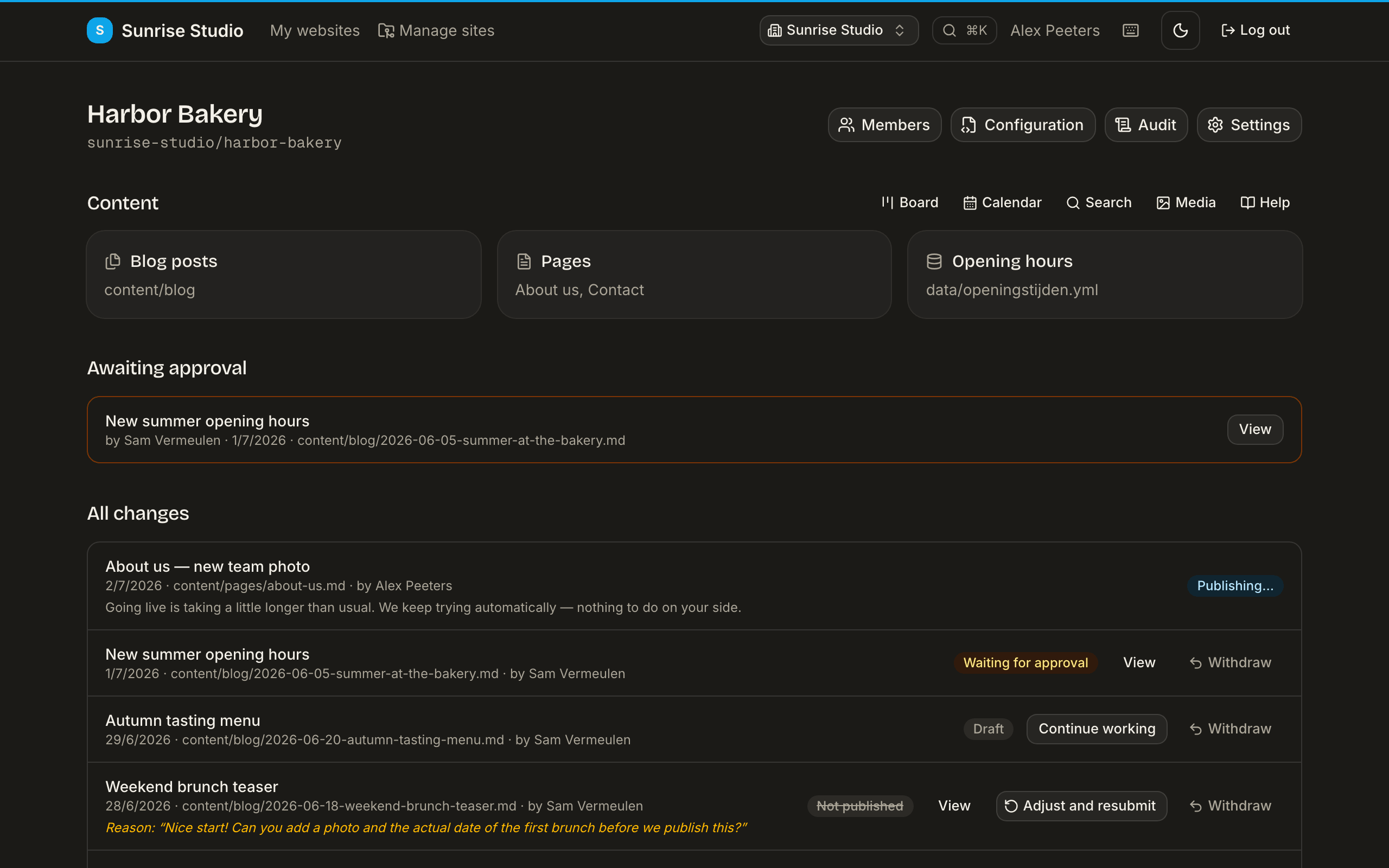
After confirming, the site page shows exactly the sections your editors will see. The full set of options is covered in the configuration reference.
- 4
Invite your first writer — or a whole team
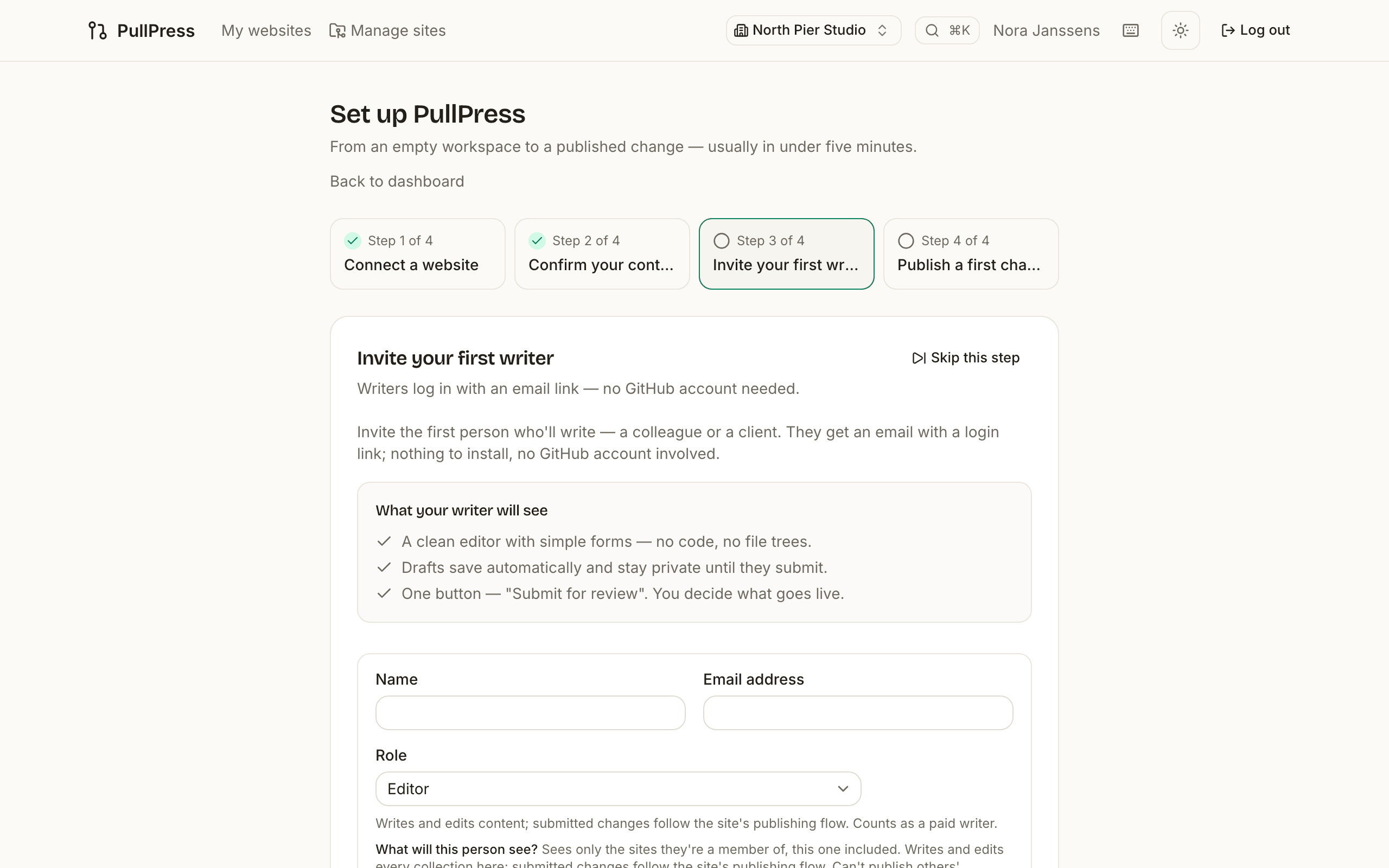
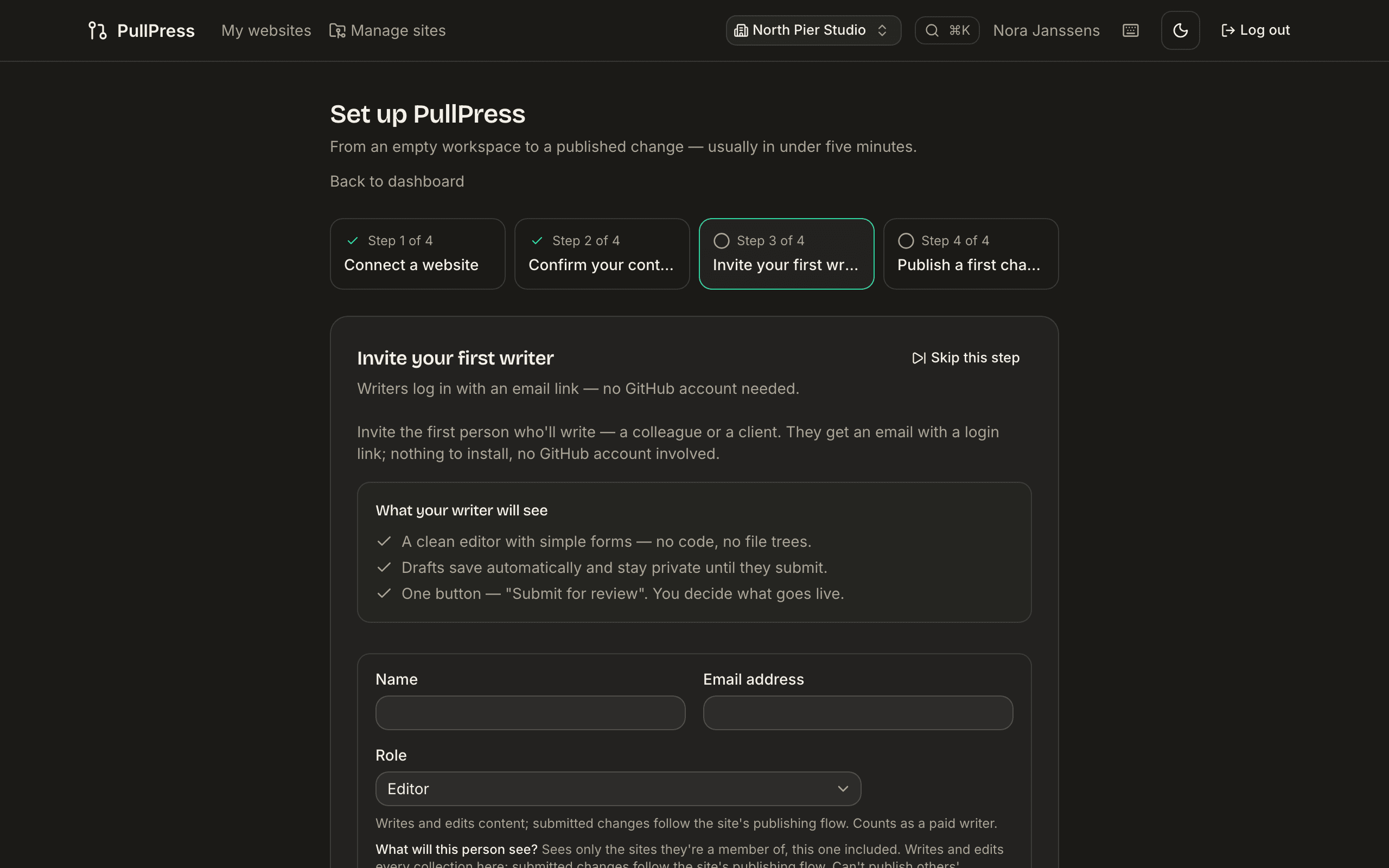
Add a writer by email. They get a magic-link invitation and land straight in the editor — no GitHub account, no repository access, no setup on their side. Choose a role per person: editors draft and submit, approvers review and publish, viewers only read — see Roles & permissions for the full matrix. This step also completes by itself if a second person joins your workspace any other way.
Onboarding a client team? Paste a whole list of addresses at once (commas, newlines, a spreadsheet column or CSV rows with names, even
Name <email>) with one role and optional collection access for everyone — each row reports its own outcome, so one typo never sinks the batch. Invitees who haven't logged in yet show up as pending invites with resend/revoke and a bulk resend. An invited editor's first login lands on their site with a short, dismissible "how this works" explainer, and every site carries a brand-neutral in-app writers' guide you can share ahead of time. On white-label (Agency) workspaces the whole welcome — invitation email, login page, first session — carries your client's brand, never ours.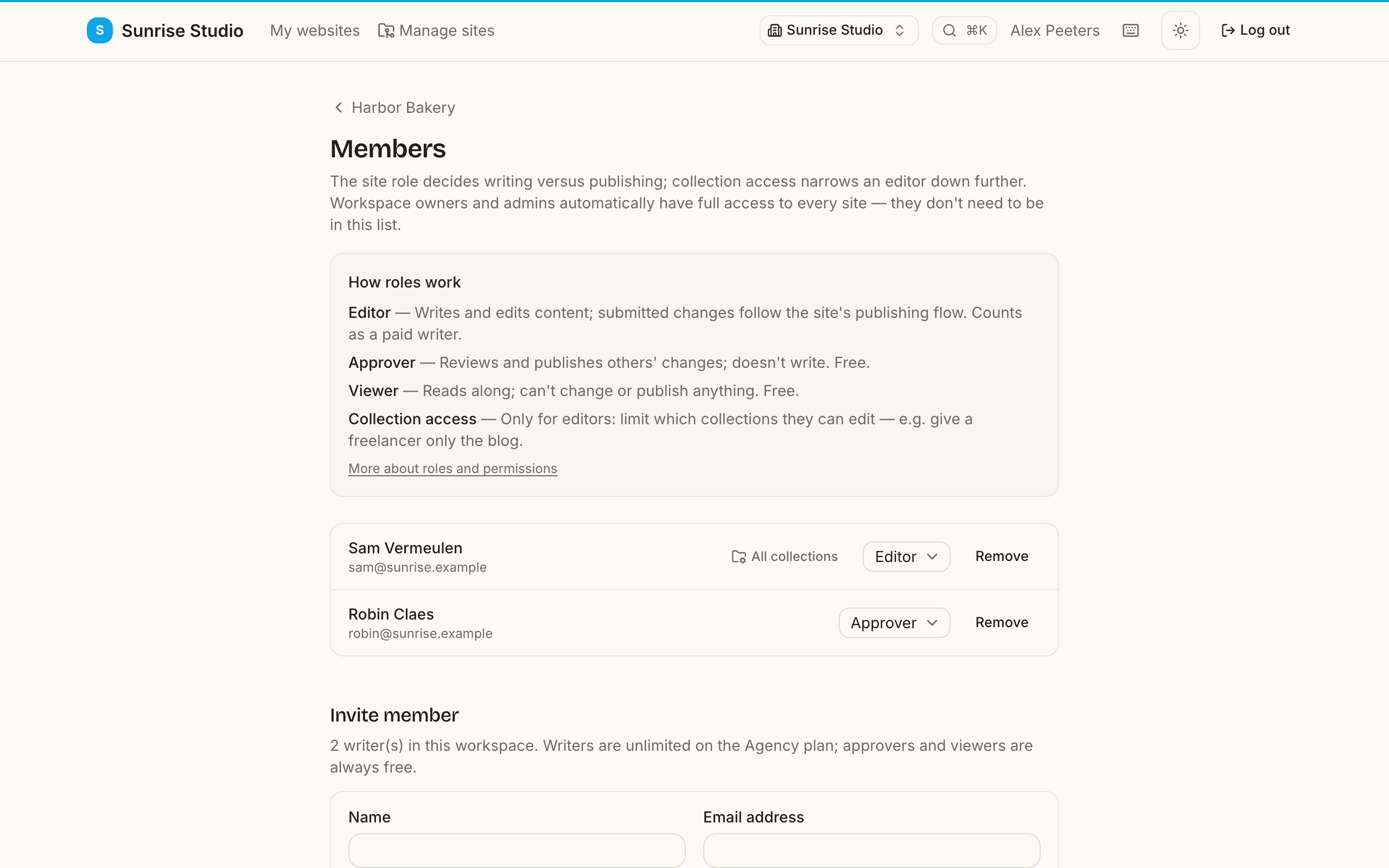
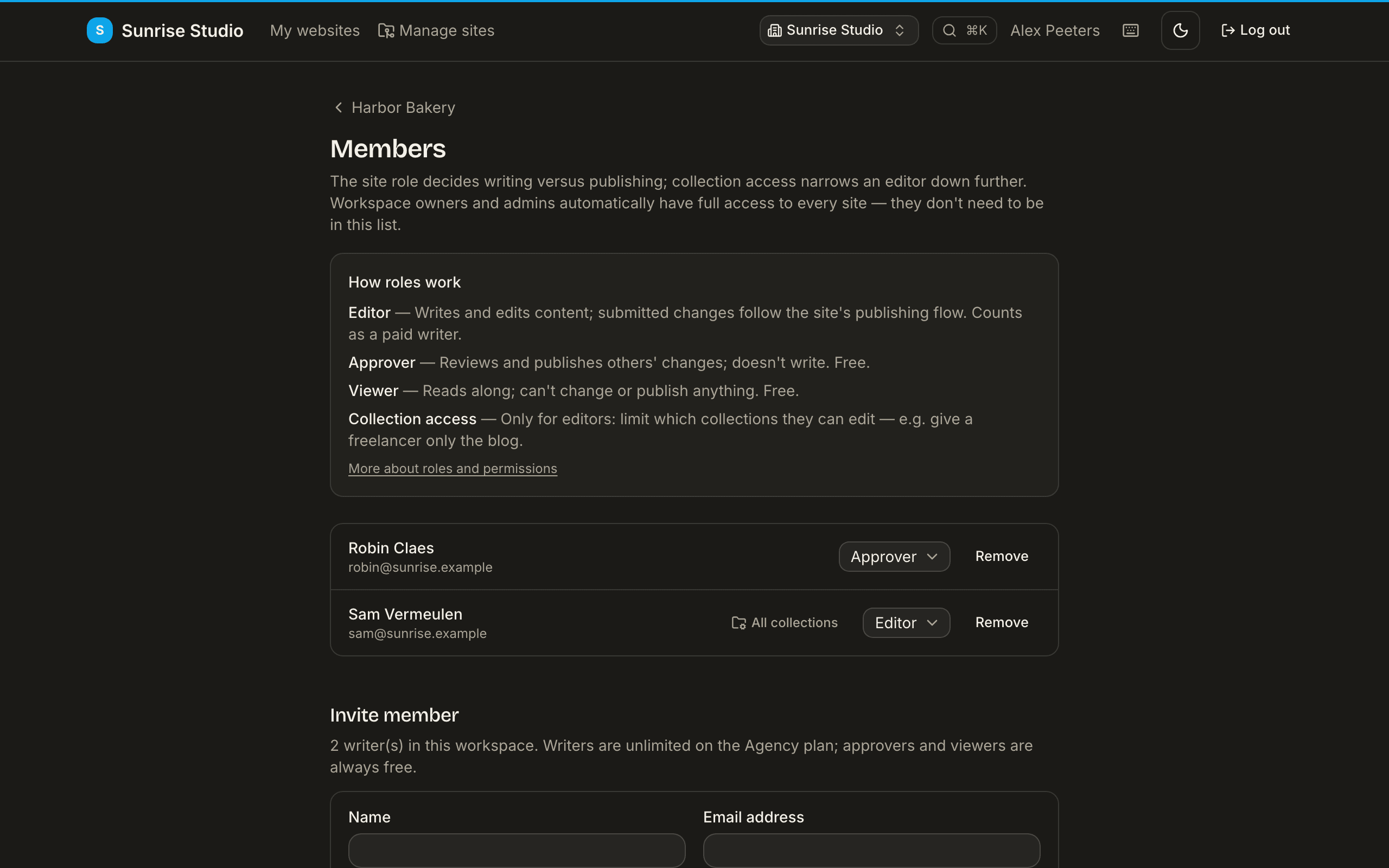
The members page explains the roles in place, and takes single or bulk invites. - 5
Publish a first change
The wizard prompts you to make one small edit and approve it yourself, so you experience the loop your team will use every day: a saved draft becomes a branch in your repo, submitting opens a pull request, and approving merges it — published through your normal build and deploy. Sites can also publish instantly or require the final merge on GitHub; see publishing flows below.
- 6
Workspaces, seats & plans
Everything lives inside a workspace (your agency) with its own monthly subscription. People who only read or approve are always free. Plans: Free (1 site, 1 writer), Pro (per writer/month, up to 3 sites), Agency (a monthly base fee plus a fee per active client site, unlimited writers, white-label branding included). Adding or removing a writer (Pro) or connecting and archiving a site (Agency) adjusts the bill automatically, prorated by Stripe.
On Agency, archiving a site (site settings) makes it read-only — everything stays browsable, but saving and publishing are off — and removes it from the bill. Unarchive it anytime to pick up where you left off.
A free account has a single workspace; several separate workspaces (each its own team and bill) come with a paid plan. Owners manage it all from Workspace settings — upgrade, downgrade or cancel anytime.
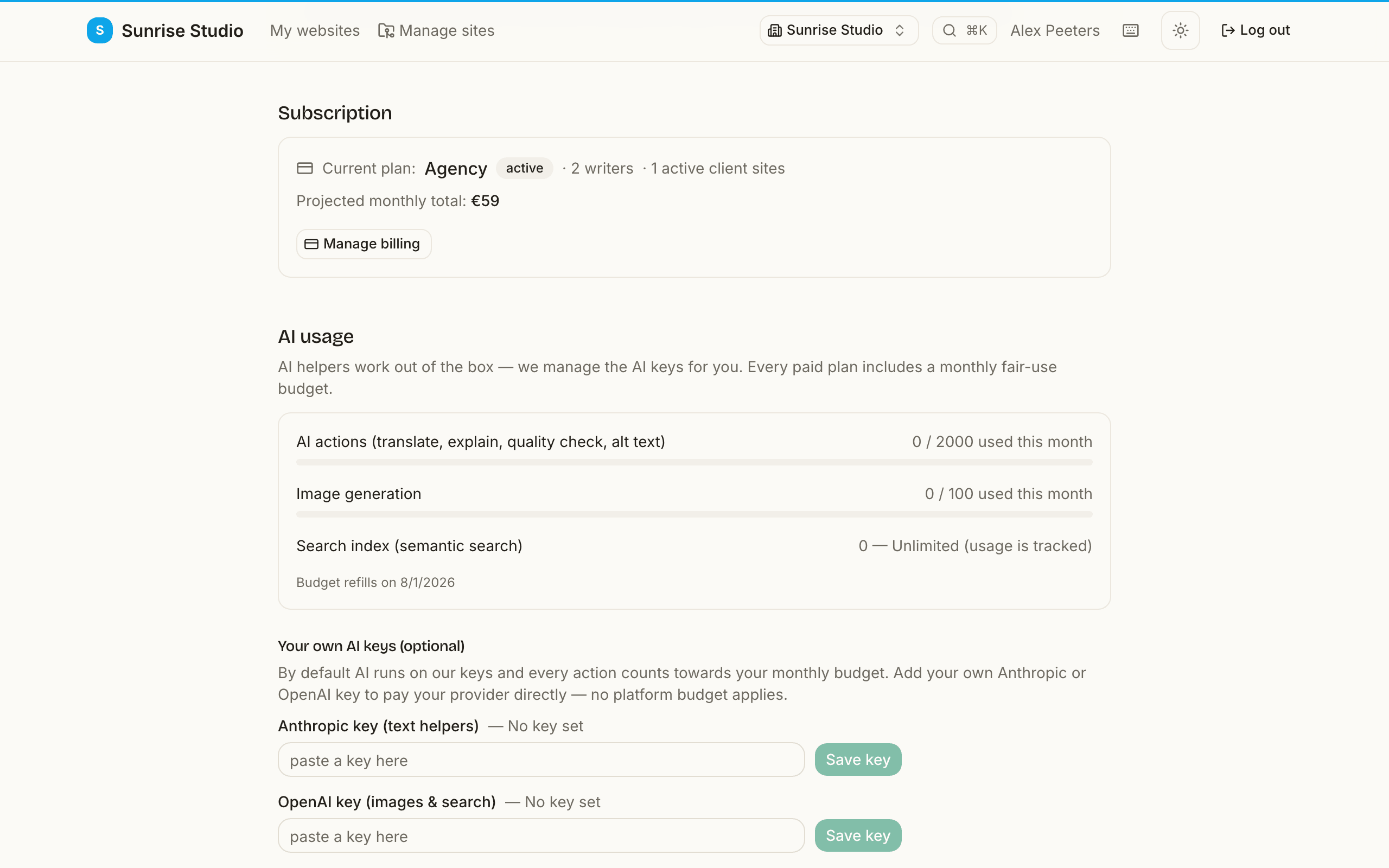
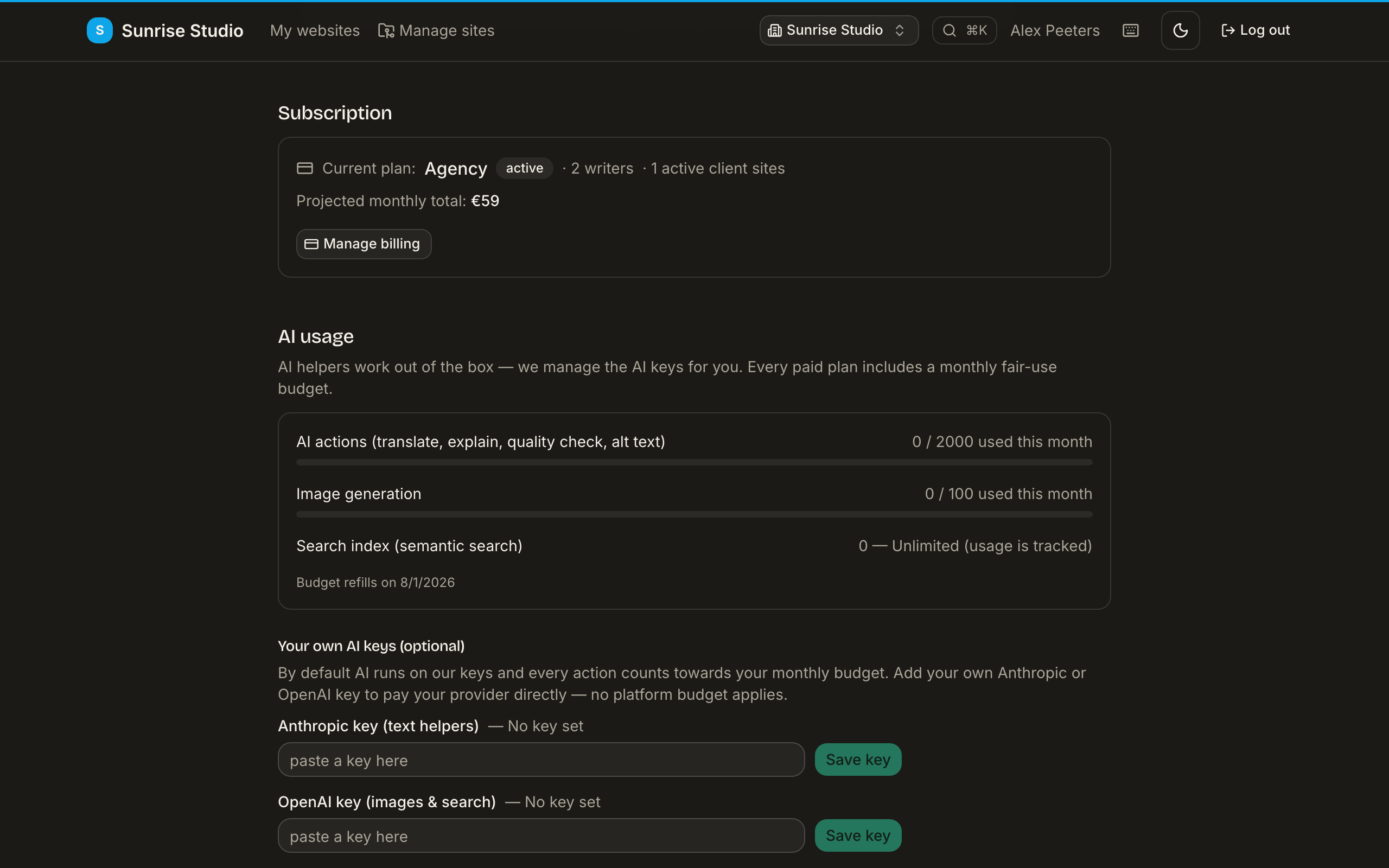
The Subscription panel shows exactly what next month costs — sites and writers included.
Publishing flows
Every site has a publishing flow— chosen when you connect the site and changeable anytime under the site's settings. It decides what happens when an editor submits a change:
- Approval in PullPress (the default) — submitting opens a pull request; an approver reviews the change in PullPress and publishes it with one click, which merges the pull request. Right for most teams: writers never touch GitHub, and someone still looks before anything goes live.
- Publish directly — submitting goes live immediately, with no approval step. Pick this for small, trusted sites where the writer and the approver are the same person.
- Extra approval on GitHub — approving in PullPress opens the pull request, but the final merge happens on GitHub through your own review process. Pick this for large sites with branch protection rules or required status checks.
Self-hosting PullPress? The server-side setup (database, GitHub App credentials, email) is covered by SETUP.md in the repository — this guide is about the in-app experience.