Reviewing & collaboration
Changes don't go live silently. Approvers see exactly what changed, can discuss it in context, and decide when it ships.
Reading the change
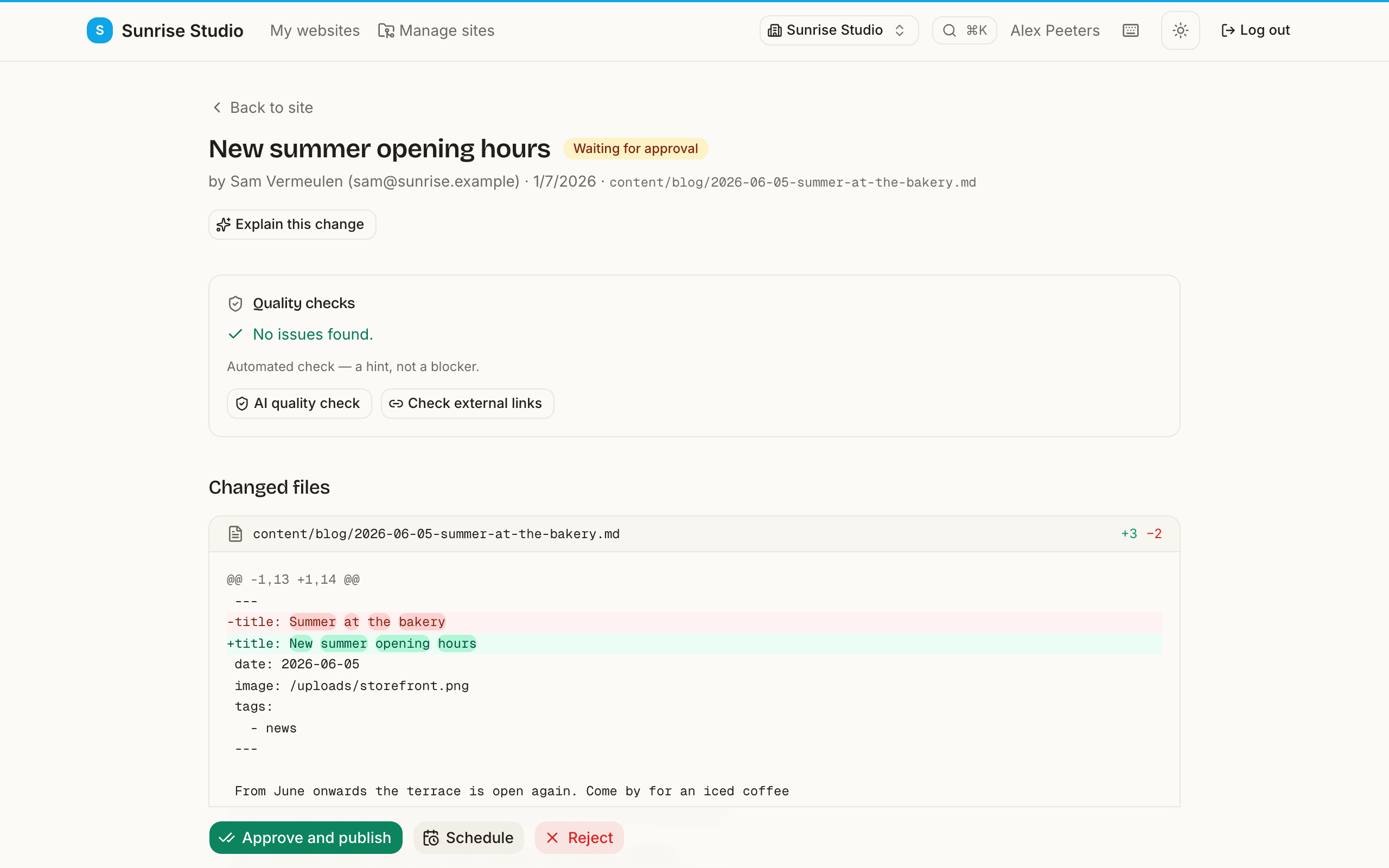
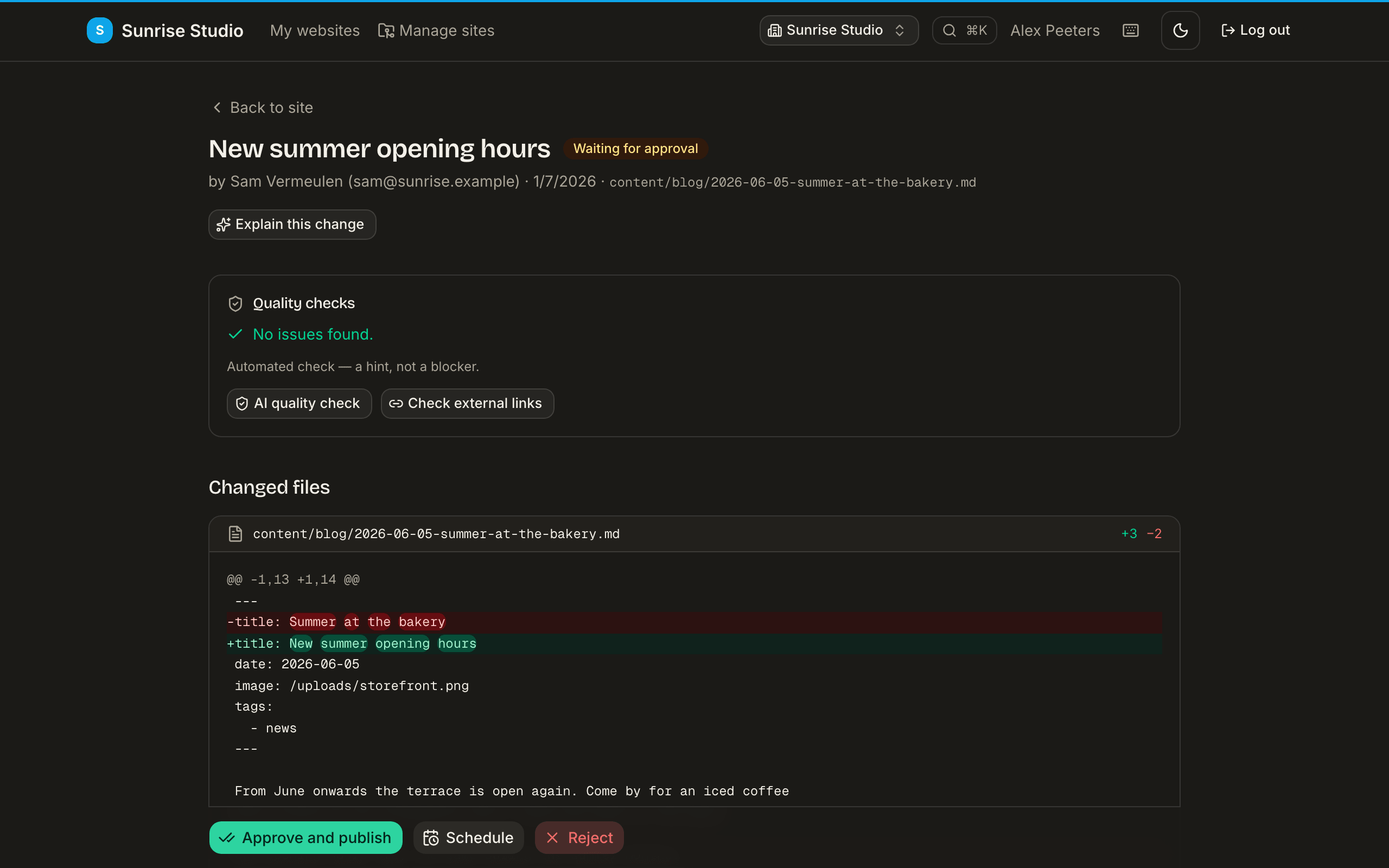
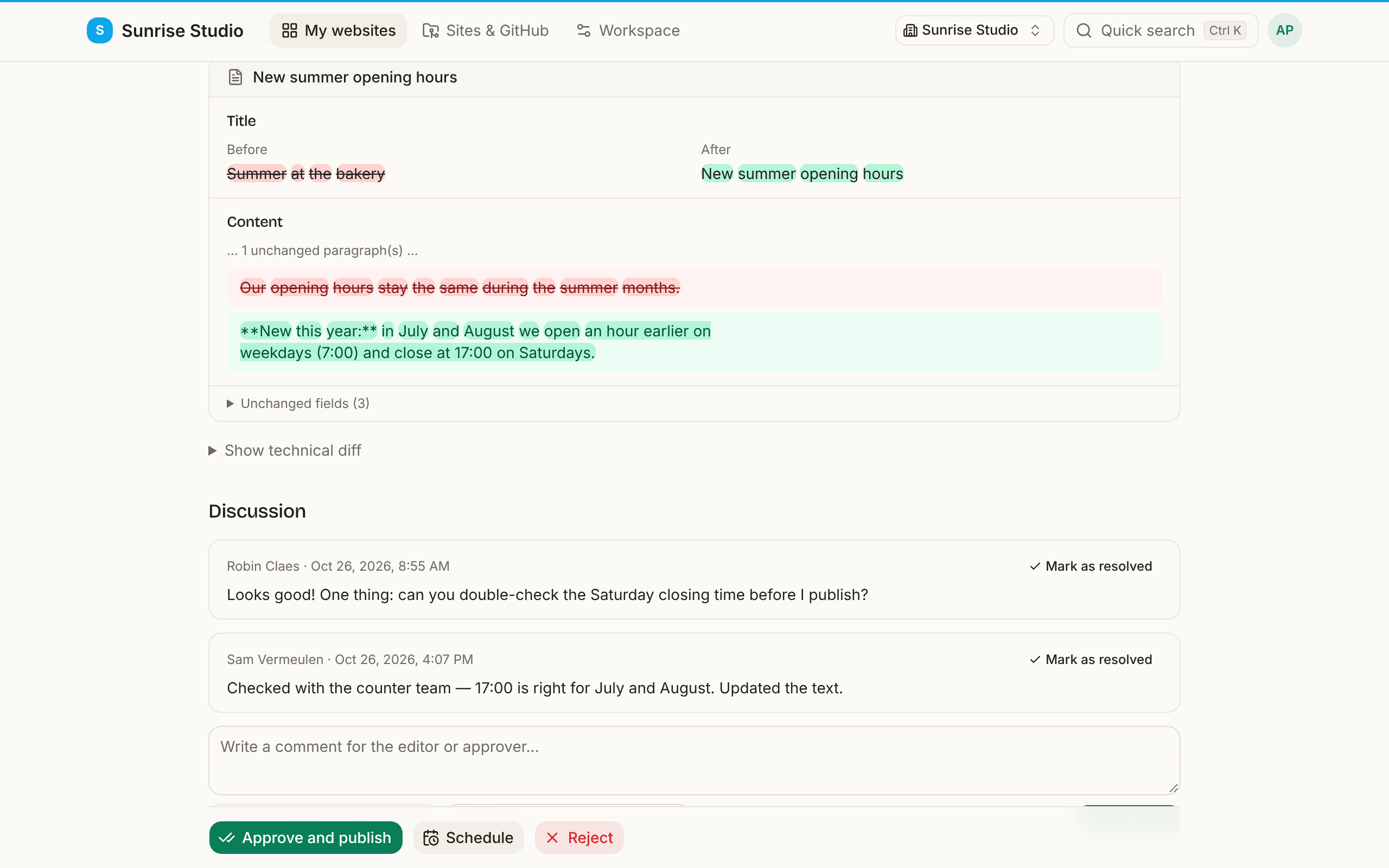
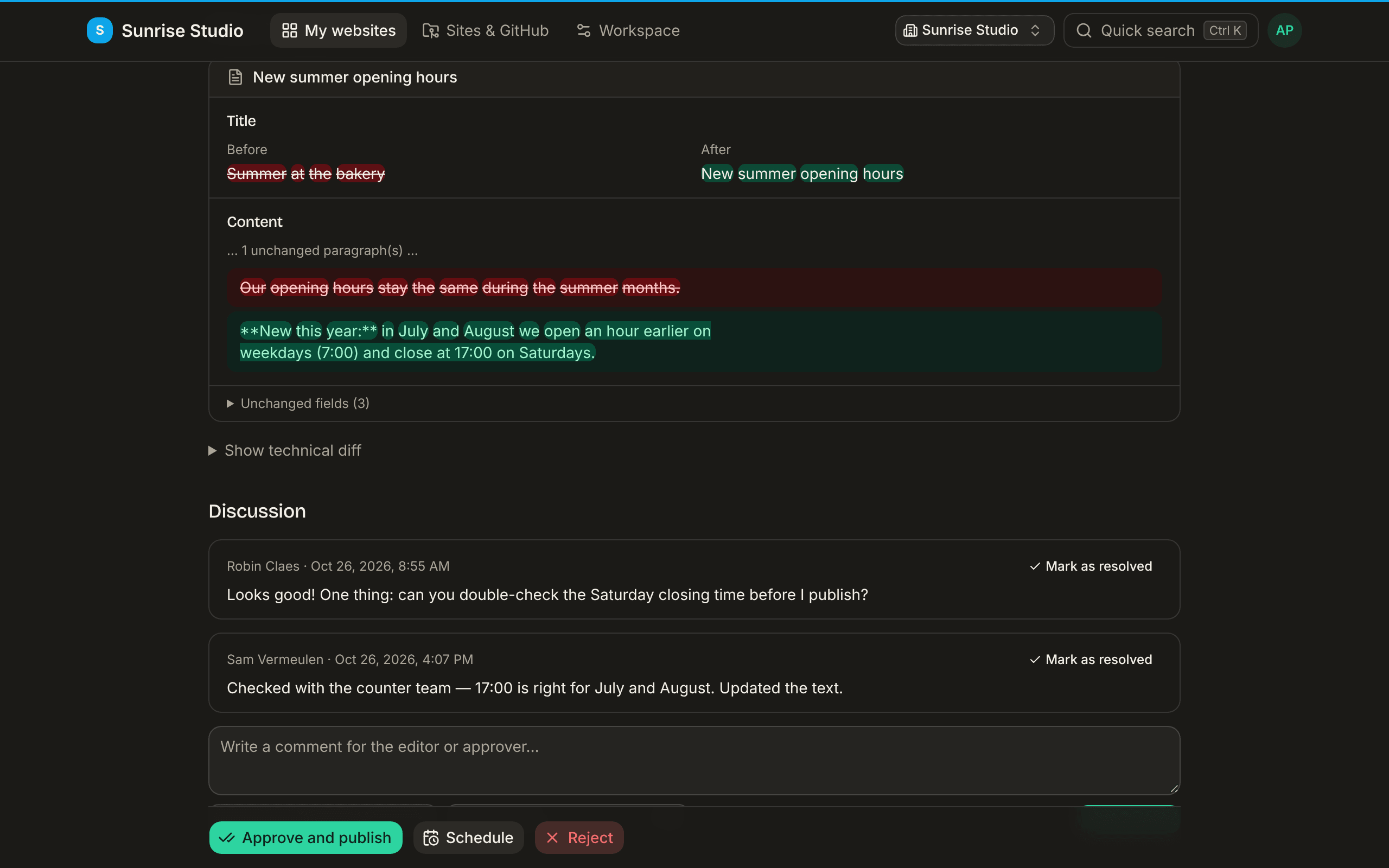
A change's review page shows what changed, field by field — the same fields, with the same names, that the writer filled in. For each changed field you see its old and its new value side by side:
- Text — the specific words that changed are highlighted: green for added, red for removed. In long texts only the paragraphs that changed are shown; the rest folds into a short “unchanged text” line.
- Photos appear as thumbnails, lists (tags, galleries) as their items with new and removed items marked, switches as Yes or No, and dates in your own language and time zone.
- Fields that didn't change are tucked away under Unchanged fields — open it if you want to check.
- A new item shows everything that was filled in; an item that is being removed shows what goes away. Photos the change adds or removes are listed underneath.
Comments & teamwork
On the review page you can:
- Leave comments to discuss the change in context.
- @mention a colleague — they get an email (unless they switched comment emails off on their profile) and see it on their dashboard.
- Assign a comment as a task to someone.
- Mark threads resolved, or reopen them.
The editor who wrote the change can follow along too (they see what changed and the discussion), so feedback happens in one place instead of over email.
The writer of the change and anyone who can publish on the site can comment. You can @mention or assign the writer and the site's approvers; an assigned comment emails the assignee just like a mention does.
When two people edit the same entry
Opening an entry a colleague is already working on doesn't start a silent tug-of-war. You see who's editing right away, before you type a word, and you choose:
- Watch — the entry opens read-only while your colleague works.
- Take over — you become the editor. Your colleague gets a friendly notice that you took over, and their unsaved work stays safe on their device so nothing is lost.
When someone stops editing (or just walks away), the entry frees up by itself and whoever is watching can start editing.
And if an entry still changes under you — say someone published an update to it while you had it open? If you each touched different fields, both changes are combined automatically and you never notice. Only when you both changed the same field do you get a plain-language compare-and-choose screen: your version and the other version side by side, differences highlighted word by word. Pick per field which one to keep, adjust anything you like, and save again. No technical vocabulary, nothing lost either way.
AI helpers (on paid plans)
Plain-language summary
Click Explain this change for a short, plain-language summary of what actually changed — useful when you're approving and don't want to read a technical diff.
AI quality check
Click AI quality check to have the content reviewed for readability, passive voice, weak or missing alt text, heading structure and SEO — and against your site's brand voice, if one is configured. It's advice, not a gate: you still decide.
Reviewing AI-authored changes
Some changes are drafted by an AI assistant rather than typed by a person — and PullPress makes that obvious so you can review with the right amount of scrutiny.
- Drafted by AI card. When a change was written by a connected assistant (see AI & assistants), the review page shows a Drafted by AI panel with the model, the brief it worked from, any sources it used, and a confidence level. It's an assistant working with a person's permissions, so a change it submits lands for you to approve like any other. (Only an approver or admin who explicitly gave their assistant permission to approve and schedule can let it put changes live.)
- Stale-content refresh. If an administrator turned on AI refresh, the weekly freshness scan can submit a lightly refreshed draft of a badly outdated entry. It arrives from PullPress AI as an ordinary change for you to review — approve it, tweak it, or reject it. It only touches clearly-dated details and never publishes on its own.
The quality gate
An administrator can turn on a quality gate in a site's settings. When it's on, a change can't be published or scheduled until the automatic quality checks pass — so issues like missing alt text are fixed before anything goes live. If the checks can't run for a moment, publishing waits rather than skipping them.
Approving, rejecting & scheduling
If you can publish, the review page lets you:
- Approve and publish — the change goes live.
- Reject with a reason — it goes back to the editor under To rework on their dashboard, with your note attached. Already typed a comment? It is filled in as the reason, so you don't type it twice. The writer's email opens their text straight in the editor.
- Schedule — approve now, publish automatically at a later moment (tomorrow at 9:00 is filled in; change it if you like). Admins, who also write, can schedule their own changes straight from the editor with the Schedule button next to Publish now.
- Fix — a typo shouldn't cost a round trip. Approvers and admins can open the pending change in the editor, correct it and click Fix and publish: the correction is added to the same change and goes live at once, and the writer is told it was published. Not for deletions or media uploads.
After you approve, reject or schedule, PullPress opens the next change waiting on that site (the oldest first), so you can work through a queue without going back to the list each time. When nothing is left, you land back on the site page.
A scheduled change is already approved, so it carries a Scheduled for marker with its date and time (in your own time zone) in every list of changes awaiting approval — on the site page, on your dashboard and on the board — so nobody decides on it twice.
What you approve is exactly what goes live: if the change is updated after you looked at it, publishing stops and asks you to review the new version first. The same holds for a scheduled change — and if a scheduled publish can't go through (for example because it now clashes with another change), the schedule is cleared, the change returns to the review list and the administrators are told. A schedule is also dropped when its moment arrives on a site that was archived in the meantime, or where your developer has since added an extra approval step of their own: nothing goes live, and the author and whoever scheduled it get an email saying why.
Two approvers clicking at the same moment is fine: the change is published once, and the second approver simply sees that it is already being published.
Everyone involved gets notified of the decision (by email, under the notification bell in the top bar, and in your team's channel if a webhook is set up). Which notification emails you get is up to you: see Email notifications.