Working in multiple languages
If a collection supports several languages, you can keep translations next to the original and let AI give you a quick first draft.
The language bar
On a multilingual entry, a language bar appears at the top. It shows the default language and each configured translation: existing ones link straight through, and missing ones get a create button.
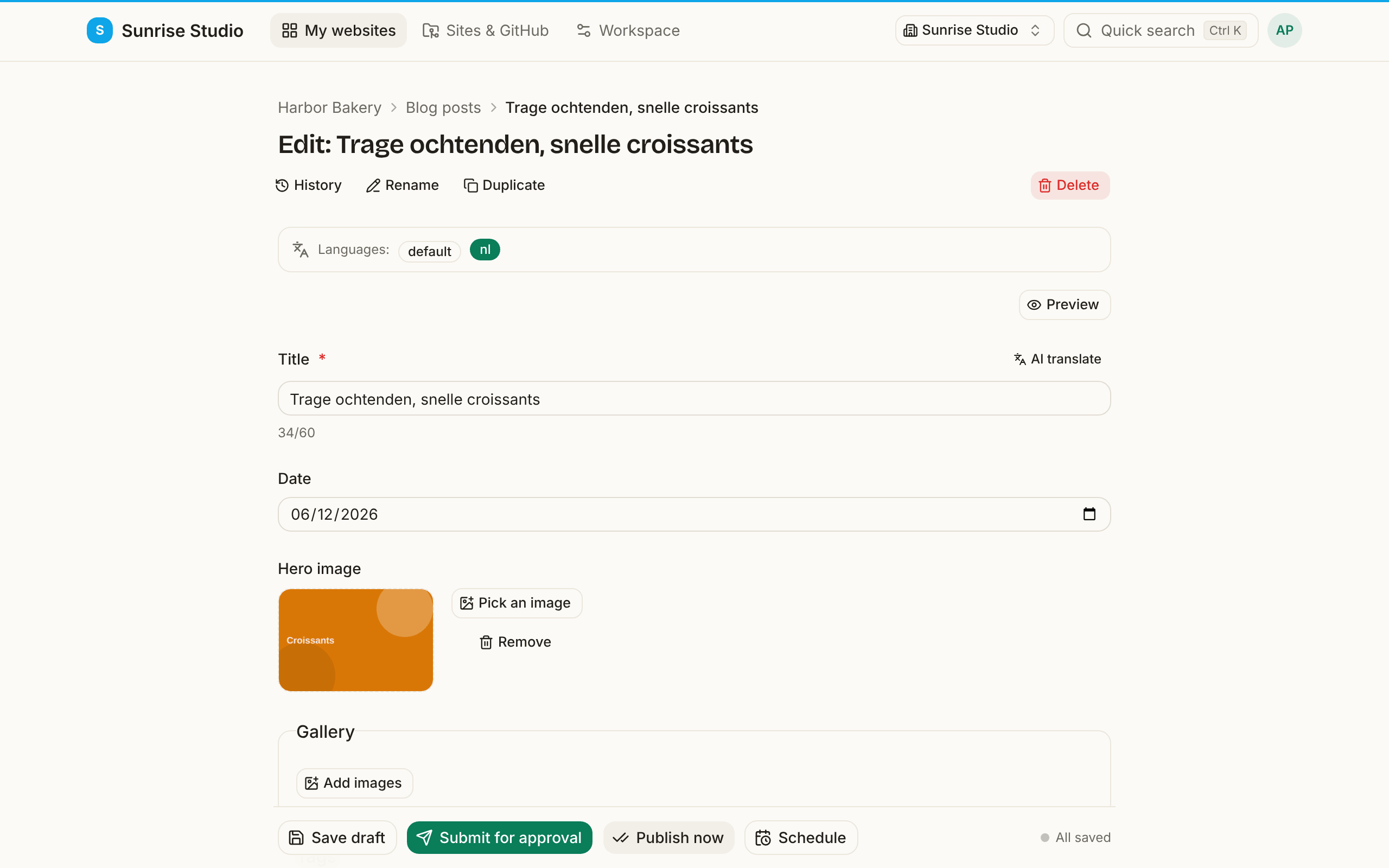
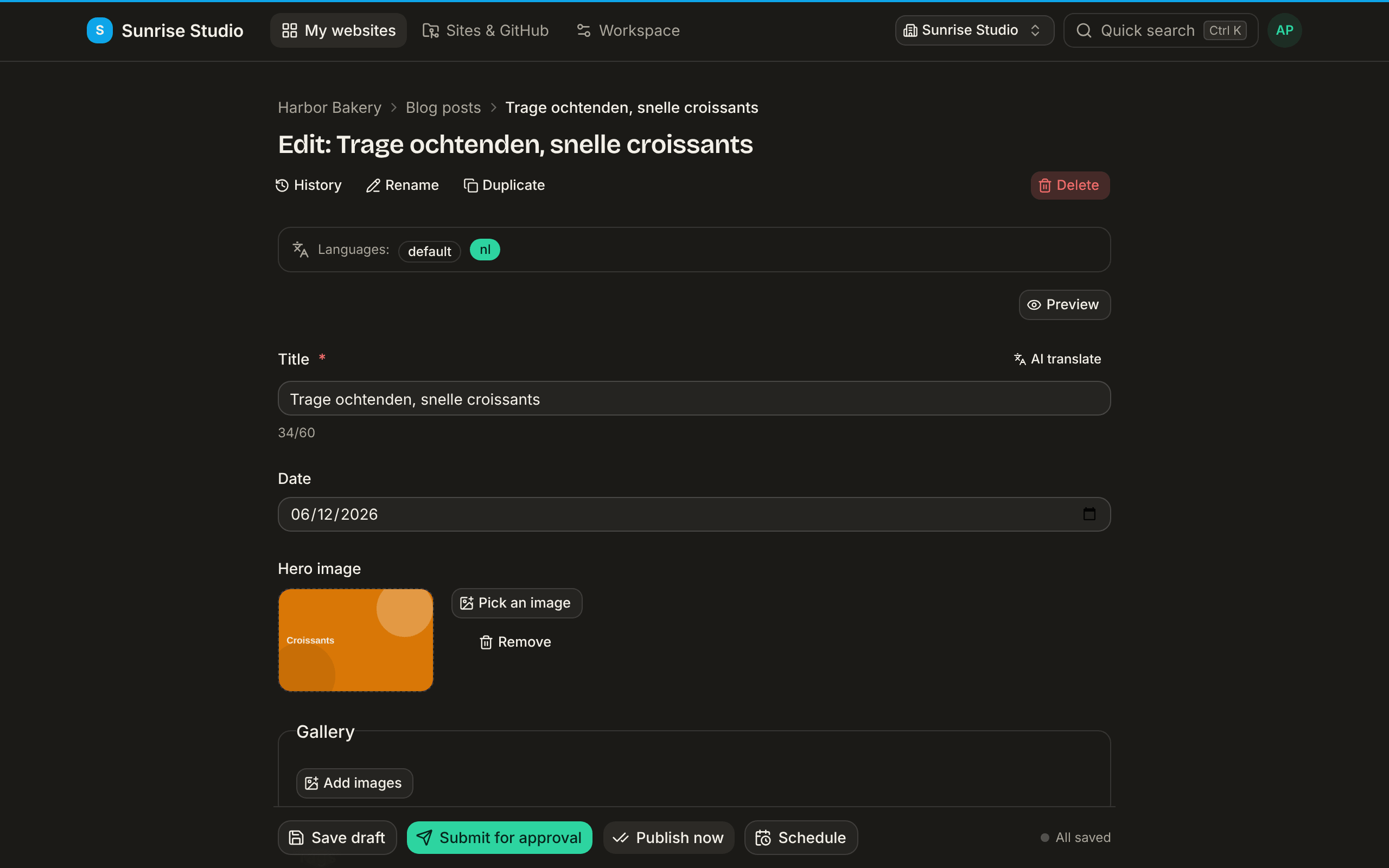
Each language is its own entry with its own change: translating the Dutch version never touches the original, and an approver reviews each one separately. Which languages exist, and where their files live, is set by your administrator (see the locales and i18n options).
Creating a translation
- Open the entry in its default language.
- In the language bar, click the language you want to add — a draft translation is created from the original.
- Translate the fields (by hand or with AI), then submit it like any other change.
Translating with AI
On text and Markdown fields (with AI enabled), the AI translate button offers a quick list of languages — or choose “Other language…” to type any target language and an optional tone instruction (for example “informal” or “keep our product names”). The translation lands in the field for you to review; formatting, links and code are preserved.
Keeping translations in sync
When you open a translation whose source has changed since it was last updated, PullPress shows an “may be out of date” warning. That's your cue to refresh the translation and resubmit, so the languages don't drift apart.
Next: shortcuts & FAQ →