Structured content & fields
Not everything is a blog post. Opening hours, team members, pricing tables and page settings are filled in as friendly forms — and saved as tidy structured data.
Filling a form
Each entry is a form built from your site's content model. A few things make it easier:
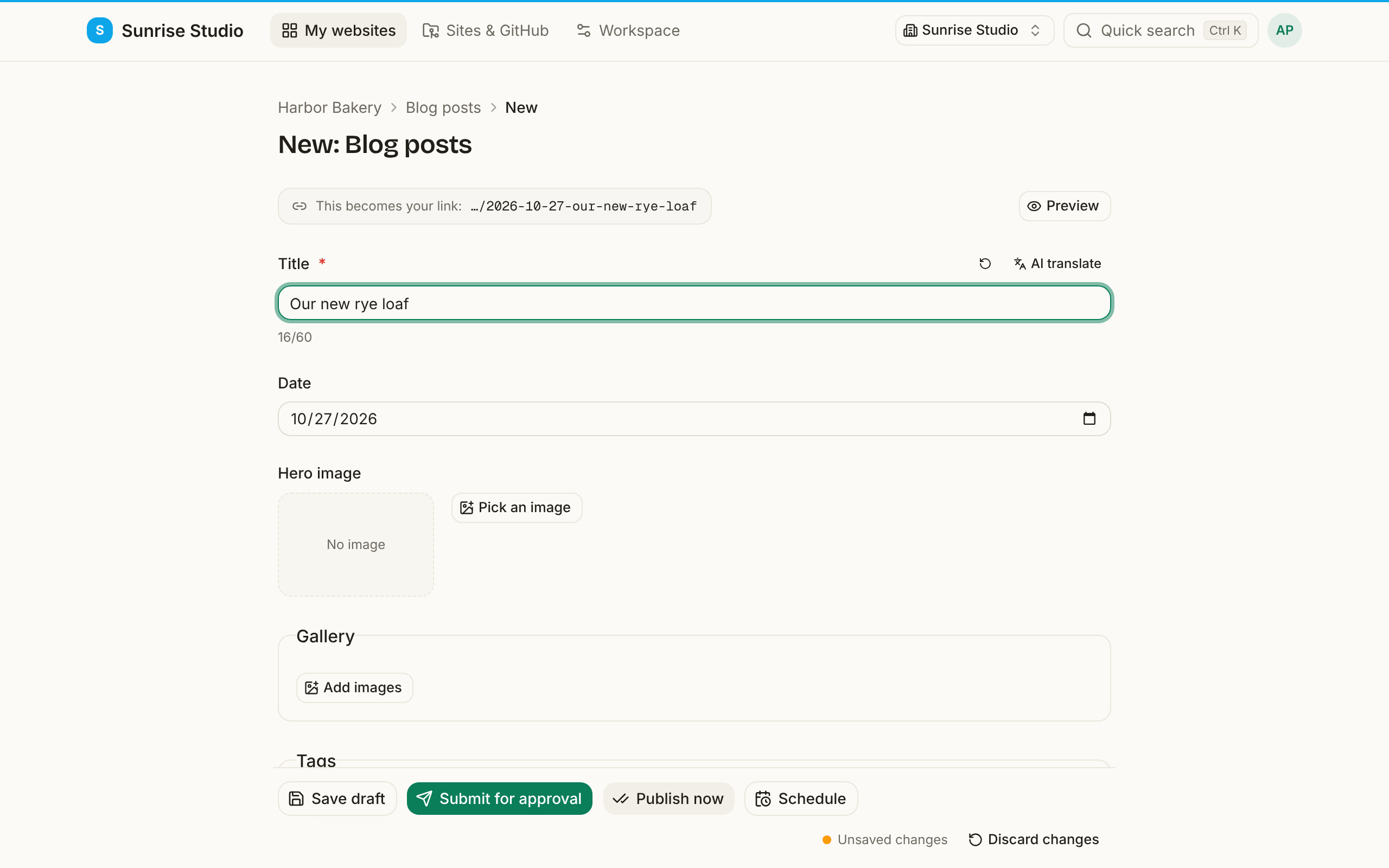
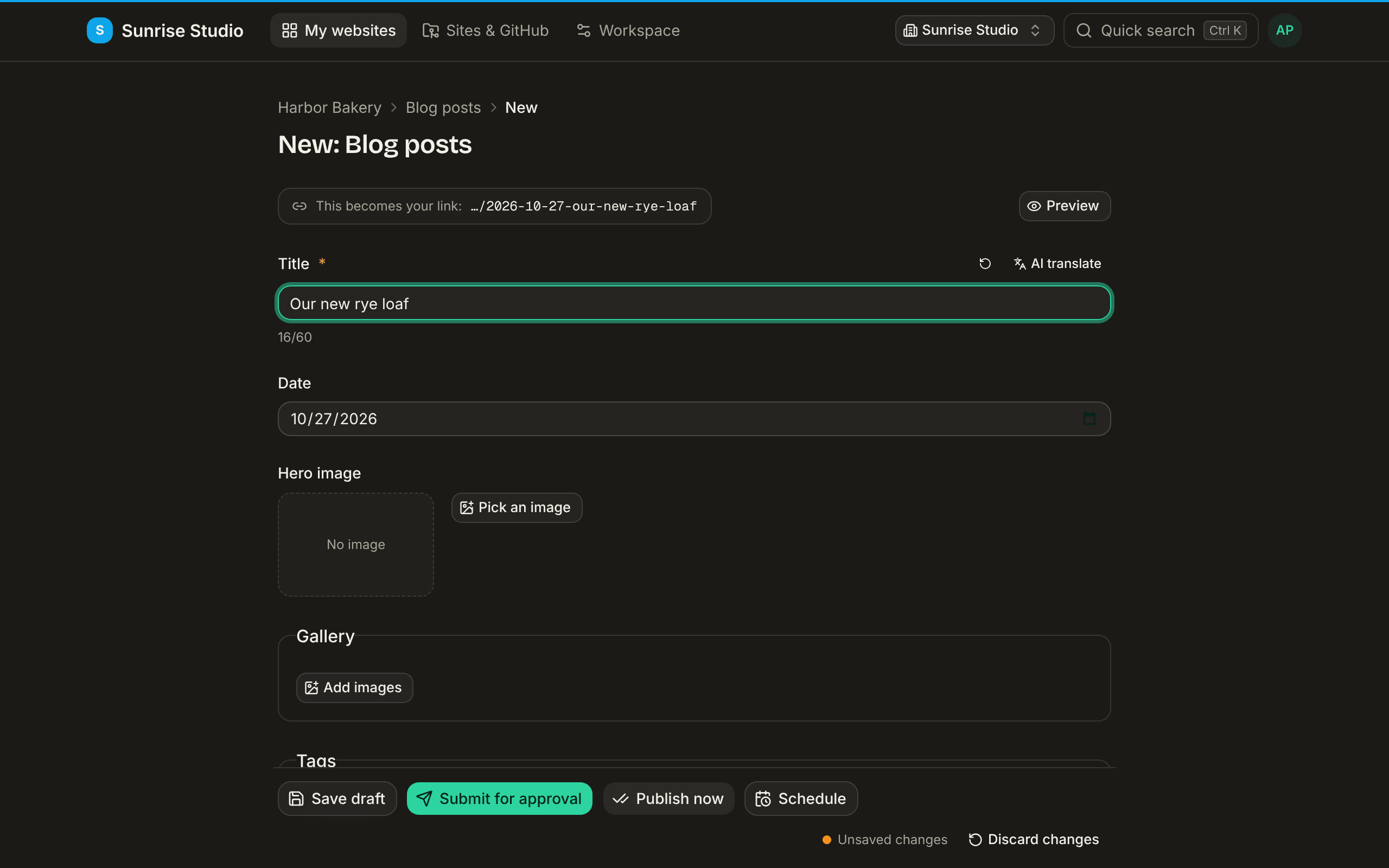
- Required fields are marked with a red asterisk, and each field can show a short hint or example.
- If something is missing when you submit, a summary appears at the top listing exactly which fields need attention — click one to jump straight to it.
- Made a change to a single field you regret? Use the small revert button next to it to put just that field back.
Common field types
- Text and rich text — short lines and long Markdown bodies (see Writing & formatting).
- Date / datetime — pick a date; some collections use it to order entries or for scheduled publishing.
- Boolean — an on/off switch (for example “featured”).
- Number, color and coordinates — for prices, brand colors, map pins, and the like.
- Image — opens the media picker (see Images & media).
- URL and email — checked when you save, so a link without
https://or a mistyped address is caught before it reaches the site.
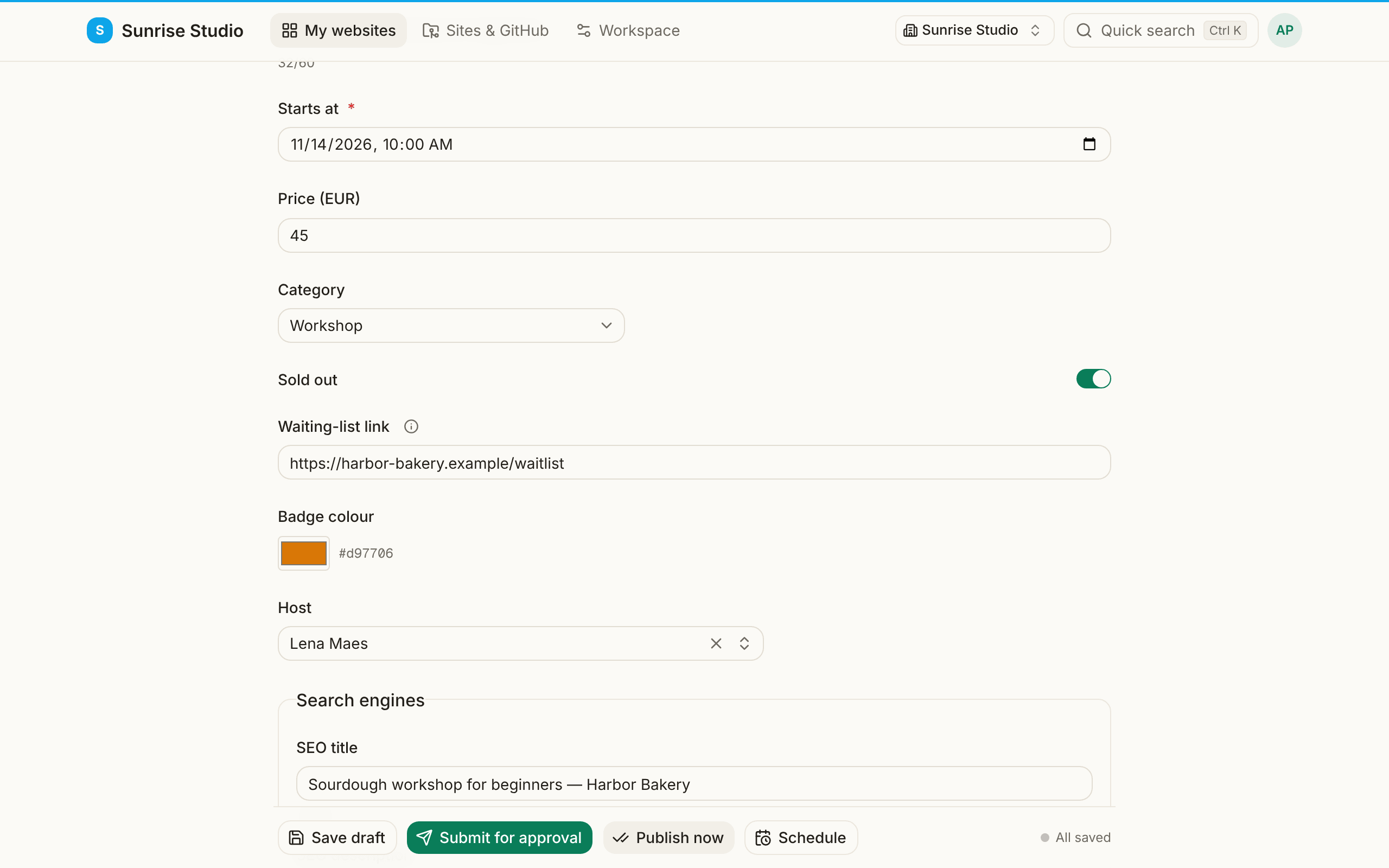
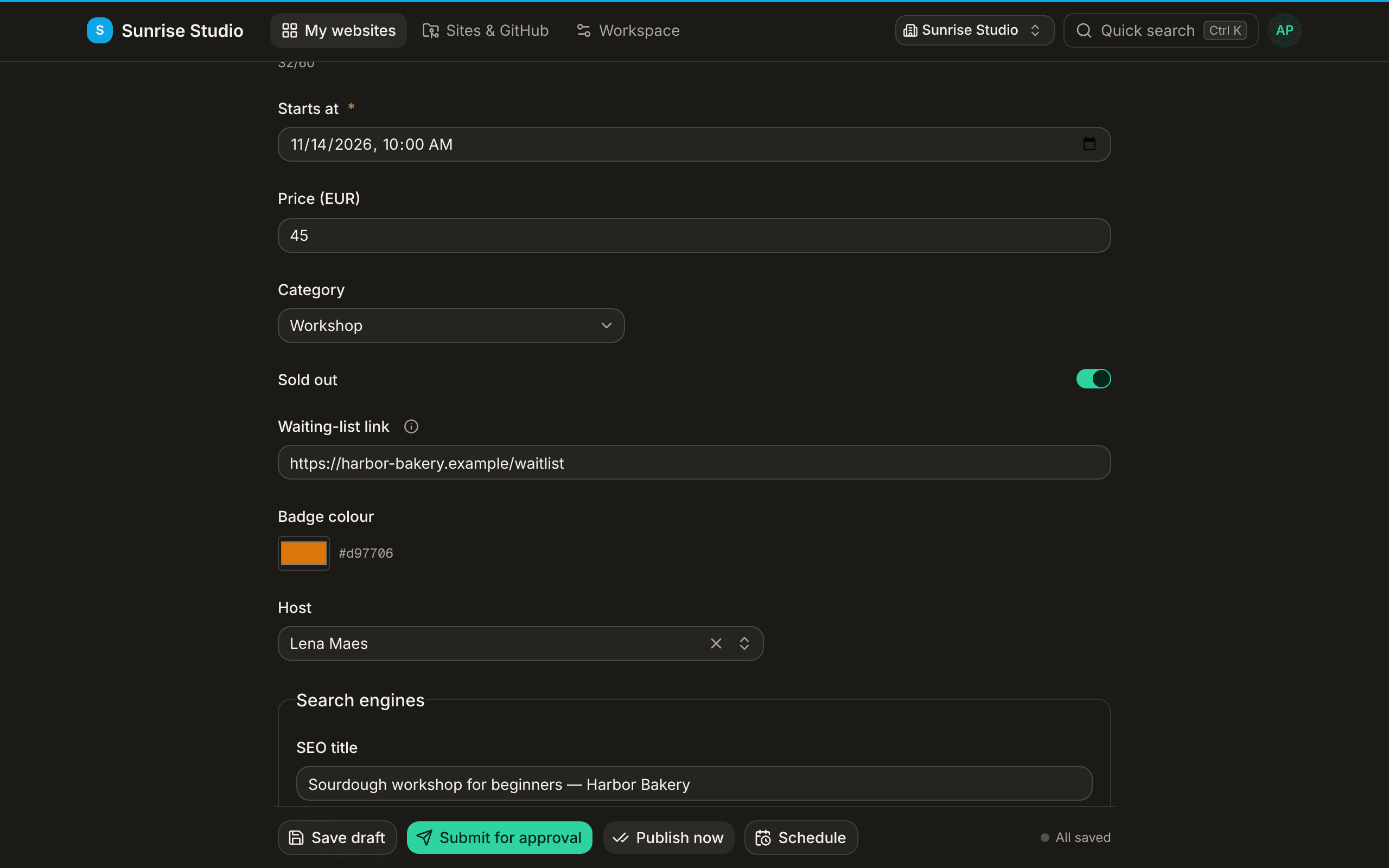
Some fields only appear when they apply. In the example above, the Waiting-list link shows up only after you switch on Sold out; switch it off again and the field (and its value) disappear. Your administrator decides which fields behave this way, so the form never asks for something that doesn't matter for this entry. A small ⓘ next to a label holds the field's help text: hover or tap it — or, if you prefer to always see help under each field, pick Always visible under the field under Field help on your profile.
Choosing from a list
Select fields offer a fixed set of options; relation fields link to another entry (for example a post's author or category). When there are many options, the field becomes a searchable combobox — start typing to filter, and use the clear button to reset. A relation stores the other entry's file name (its slug), so changing that entry's title later doesn't break the link.
Lists & repeatable items
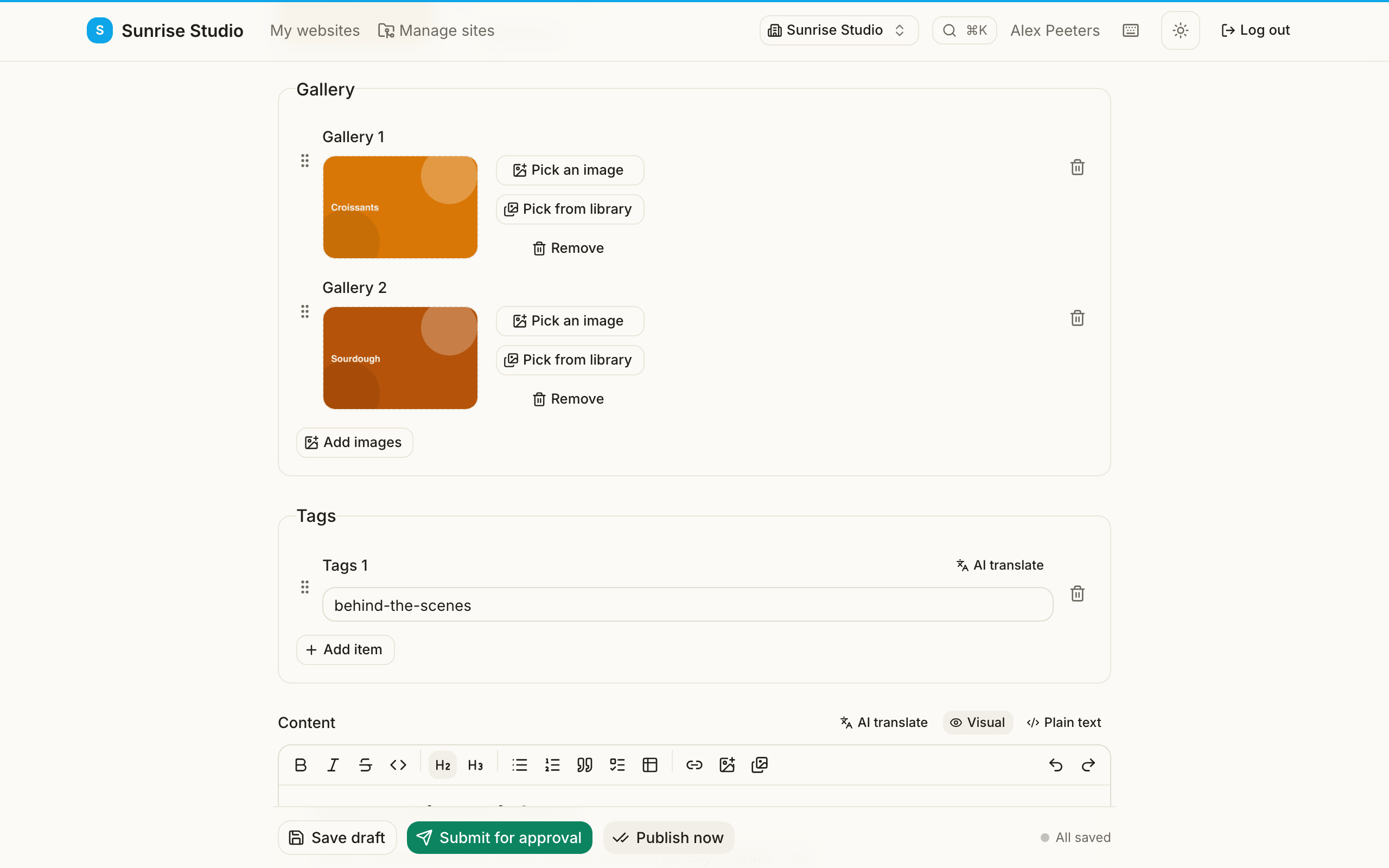
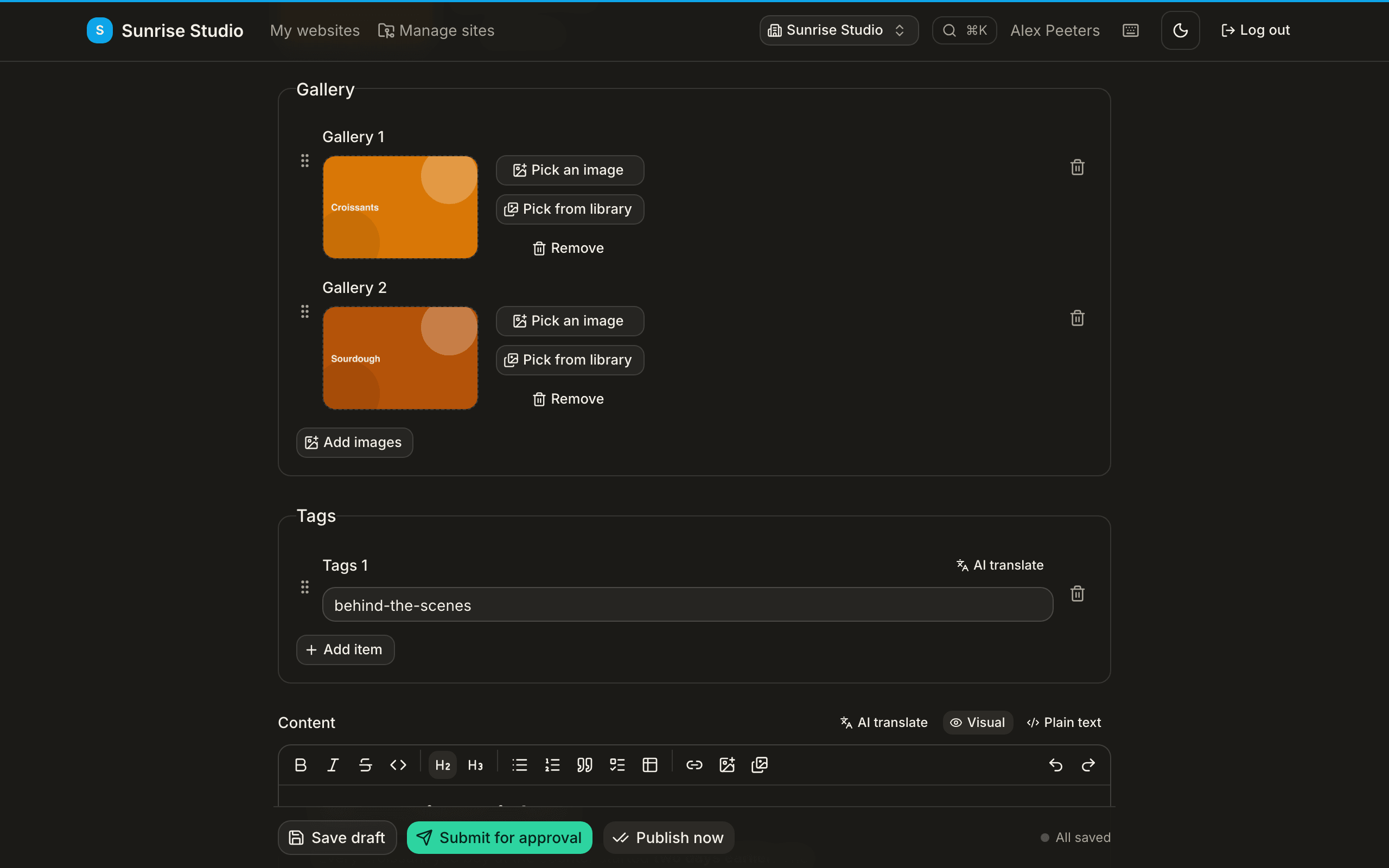
Some fields are lists — opening hours per day, team members, FAQ entries. You can:
- Add item to append a new row.
- Drag an item by its handle to reorder the list.
- Remove an item you no longer need.
The address (slug) preview
When you create a new entry, a live link preview shows the web address the page will get, derived from the title as you type. It updates instantly, so you can see (and tidy) the URL before saving.
SEO fields
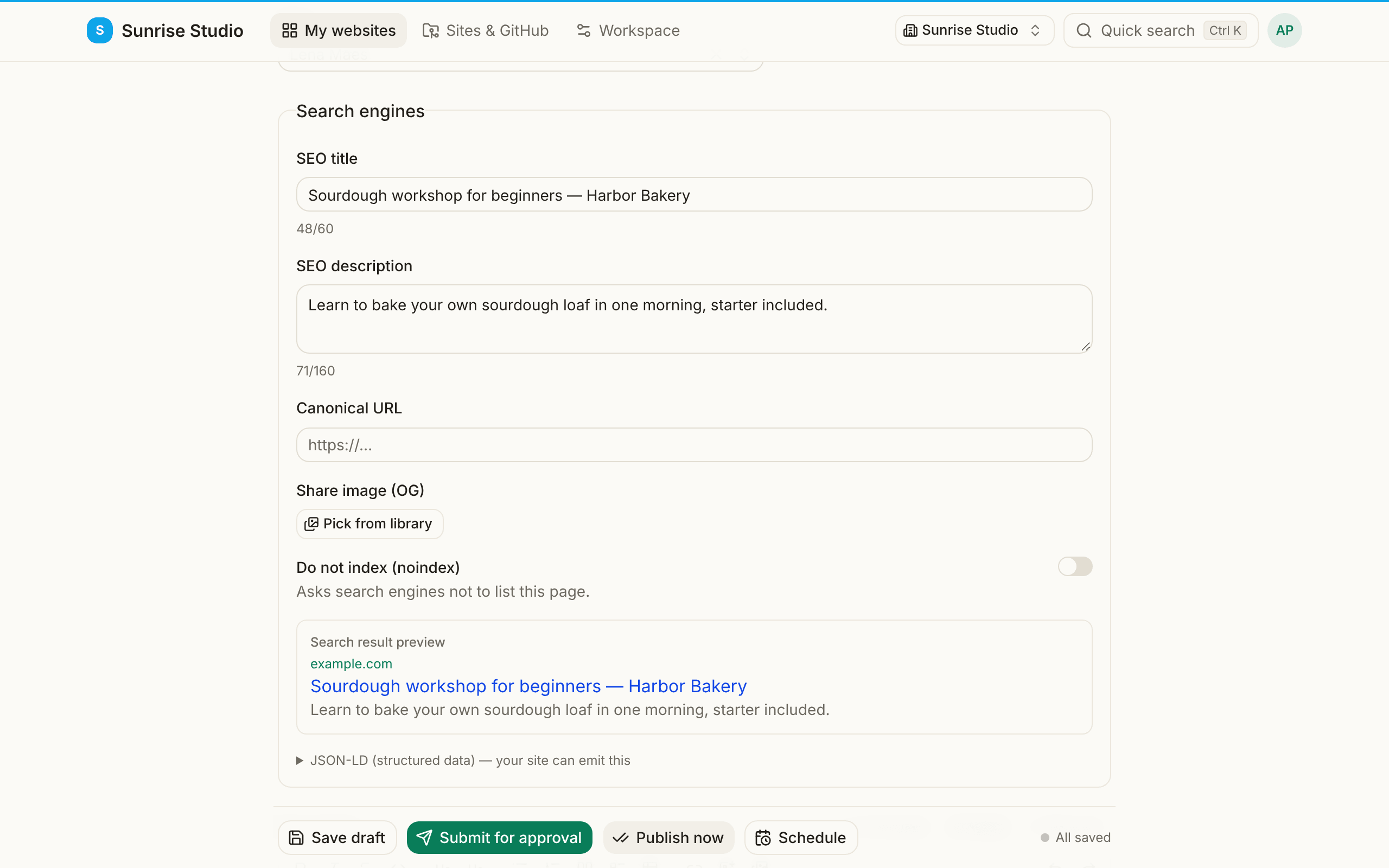
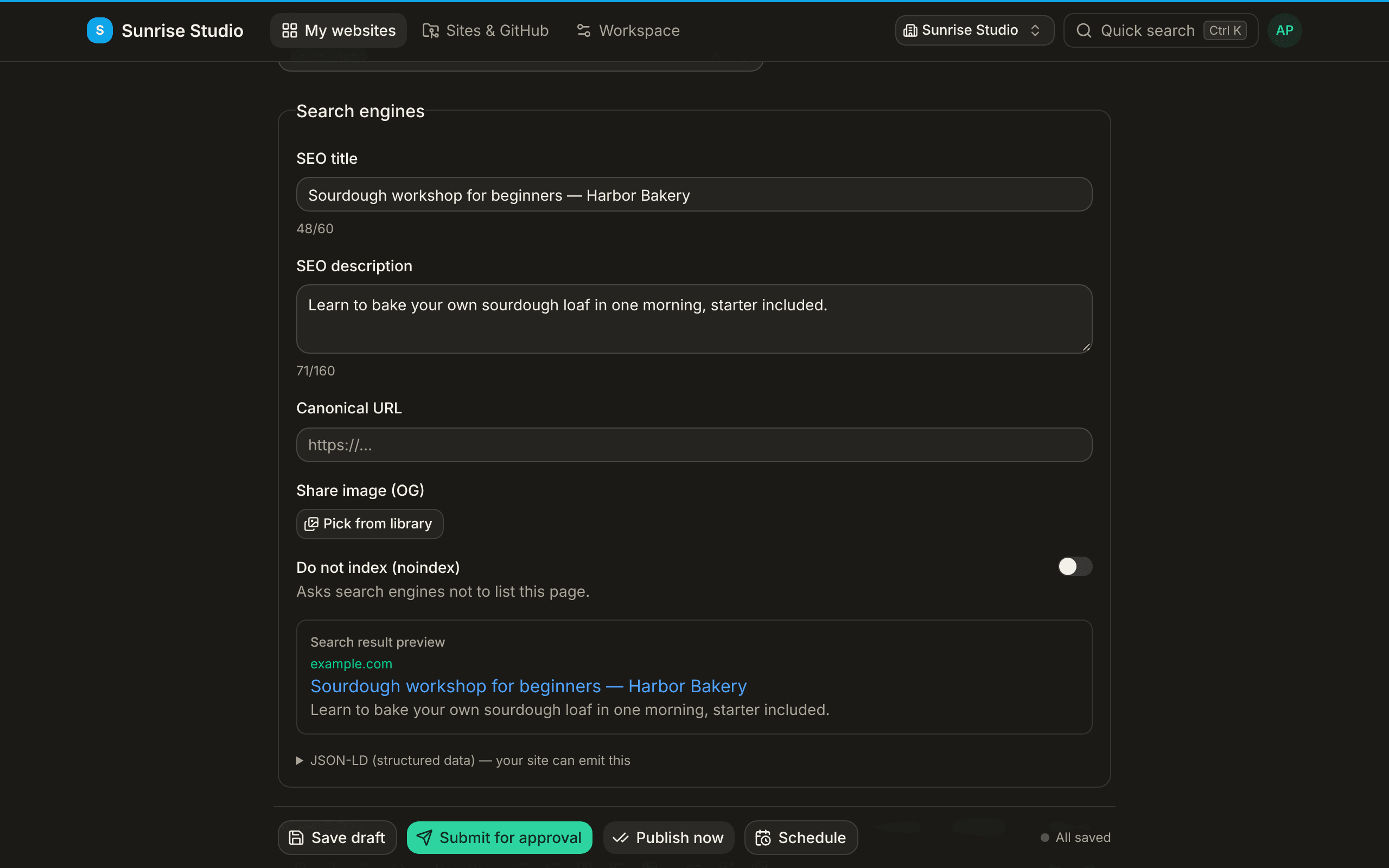
Collections often include SEO fields — an SEO title, description, share image and a “don't index” toggle. As you type, a search-result preview shows roughly how the page will look in Google, and character counters turn amber when a title or description gets too long. The block can also hold a canonical URL (when the same text also lives elsewhere) and a share image picked from the media library, shown when someone shares the page on social media.