Shortcuts & FAQ
The keyboard shortcuts, search and appearance options that make daily editing faster — plus answers to common questions.
Keyboard shortcuts
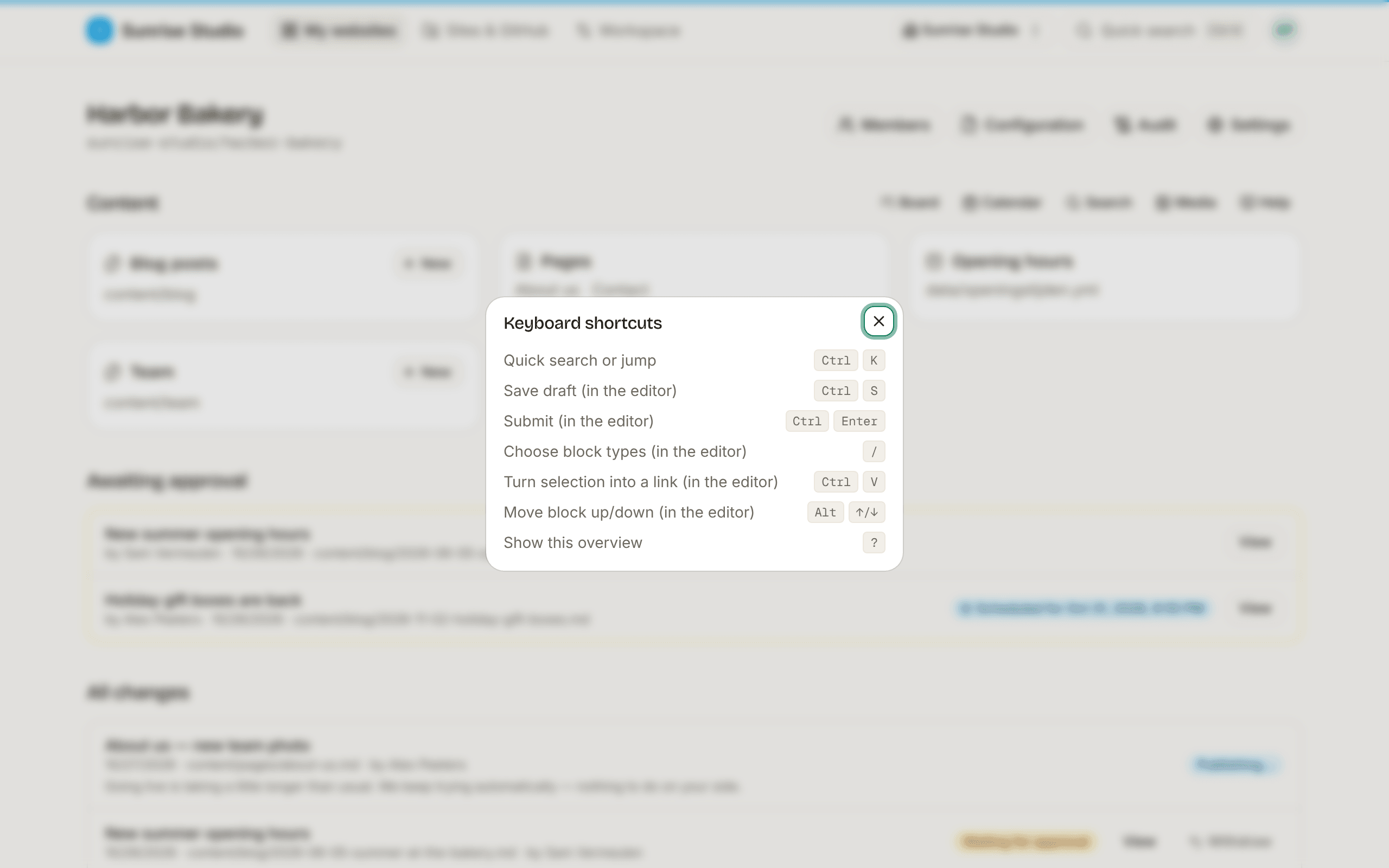
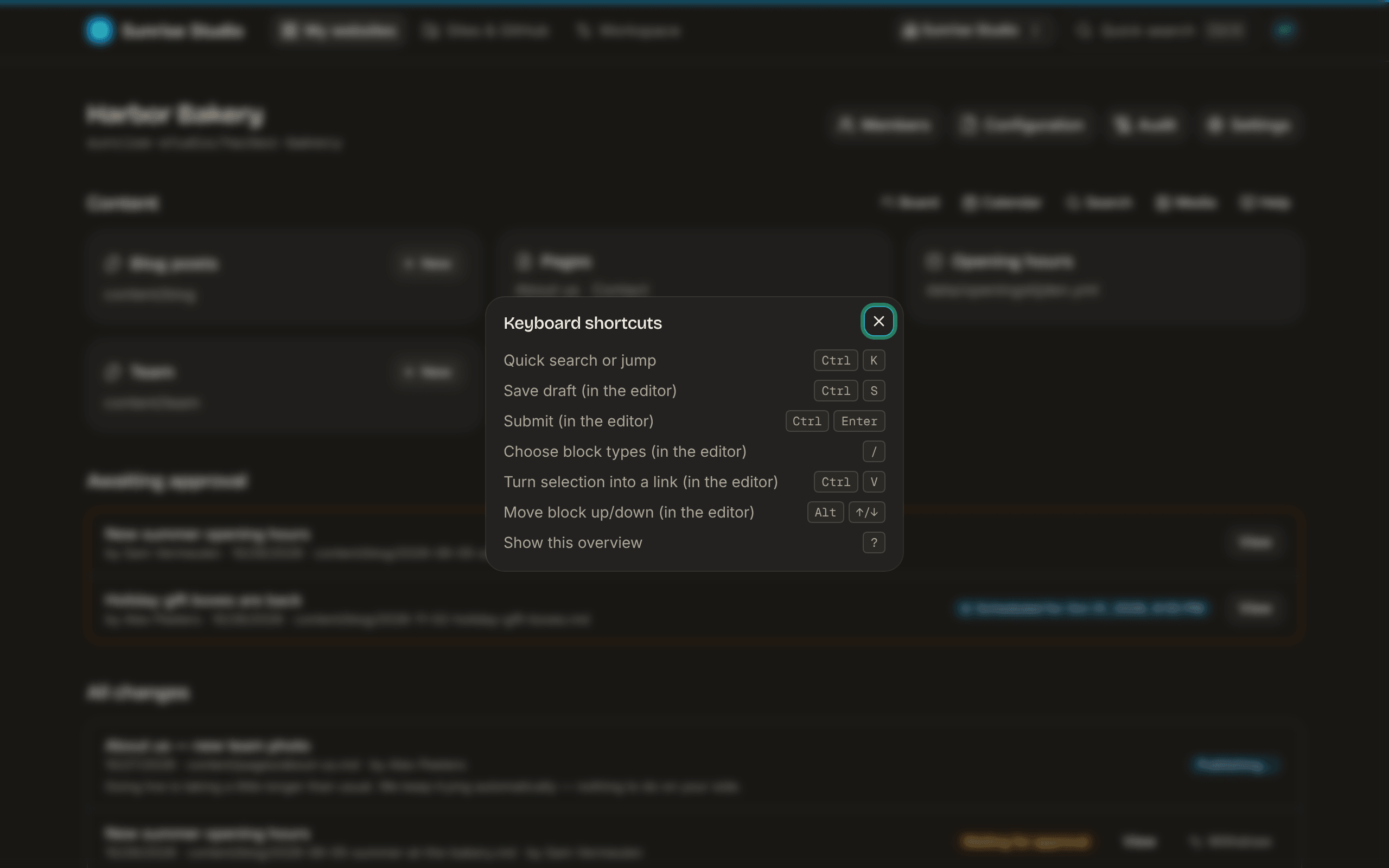
Press ? anywhere (outside a text field) — or choose Keyboard shortcuts in your account menu (the round button with your initials, top right) — to see these at any time.
- ⌘/Ctrl + K — open the command palette to search and jump to a site, collection or action.
- ⌘/Ctrl + S — save a draft in the editor (drafts also save by themselves when you pause typing).
- ⌘/Ctrl + Enter — submit for approval from the editor.
- / — open the block menu in a text field.
- ⌘/Ctrl + V — paste a web address over selected text to turn it into a link.
- Alt + ↑/↓ — move the current block up or down in a text field (the keyboard twin of the drag handle).
- ? — show the shortcuts overview.
The command palette
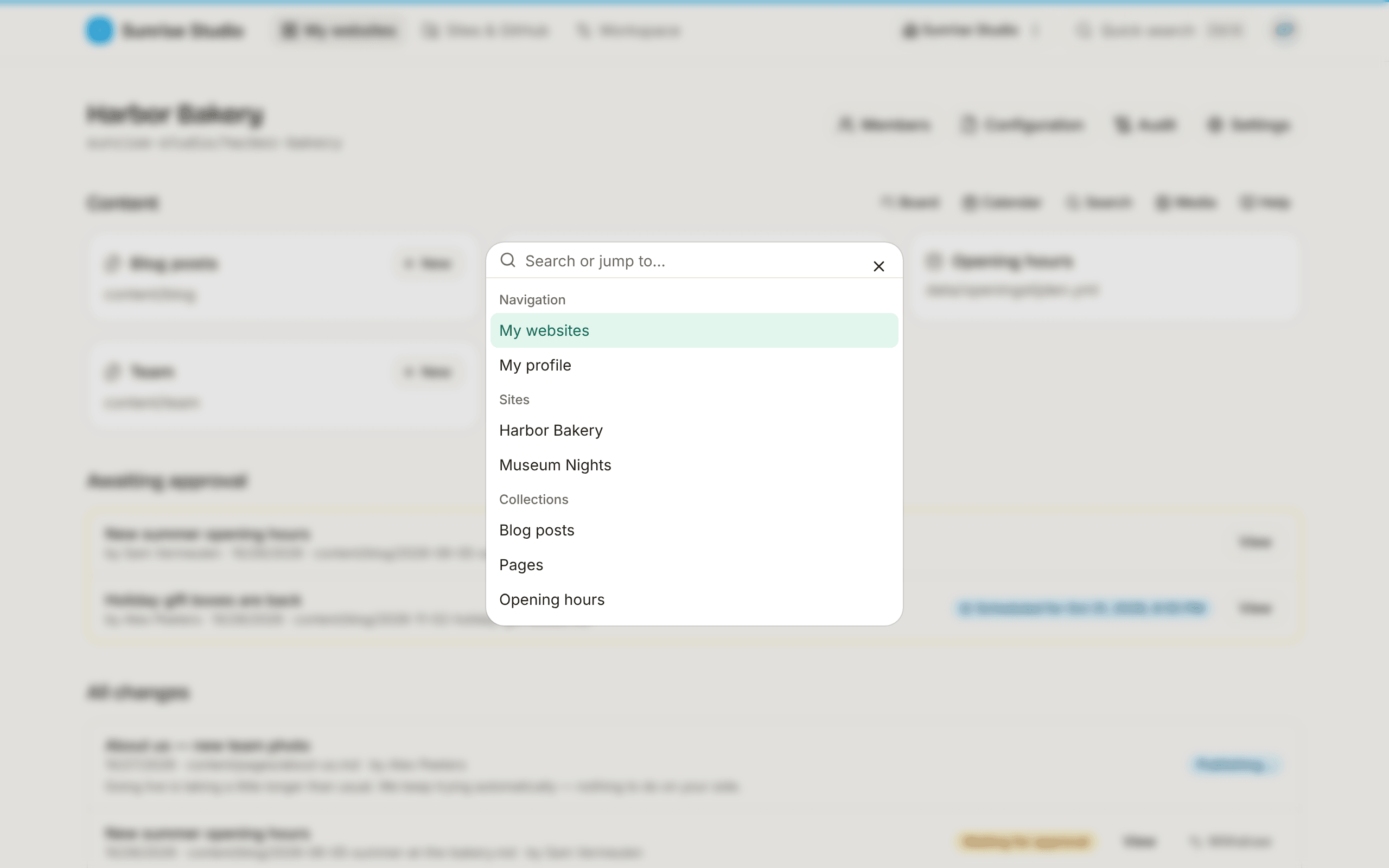
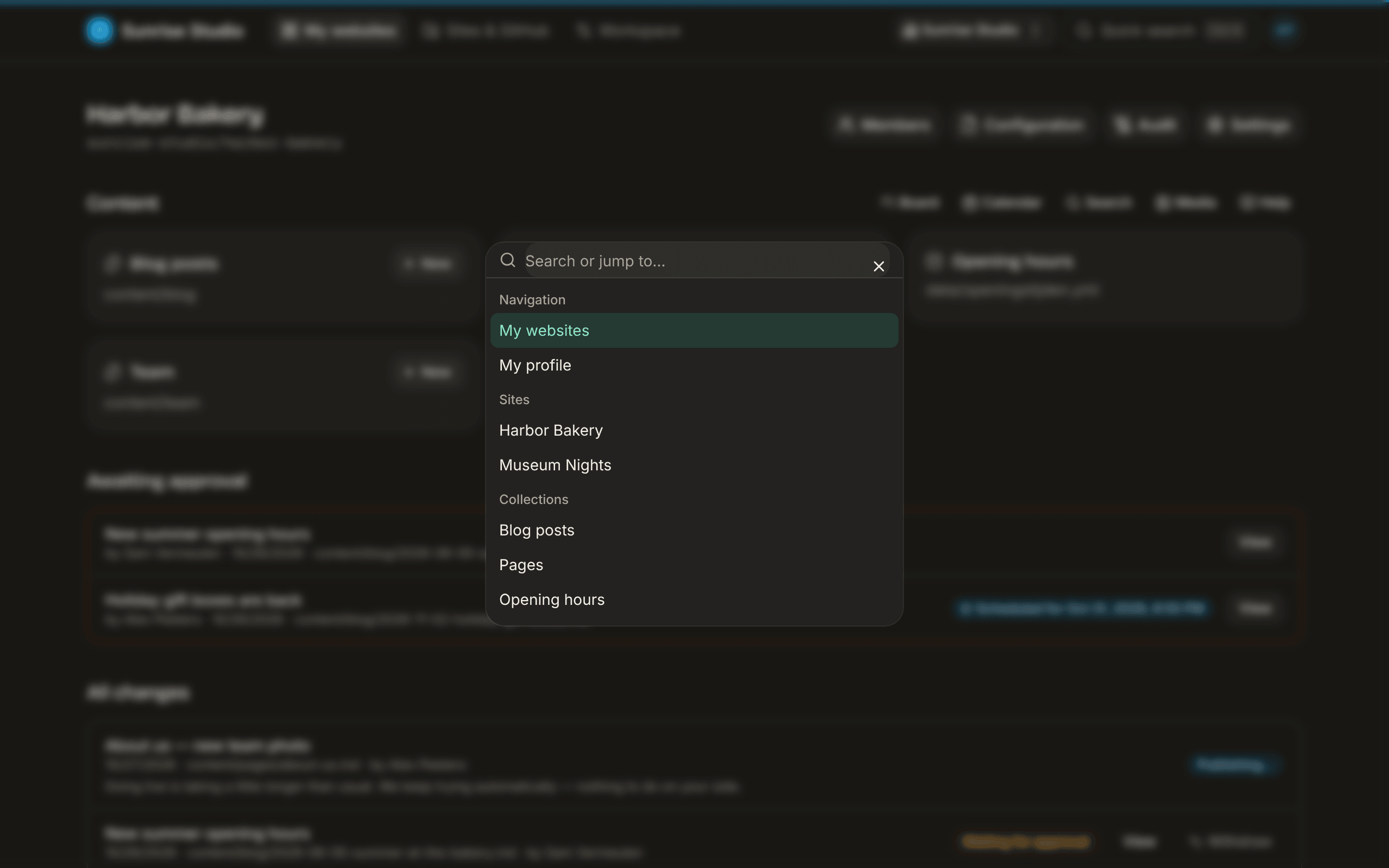
⌘/Ctrl + K (or the search box with ⌘K in the top bar) opens a palette that jumps anywhere without clicking through menus. It lists your pages (My websites, My profile), your sites, the current site's collections, and actions for that site: “New: Blog posts” (and so on for every collection you can write in), Board, Calendar, Search, Media and Help — plus Configuration, Members and Settings for site administrators. Start typing to filter, use the arrow keys to pick, and press Enter to go. The palette finds places, not words inside your content: for that, use the site search below.
Searching a site
The site search page offers two modes:
- Exact — matches the words in titles and content.
- Semantic (when AI is enabled) — finds content by meaning, even if the words differ (“opening hours” also finds a post about “when we're open”).
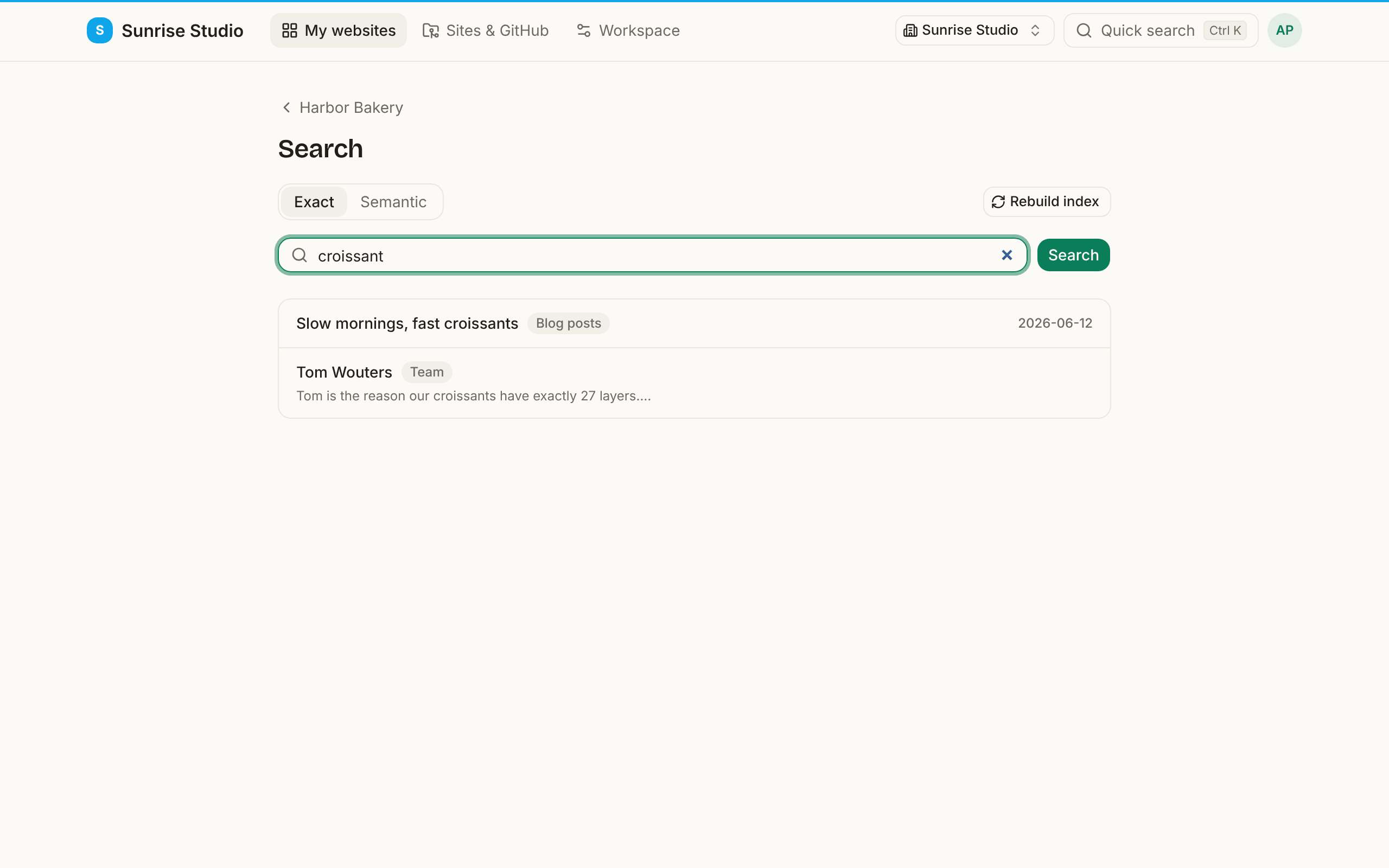
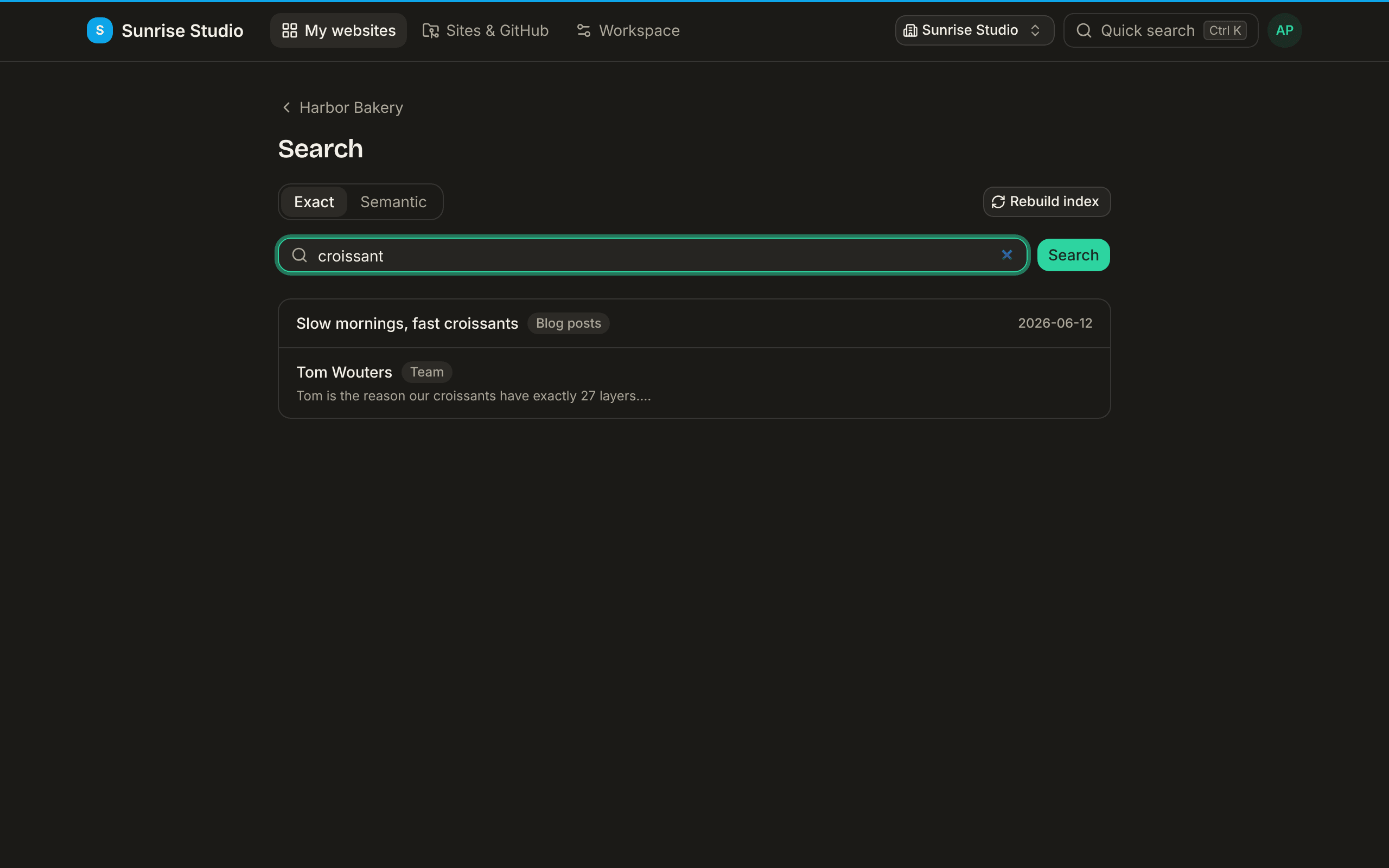
Results come from every collection you can see — blog posts, pages, team members, events — each labelled with its collection and opening straight in the editor. Semantic search uses an index of the site's content; site administrators see a Rebuild index button to refresh it (for example after a large import). If semantic search finds nothing at all, the index probably hasn't been built yet.
Appearance
Pick light, dark or system (follows your device) under Theme in your account menu (the round button with your initials, top right; on a phone, at the bottom of the menu). Your choice is saved to your account, so it follows you across devices. You can also set your interface language on your profile — English, Dutch, French, German or Spanish — and it follows you across devices the same way. The language picker on the public PullPress website sets the same preference.
FAQ
Do I need a GitHub account?
No. You sign in with just your email address; PullPress handles everything on GitHub for you behind the scenes.
What happens when I submit a change?
Your change is saved safely and sent to an approver. Nothing goes live until it's approved (or, on sites set up for it, published right away). You'll see the status move from Waiting for approval to Published.
Can I undo a change?
Yes. In the editor, use the per-field revert button or Discard changes. After publishing, every change is a tracked entry in the site's history, so a previous version can always be restored.
Why can't I see the AI buttons?
AI helpers are part of the Pro and Agency plans. If your workspace is on the free plan, you'll see a short note with a link to upgrade where the AI options would appear.
Why is a change still “waiting for approval”?
It's waiting for an approver. If it's urgent, @mention them in a comment, or ask an administrator who can publish. You can also withdraw it if you no longer need it.
Where do I get help?
Your account menu (the round button with your initials, top right; on a phone, the menu) opens this documentation and lets you email support@pullpress.app. If your agency runs PullPress under its own brand, ask them first — they look after your site.