Saving, submitting & publishing
Your work is always safe. Behind the scenes every change is kept apart from the live site until it's approved — you only ever see drafts, review and publish.
From first word to live page
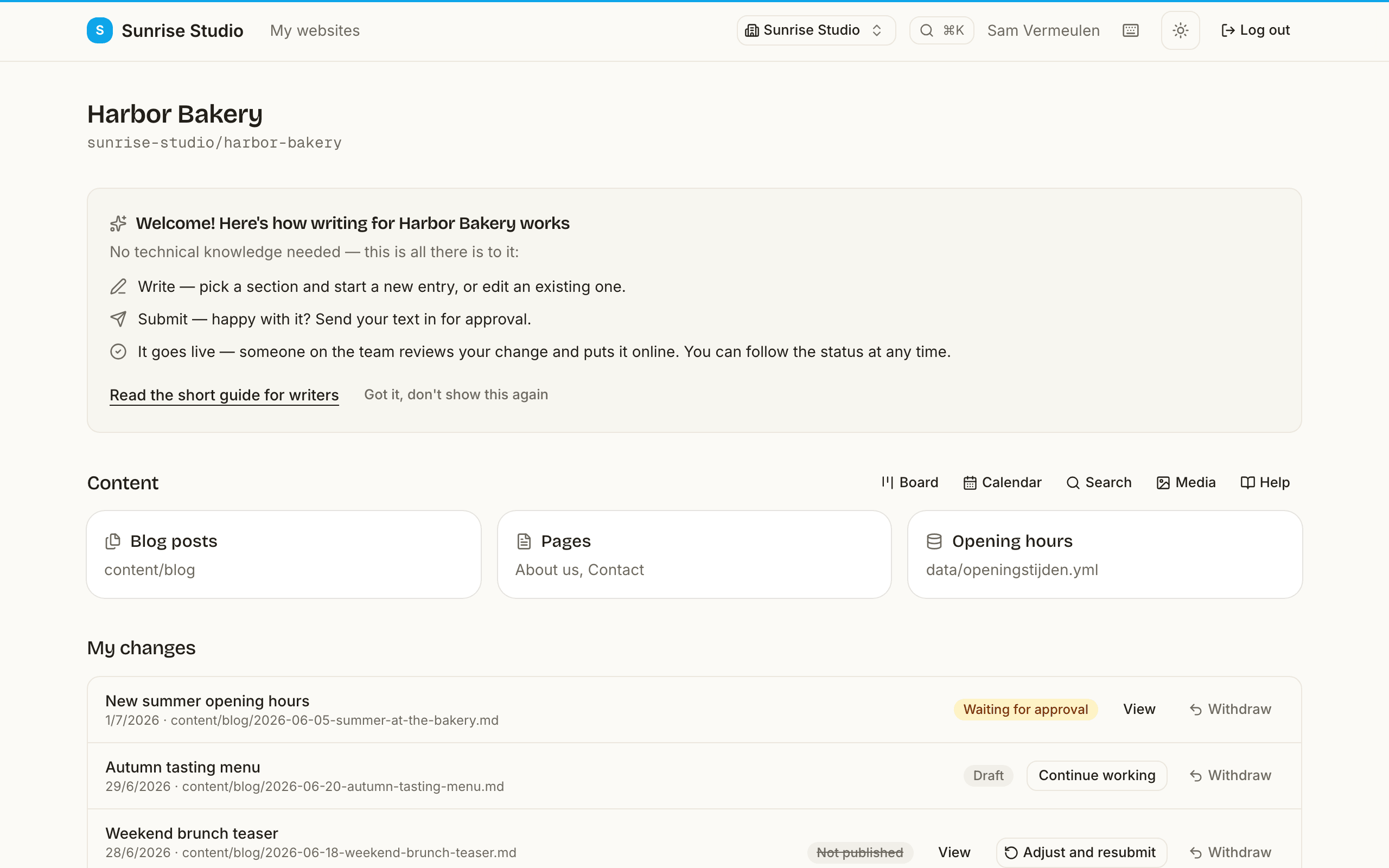
A typical change makes this journey — you can follow it at every step from your dashboard or the site page:
- Write. Open an entry (or start a new one) and write. Your work saves itself as a private draft whenever you pause.
- Submit. Happy with it? Click Submit for approval. The change now shows Waiting for approval and an approver gets notified.
- Sent back? If the approver isn't convinced yet, the change comes back as Not published, always with a note explaining why. The email you get opens your text straight in the editor, with the note on top: make the fix and submit again — nothing is lost. (On the site page, Adjust and resubmit does the same.)
- Published. Once approved, the change goes live. If going live takes a moment you'll see Publishing… in between; when it's done, the status flips to Published.
Autosave & restore
You don't have to remember to save: about fifteen seconds after you stop typing, PullPress saves your work as a private draft by itself (a new entry as soon as it has a title). Press ⌘/Ctrl + S to save right away, and ⌘/Ctrl + Enter to submit. A small indicator shows whether you have unsaved changes, are saving, or are all saved. If your browser closes unexpectedly, the editor offers to restore your unsaved work the next time you open the page.
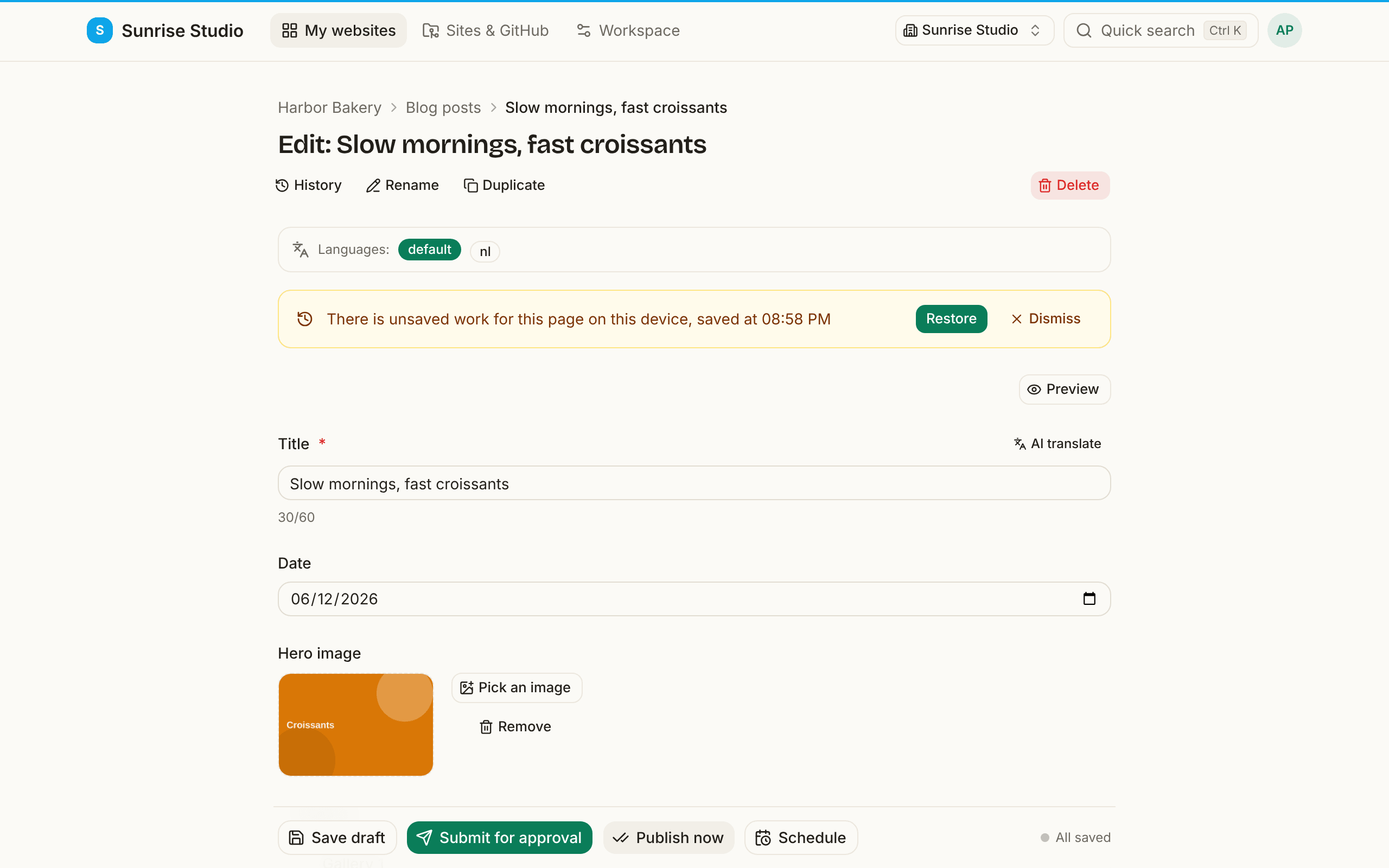
That safety copy lives in your browser on that device only — it isn't shared with colleagues and doesn't count as a draft until it's saved. Click Restore, check the result and save or submit as usual, or Dismiss to throw the copy away.
The action bar
At the bottom of an entry you'll find up to four buttons, each with a tooltip explaining it:
- Save draft — keeps your work privately. No one else sees it yet, and you can continue later from your dashboard.
- Submit for approval — sends the change to an approver, who reviews and publishes it.
- Publish now — only for administrators (and only on sites set up for it); puts the change live straight away.
- Schedule — also for administrators: pick a date and time and the change goes live by itself at that moment. Until then it waits in the approval list (and on the calendar), where it can still be rejected or withdrawn. Not available on sites where your developer adds an extra approval step of their own.
Want to undo everything since you opened the entry? Use Discard changes in the action bar to reset the whole form to how it was.
Statuses
Every change moves through a clear status:
- Draft — saved, visible only to you (and admins).
- Waiting for approval — submitted and waiting for an approver.
- Publishing… — approved, and going live is taking a little longer than usual. Nothing to do: it finishes automatically.
- Publish failed — we're on it — going live keeps failing for the moment. The site admins have been alerted and PullPress keeps retrying in the background; your text is safe and you don't need to do anything.
- Published — approved and live on the site.
- Not published — sent back with a reason, ready for you to rework and resubmit.
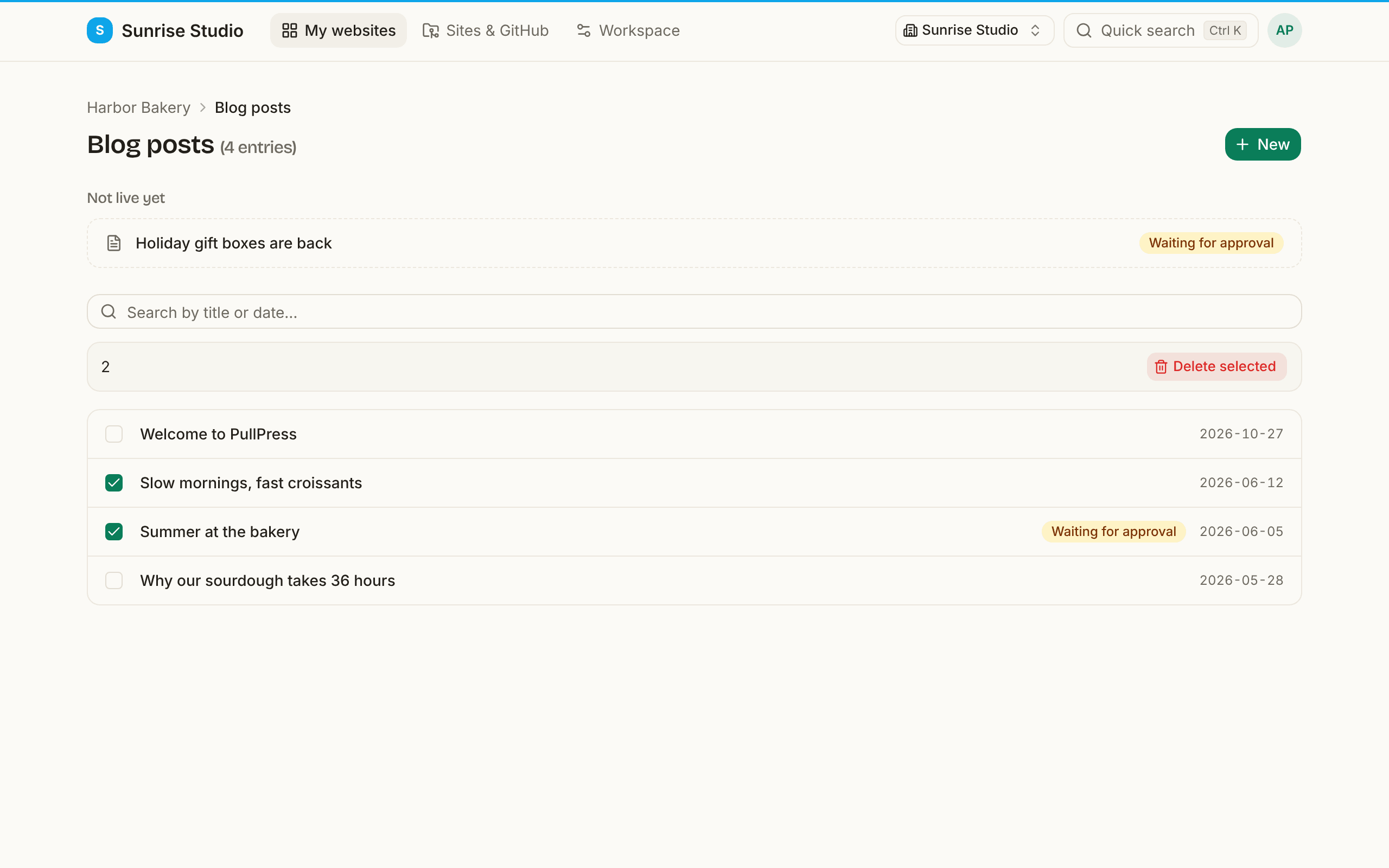
A brand-new entry only appears in its collection's list once it's live. Until then it's listed at the top under Not live yet, with its status — so a post you just submitted never seems to vanish. Entries that are already live show a small status label too when a change to them is waiting for approval (or is your own draft), so you spot it before opening the entry.
On the site page, click a change's title to go to the logical next step: your draft opens in the editor, a submitted change opens its review page. Each collection card has a + New button, and the ⌘/Ctrl + K palette offers “New: Blog” (and so on) for every collection you can write in.
Working on the same entry
Two people can never silently overwrite each other. When you open an entry a colleague is already editing, PullPress tells you: “… is editing this right now. You can watch, or take over editing.” Watching is read-only and updates live; Take over makes you the editor — your colleague sees who took over, and their unsaved work stays safe on their device.
If an entry changed on the site while you were working on it (for example, a colleague or your developer changed it), saving doesn't overwrite anything. Instead the editor shows “This entry was changed by someone else while you were working” and lets you compare the two versions field by field — Your version next to The other version — and choose which one to keep. Click Use the chosen versions, check the result, and save again.
Opening an entry that already has a change waiting for approval (yours or a colleague's)? A yellow notice says so and links to that change. What you see is the version that's live now, and saving would start a second change that can clash with the first. To adjust your own submitted text, choose Pull back to edit under My changes on the site page: it becomes a draft again with your text intact, and you submit it once more when you're done.
Renaming & duplicating
Open an entry and you'll find two more actions next to it (for entries that live as their own file — blog posts, news, team members):
- Rename — change an entry's name. Because the name is also its file, this usually changes the page's URL on your live site, so existing links to the old address will break. PullPress warns you before you confirm; use it deliberately, and update any hardcoded links yourself. The rename goes through the normal review flow like any other change.
- Duplicate — one click makes a copy titled “Copy of …” and drops you straight into it as a fresh draft. Everything is copied — all fields, the body, and (for entries that keep images in their own folder) their media too — so it's the quickest way to start a new entry from one shaped just right.
Bulk actions
Need to remove several entries at once? In a collection list, tick the checkboxes next to them and use Delete selected — they're bundled into a single change that goes through the normal review flow, just like any other edit.
History & restoring
Because every saved change is recorded, each entry keeps a full history. Open an entry's history to see who changed what and when, and to restore an earlier version if you need to roll something back — again, as a reviewable change.
Next: reviewing & teamwork →