Site & workspace settings
A tour of the two settings screens: one per site, and one for the whole workspace. Editors never see either.
Site settings
Open a site and choose Settings. Only workspace owners and admins (site role admin) can open it.
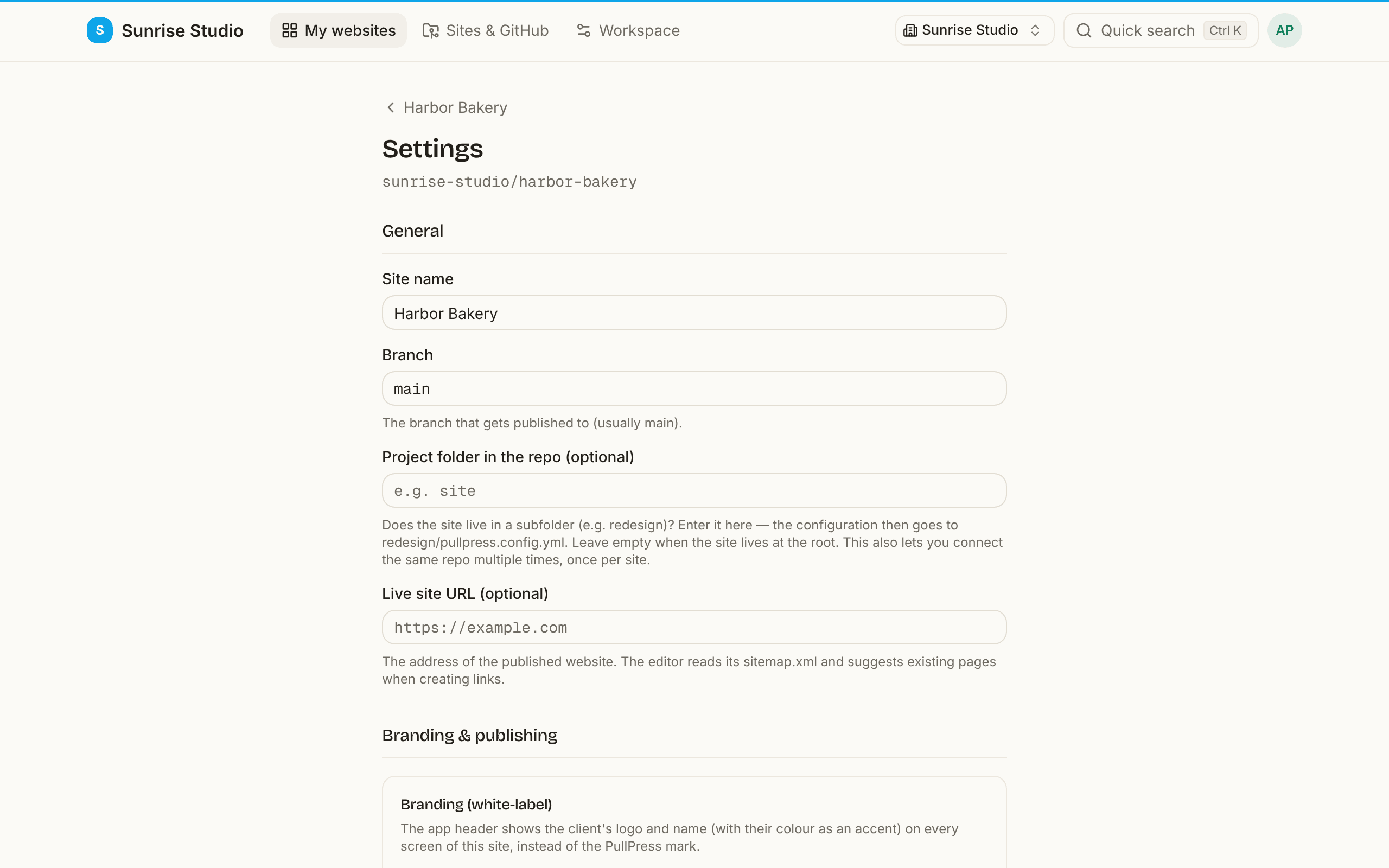
General
- Site name — how the site is labelled in PullPress.
- Branch — the branch that gets published to (usually
main). - Project folder — for a site that lives in a subfolder of the repository (say
redesign): the configuration then lives atredesign/pullpress.config.yml. Leave it empty when the site sits at the root. This is also how you connect the same repository more than once, one site per folder. - Live site URL — the address of the published website. The editor reads its
sitemap.xmlto suggest existing pages when someone adds a link, and the AI discoverability check uses it.
Branding & publishing
- Branding (Agency plan) — a brand name, logo (plus an optional dark-theme logo) and accent colour shown in the app header on every screen of this site instead of the PullPress mark. It overrides the workspace branding on that site's pages.
- Preview URL per change — if your host builds a preview of every branch, enter its address with
{branch}as placeholder, for examplehttps://{branch}--example.netlify.app. Editors and approvers then get a View preview button. - Notification webhook — paste a Slack-compatible incoming webhook and submissions and decisions also appear in a chat channel, next to the emails.
- Publishing flow — Approval in PullPress, Publish directly, or Extra approval on GitHub; see publishing flows.
- Quality gate before publishing — blocks approving and publishing while the automatic quality checks find issues (missing alt text, empty links, heading jumps, placeholders).
- AI refresh for stale content — lets the weekly freshness scan submit an AI-refreshed version of badly outdated entries as a change, which you still approve. Needs AI (a paid plan or your own key).
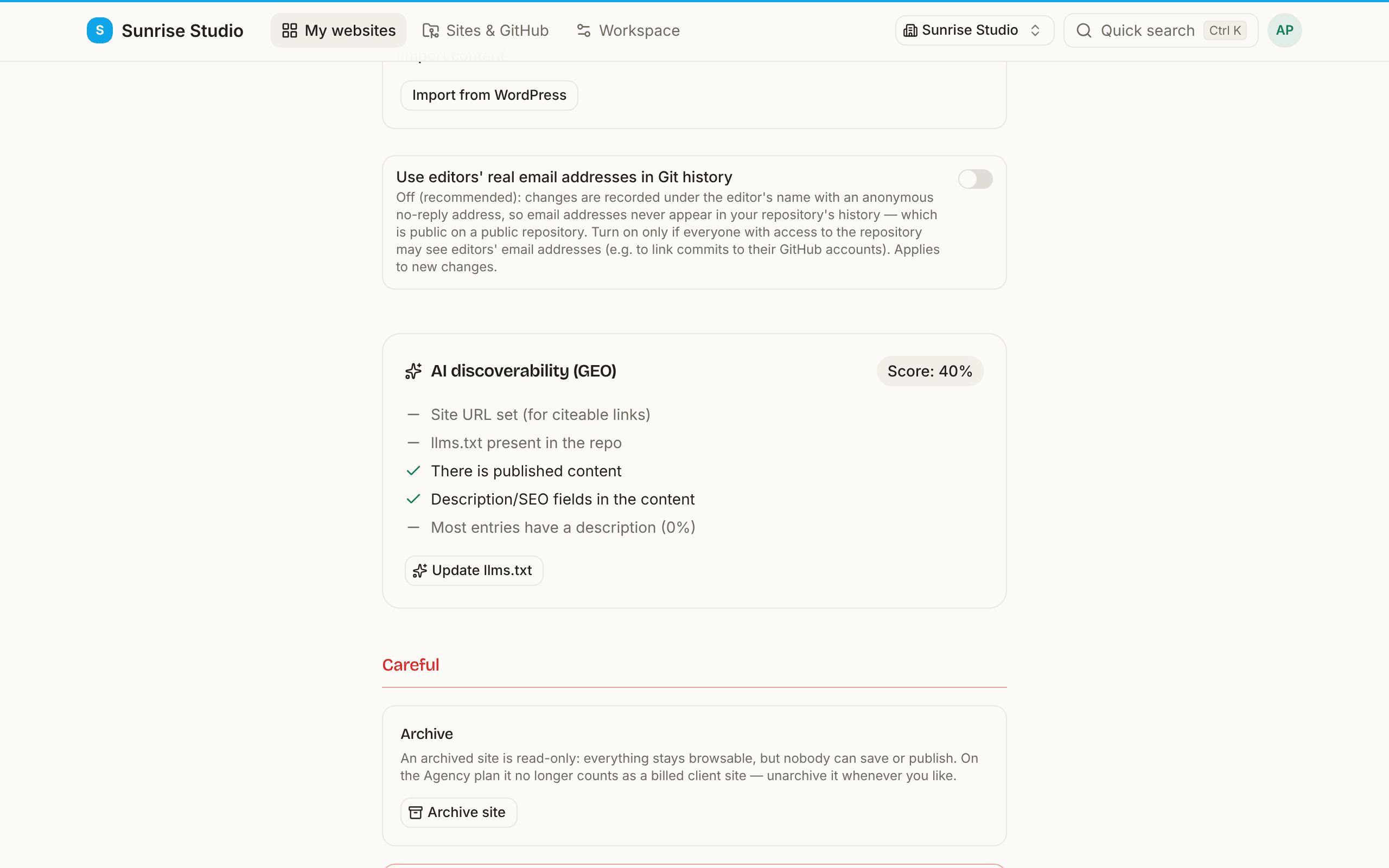
- Use editors' real email addresses in Git history — off by default, so commits carry a pseudonymous no-reply address; see the GitHub App notes.
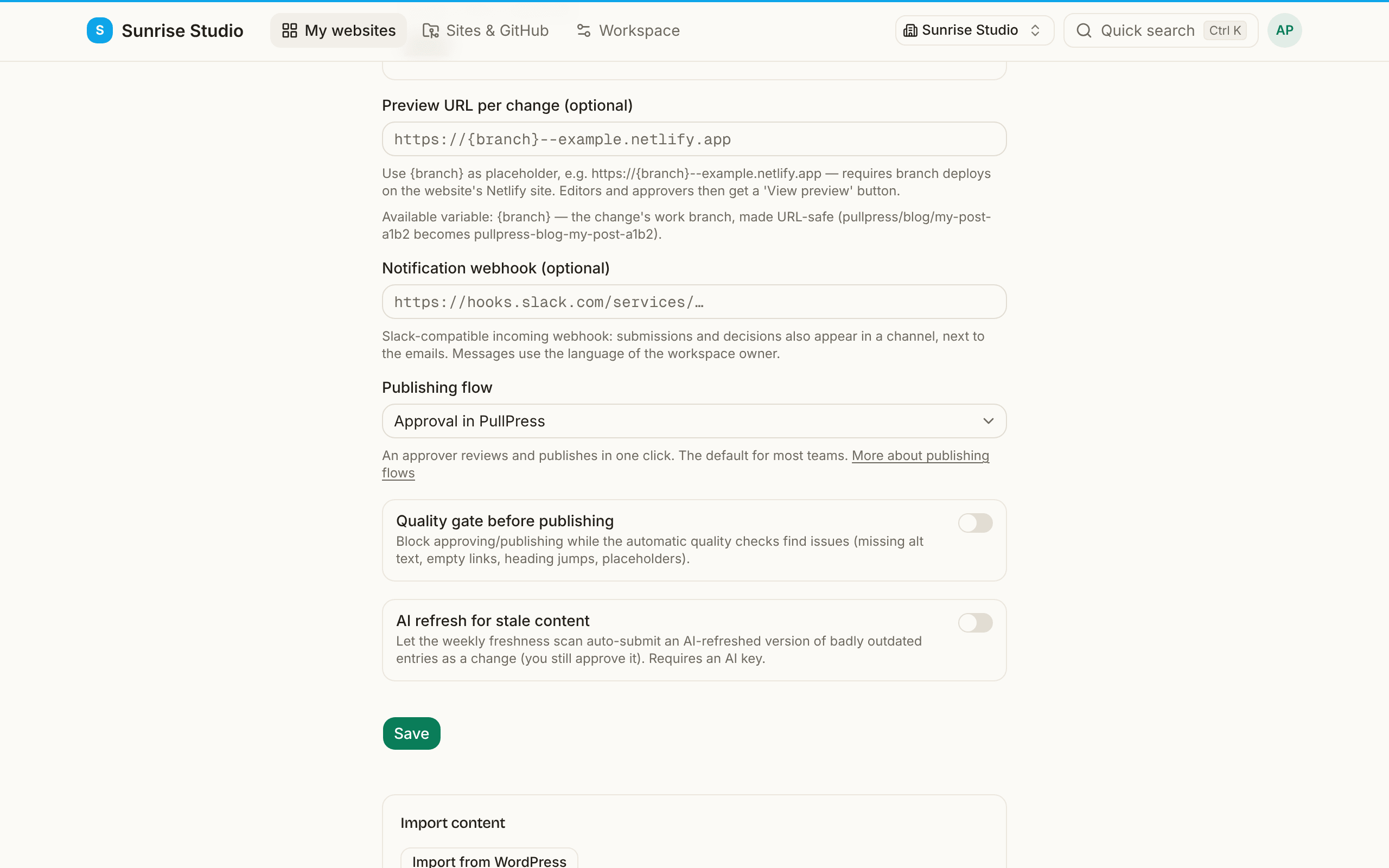
Press Save under these fields to apply them; the sections below (import, archive, disconnect, GEO) act immediately on their own buttons.
Import, AI discoverability and the danger zone
- Import from WordPress opens the importer — see what it covers.
- AI discoverability (GEO) scores how easy the site is for AI search engines to read (a live site URL, an
llms.txt, descriptions, structured data and sharing tags on the live homepage). Update llms.txt generates the file from your content model and submits it as a change (or publishes it on open-publishing sites). - Archive site makes the site read-only: everything stays browsable, but nobody can save or publish, and on the Agency plan it stops counting as a billed client site. Unarchive anytime.
- Disconnect site removes the site from PullPress — its members and change overviews disappear, but the content and history in your repository stay fully intact.
Audit log
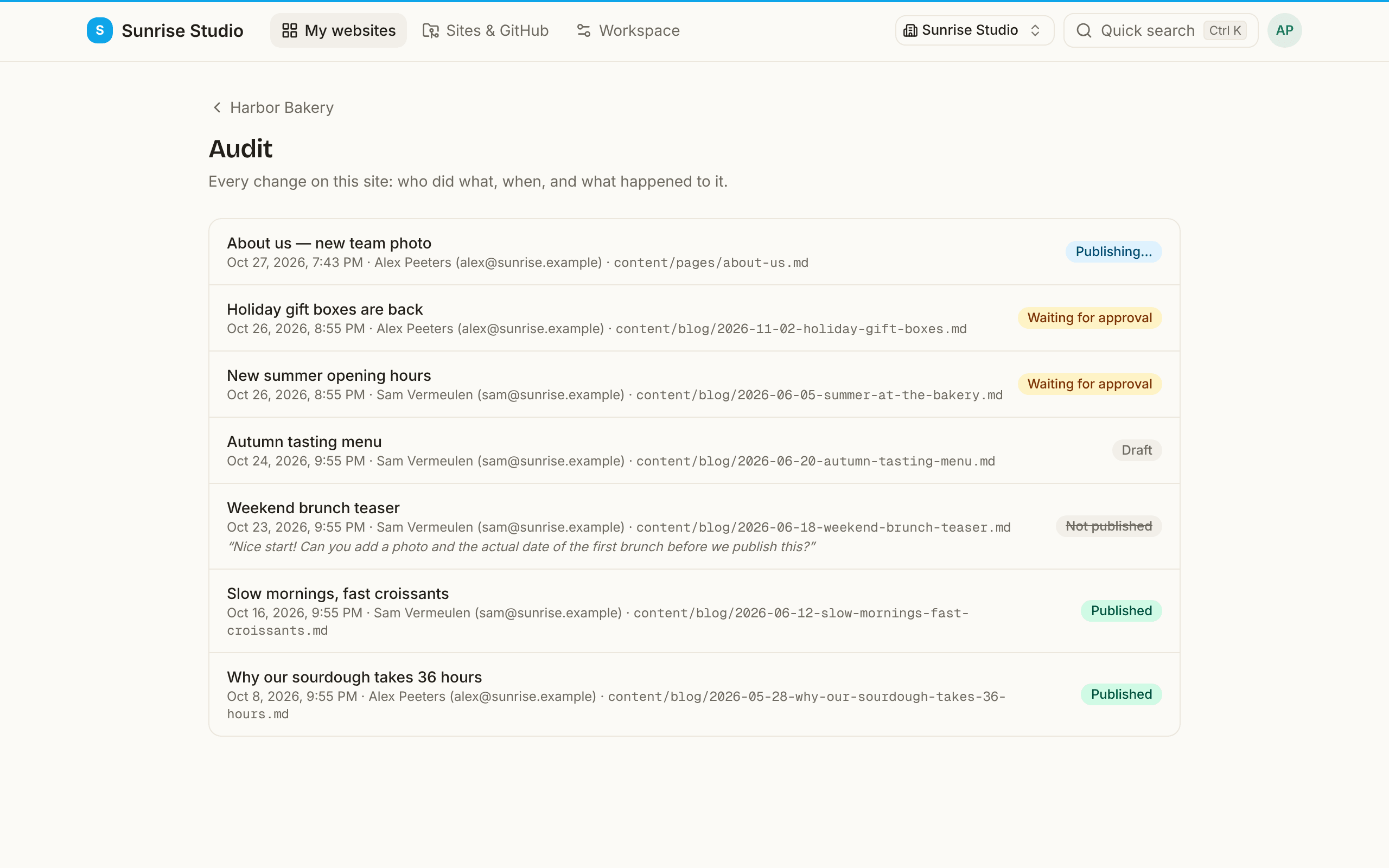
Each site also has an Audit page (from the site overview, admins only): every change on the site — who did what, when, and what happened to it. Each row shows the title, date and time, the author (name and email), the file it touched and its current status; a rejected change also shows the approver's note.
A guide for your writers
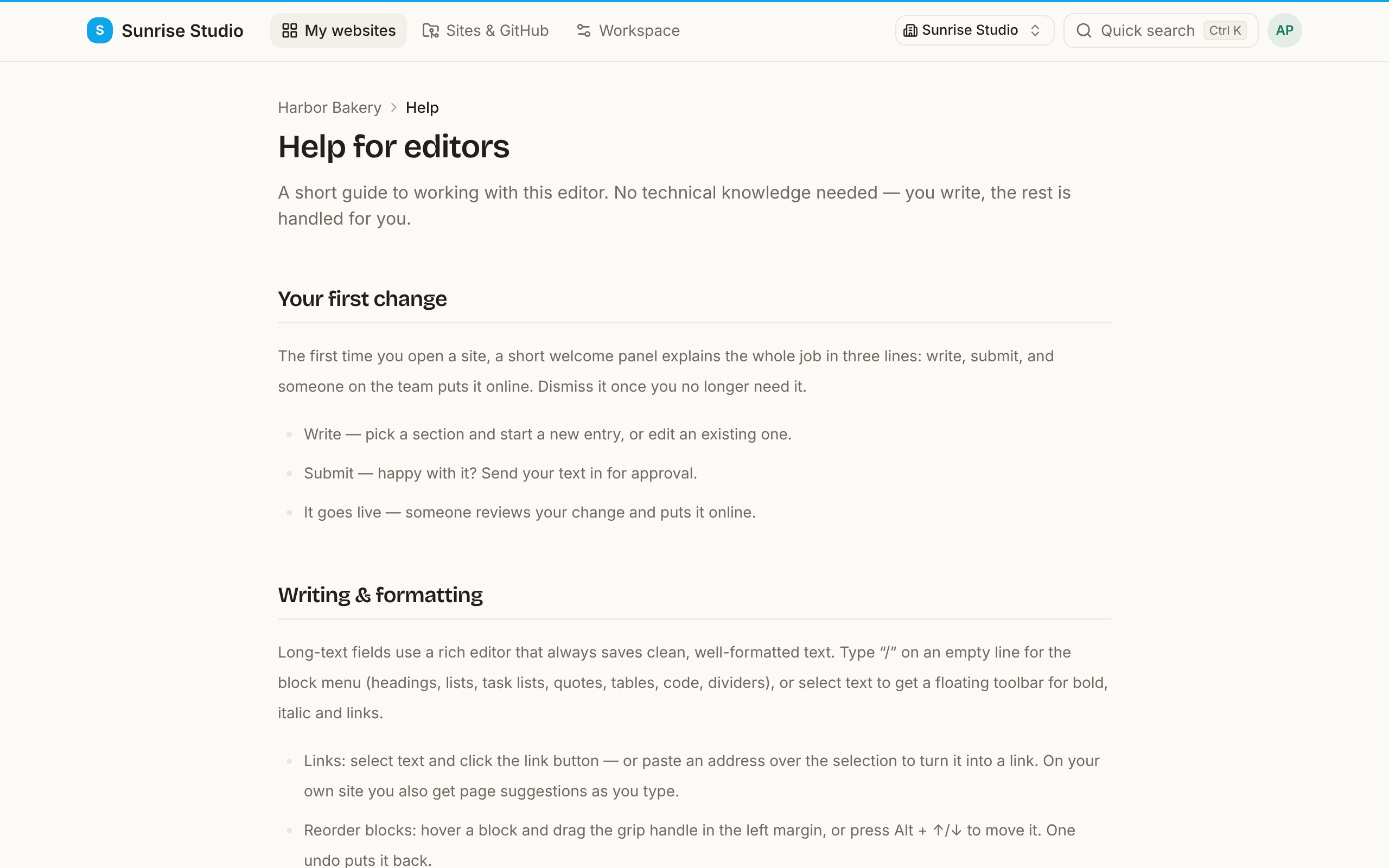
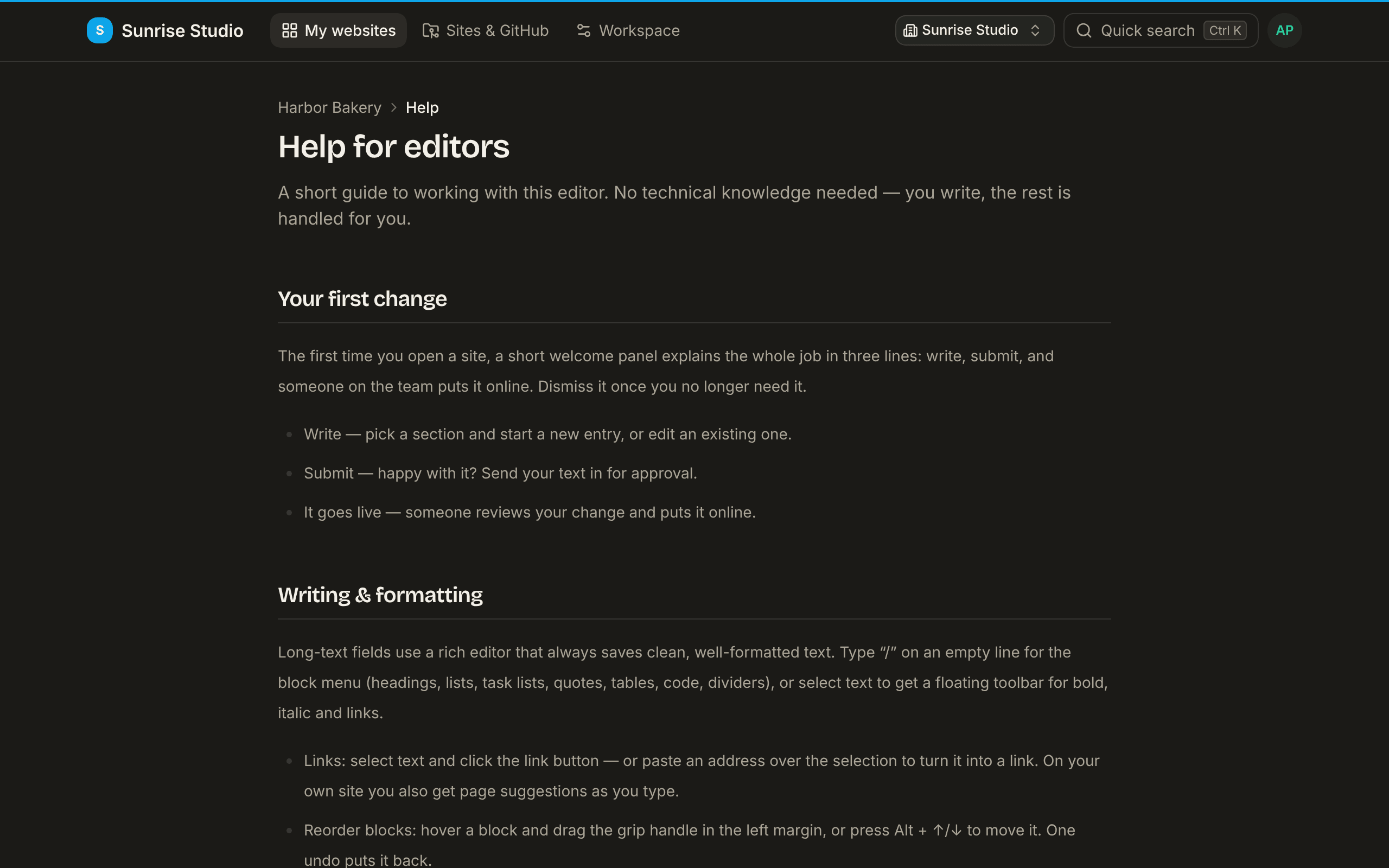
Every site has a short, plain-language Help page for writers (in the site menu, and in the ⌘/Ctrl + K palette). It explains writing, submitting and what happens next without mentioning PullPress by name, so it fits white-label setups too. The site's Members page has a Copy link button for it under Help your writers get started — paste it into your onboarding email; it works as soon as they've signed in.
Workspace settings
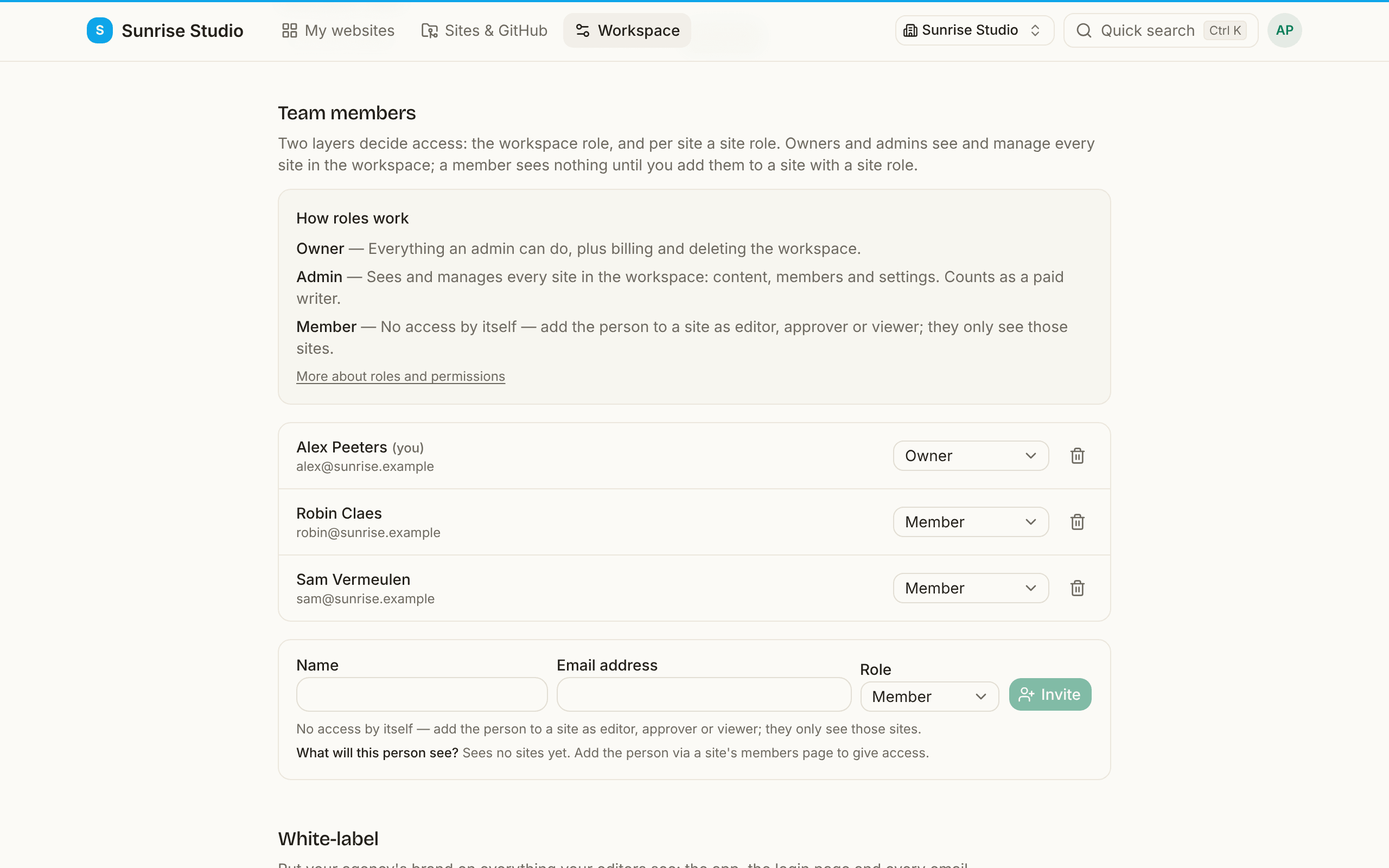
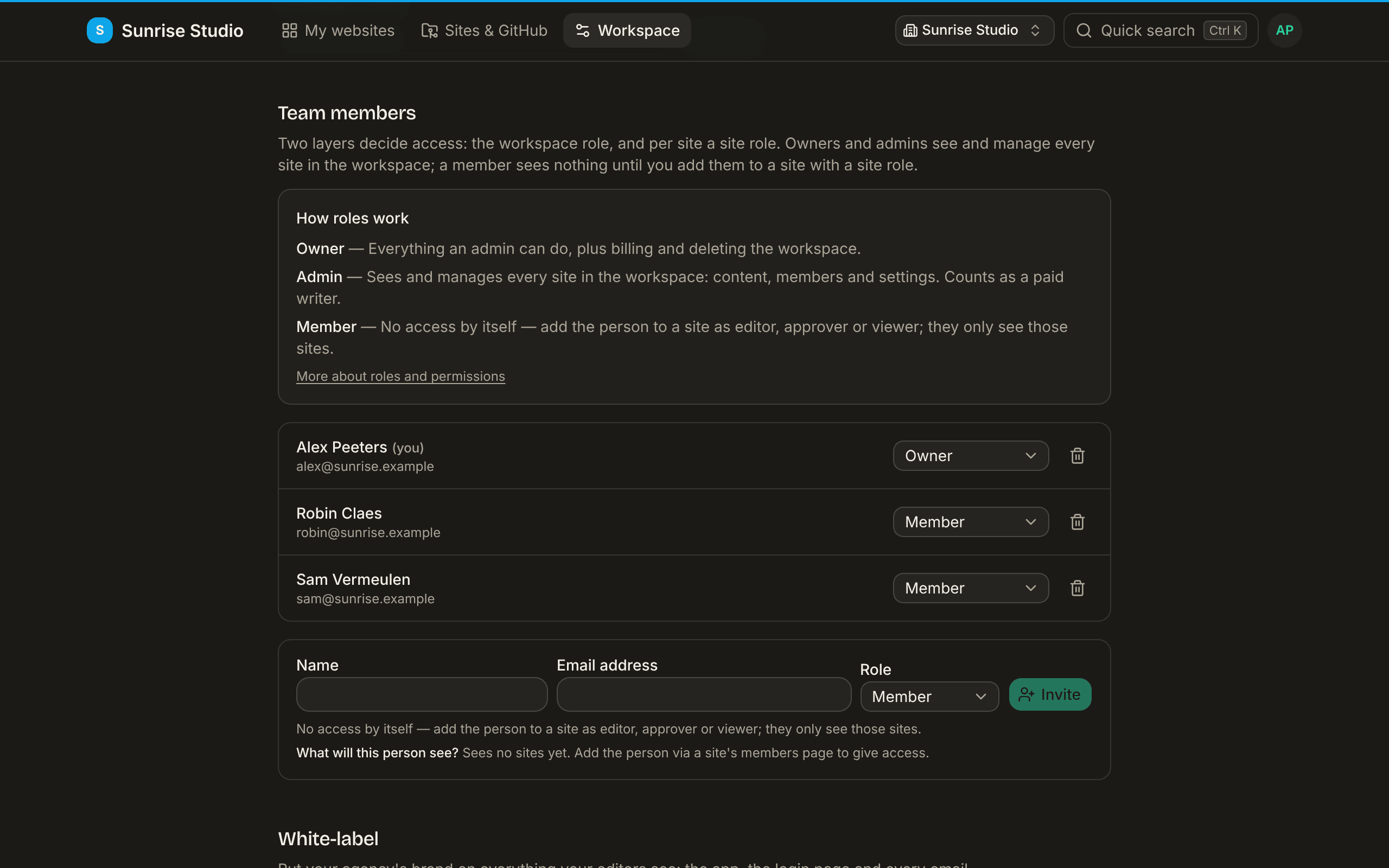
Workspace settings (in the main menu for workspace owners and admins) covers everything shared by all sites in the workspace.
- Rename the workspace.
- Team members — invite people, change their workspace role (owner, admin, member) or remove them. See roles & permissions.
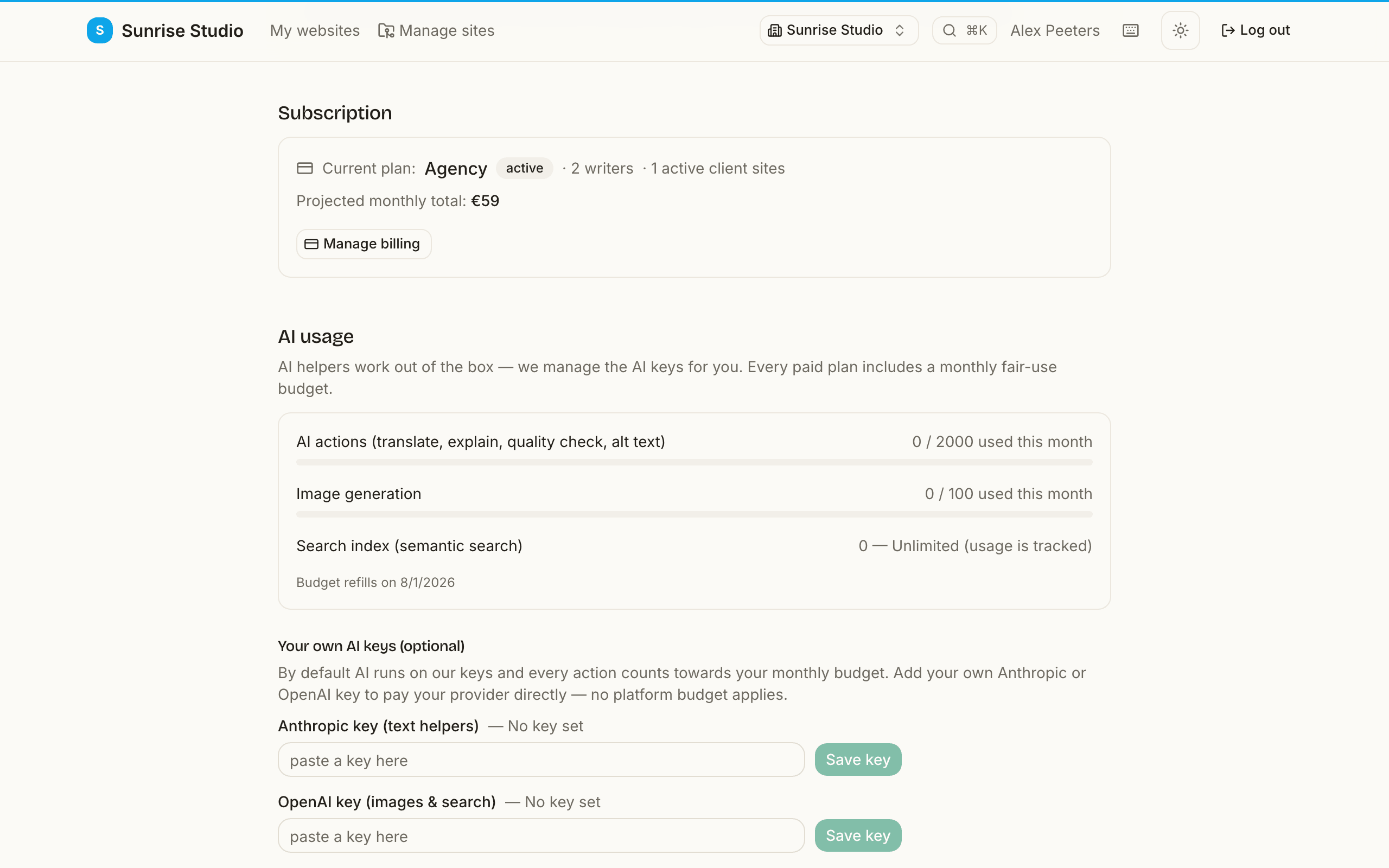
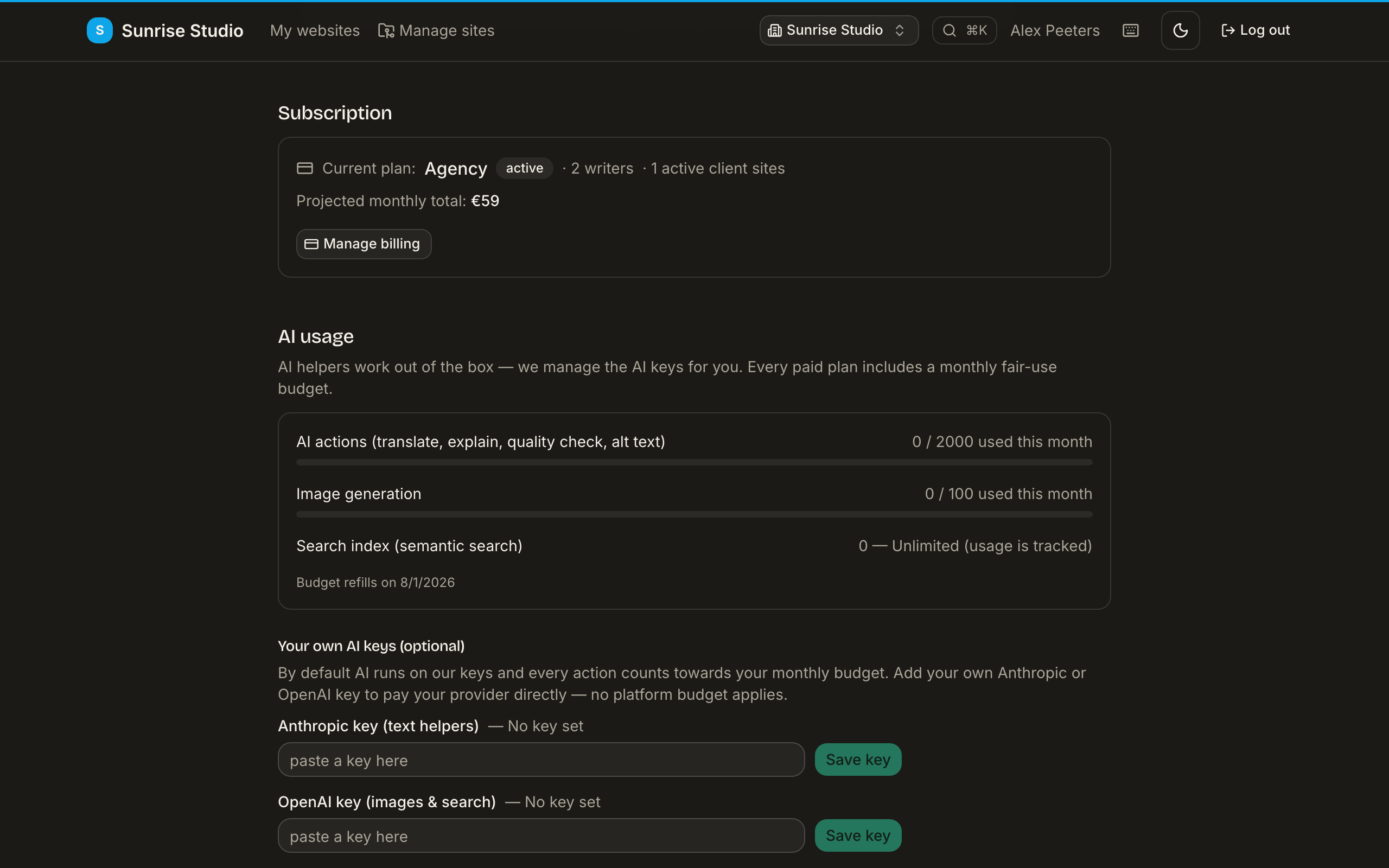
- Subscription — the current plan, writers and active client sites, the projected monthly total, and Manage billing (owner only) to change plan, update the payment method or cancel.
- AI usage — usage meters and your own AI keys; see AI & assistants.
White-label (Agency plan)
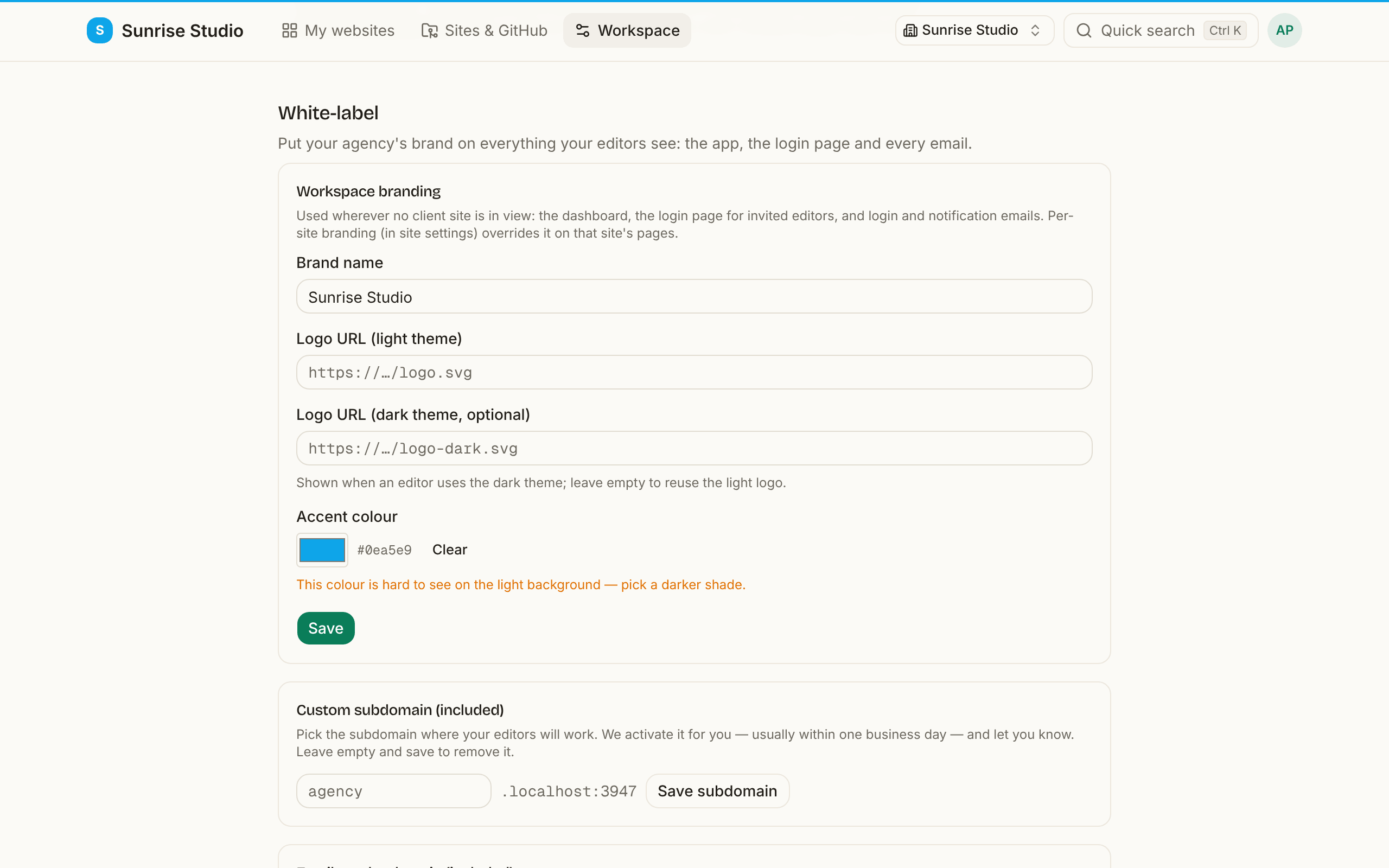
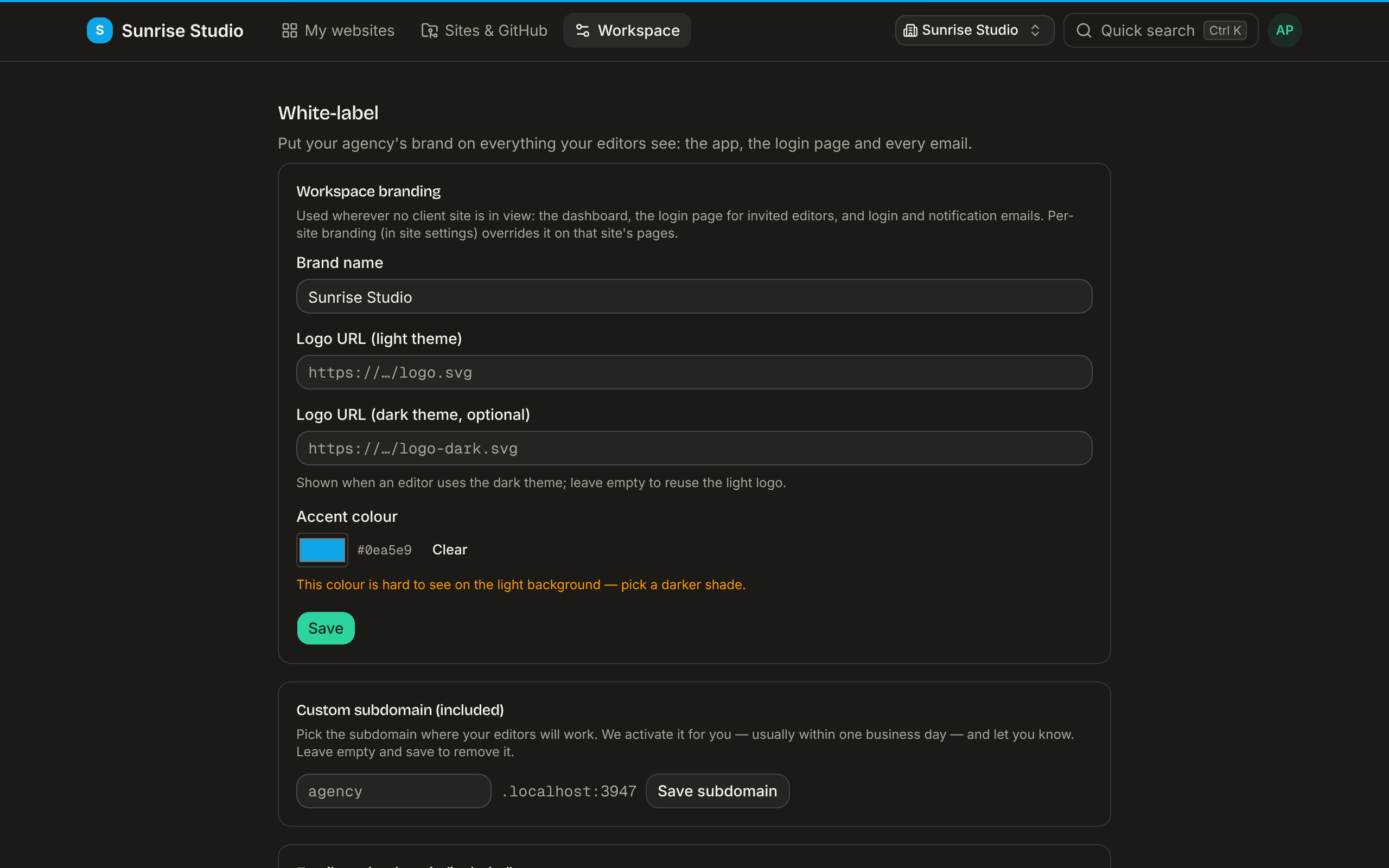
- Workspace branding — brand name, light and dark logo and accent colour, used wherever no client site is in view: the dashboard, the login page for invited editors, and login and notification emails. Per-site branding overrides it on that site's pages.
- Email sender domain — send login links and notifications from your own domain: add it, set the DNS records shown at your domain provider, then Check status. Until it verifies, emails use the default sender.
- Custom subdomain — pick the subdomain your editors work on. We activate it for you, usually within one business day, and let you know.
Deleting a workspace
Only an owner sees Delete workspace. It disconnects all of the workspace's sites from PullPress and cancels any active subscription. If the subscription can't be canceled at that moment, the workspace is kept (so billing never runs on without it) and you can simply try again. The content and history in your repositories stay fully intact.
Related: roles & permissions · AI & assistants · GitHub App setup